Write and edit docs
You write docs in Markdown. This page tells you how to create a doc, use the three editor views, save your changes and restore an older version.
Create a doc
You can start a new doc from three places:
- In Docs, select New doc.
- In a folder, select New doc. The new doc goes in that folder.
- On the Docs overview of a new org, select Write a doc.
kmem opens the New doc page.
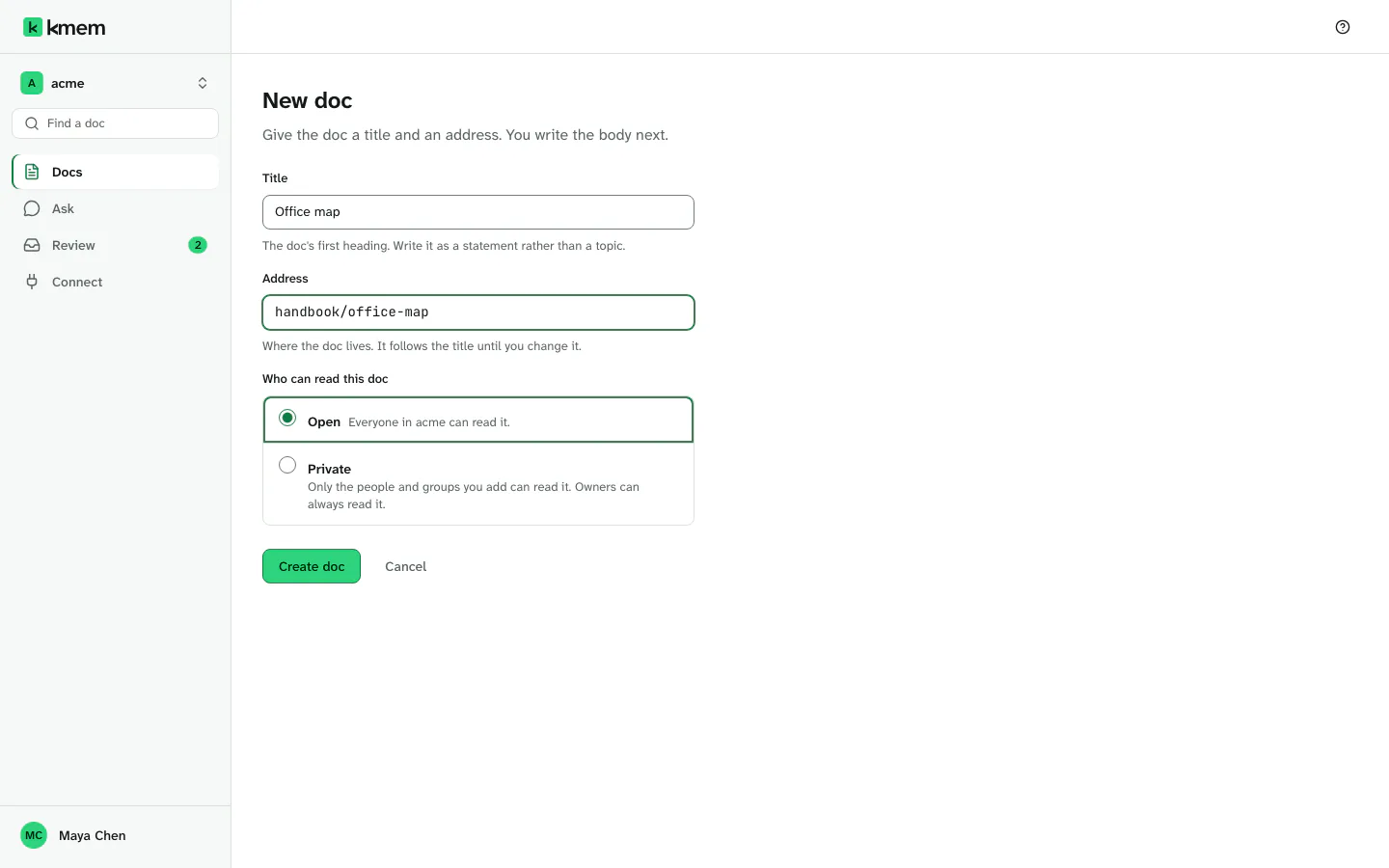
- In Title, type the title of the doc. Write it as a statement, for example "Payouts run hourly", not only a topic.
- Check Address. kmem makes the address from the title, for example
payouts-run-hourly. The address follows the title until you change it. - To put the doc in a folder, add the folder at the start of the address, for example
engineering/deploy-process. kmem shows the folder below the field. - Choose who can open the doc. The next section explains the choices.
- Select Create doc.
kmem creates the doc and opens it in the editor. Write the body next.
An address can have letters, numbers and hyphens. It cannot have spaces or the characters #, ?, * and \. kmem tells you when an address is not valid, and it suggests a correct address.
If kmem says that a doc already exists at the address, select Open it to open that doc. You can also change the title or the address.
If you leave the page before you select Create doc, kmem saves nothing. It asks Leave without creating the doc? first.
Choose who can read the new doc
The New doc page asks Who can read this doc. Choose one level:
| Level | Who can read the doc |
|---|---|
| Open | Everyone in the org. In a private folder, everyone who can read the folder. |
| Private | Only the people and groups that you add. Owners can always read the doc. |
Agents read what the person who connected them can read. There is no separate setting for agents.
If you choose Private, add people and groups under People and groups. Type a name or an email address in Find a person or a group to filter the list. kmem adds you to the list.
Control who can read a doc explains each level in detail. You can change the level later with Share.
Open the editor
- Open the doc.
- In the mode control at the top of the doc, select Write.
The editor opens. To go back to the reader, select Read.
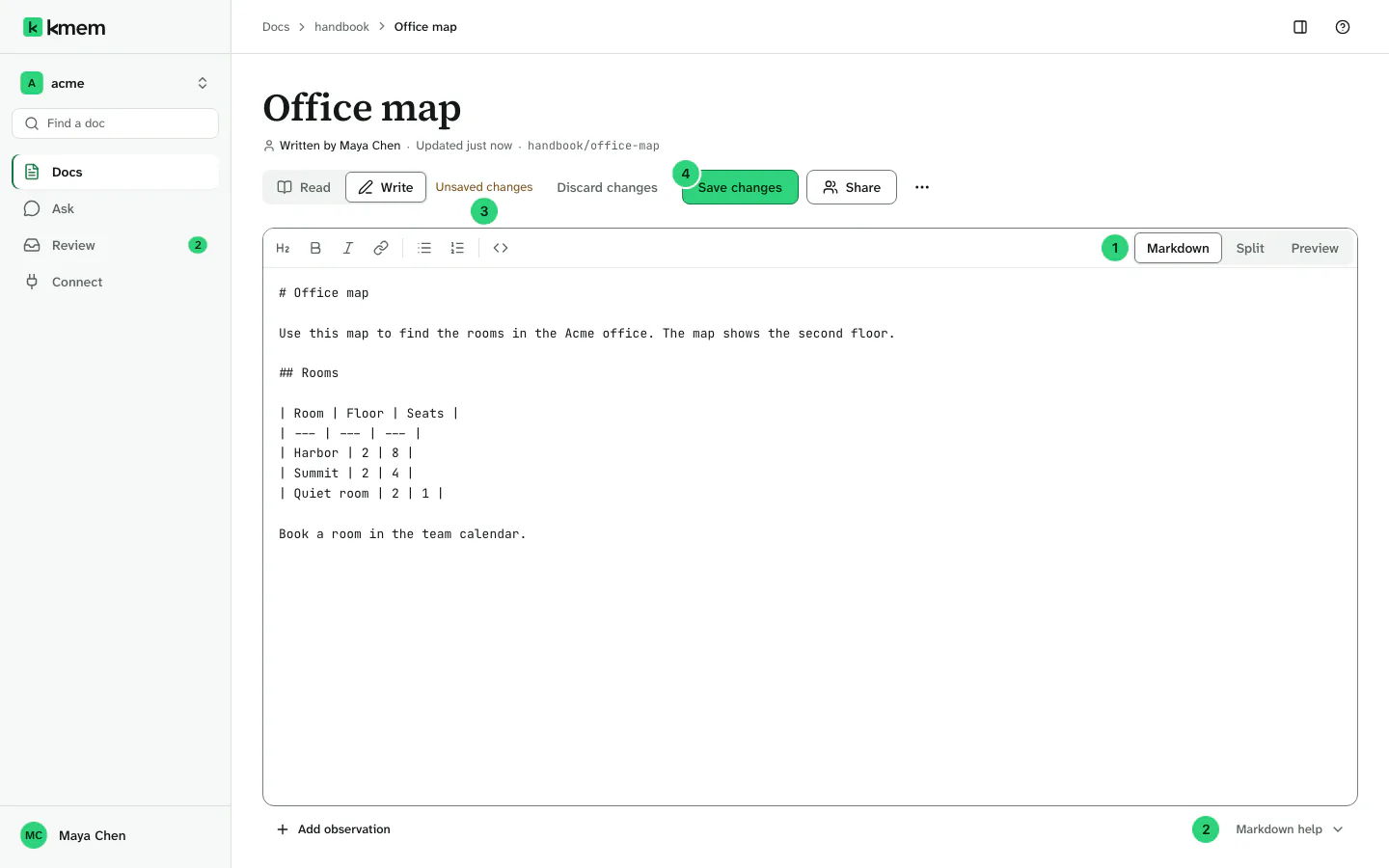 (open the full-size image, opens in a new tab)
The numbers in the image show these parts:
- Editor view, the control that changes the view.
- Markdown help, the list of Markdown shortcuts.
- The save state, for example Saved or Unsaved changes.
- Save changes, the button that saves the doc.
The Formatting toolbar above the text has these buttons: Heading, Bold, Italic, Link, Bulleted list, Numbered list and Code. Each button adds the Markdown characters at the cursor. Select a button again to remove them. Your browser can undo each change.
To add a note of a type that kmem knows, such as a decision, select Add observation below the text. You can also type /obs and then a space.
The three editor views
The Editor view control changes how the editor looks. kmem remembers your choice on each device.
| View | What you see | When to use it |
|---|---|---|
| Markdown | Only the Markdown text, across the full width. This is the default view. | Write and edit text. |
| Split | The Markdown text on the left and the preview on the right. | Check the result while you write. |
| Preview | The doc as its readers see it. | Read the result before you save. |
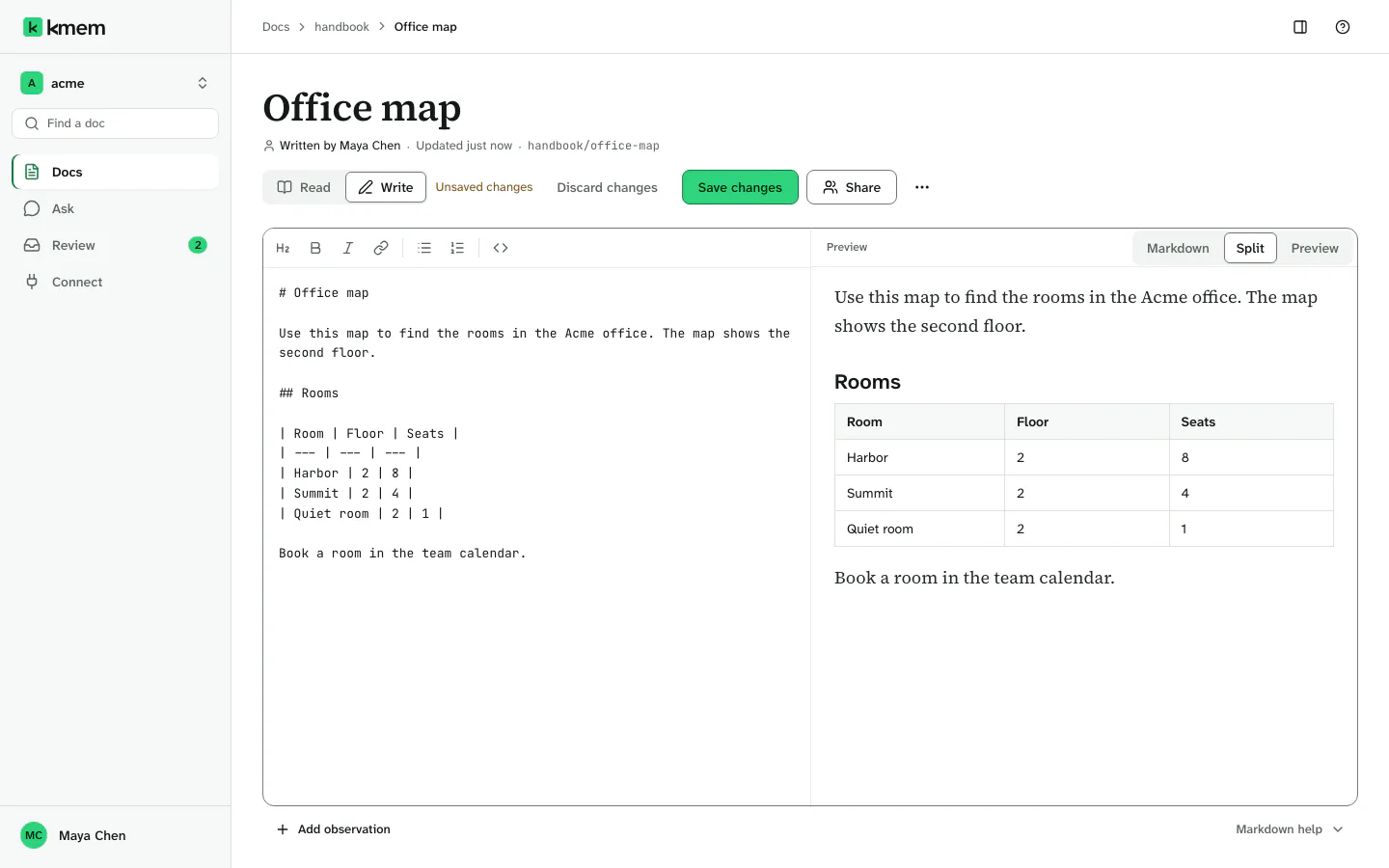
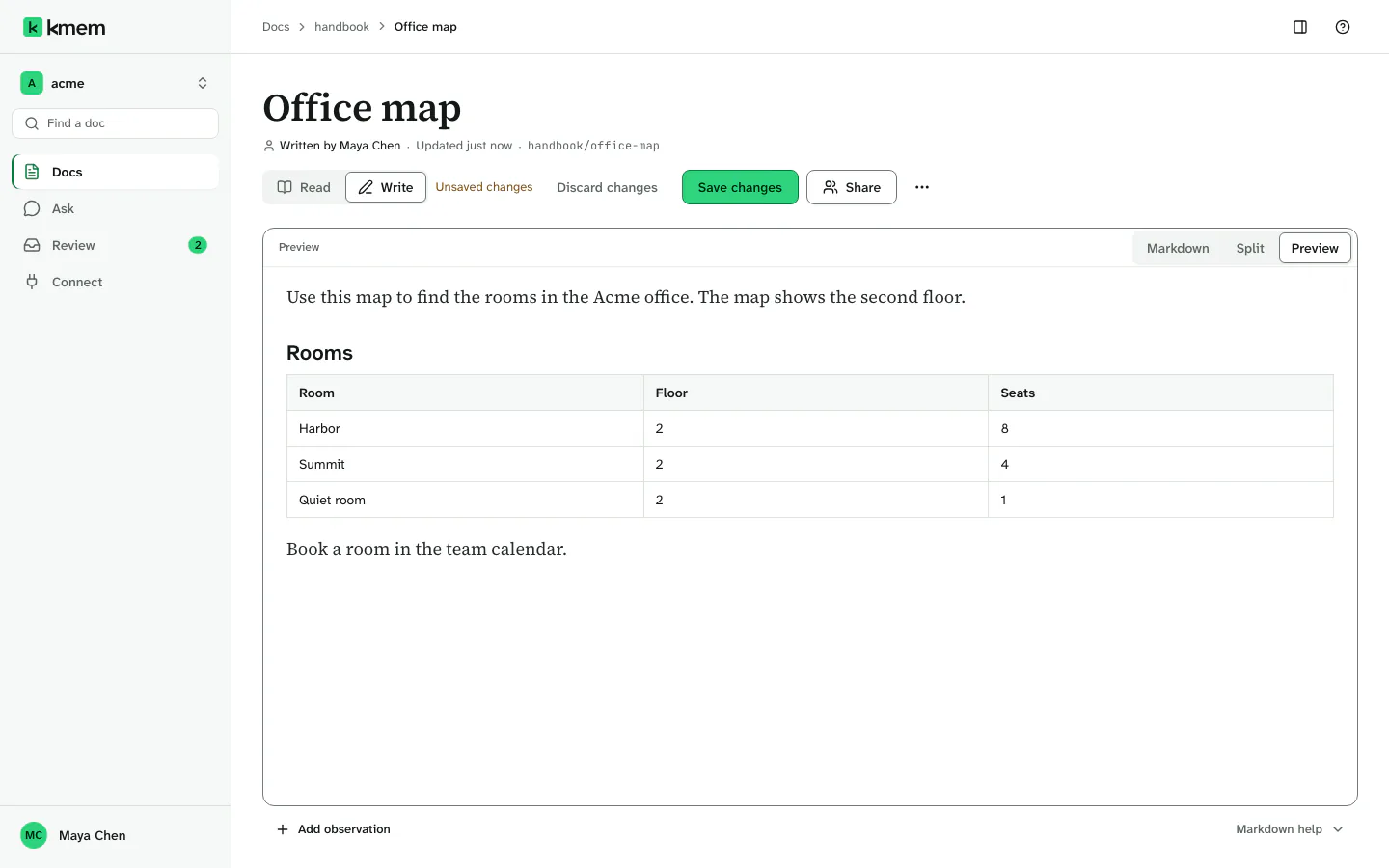
In a window that is narrower than 1024 pixels, the control shows only Markdown and Preview.
Markdown that kmem understands
kmem stores the doc exactly as you write it. It does not change your Markdown. It shows these parts in the reader:
| Part | Markdown |
|---|---|
| Headings | # Title, ## Section, ### Subsection |
| Bold, italic and strikethrough | **bold**, *italic*, ~~struck out~~ |
| Lists | - item or 1. item |
| Task lists | - [ ] open task and - [x] done task |
| Quotes | > quoted text |
| Tables | Rows of cells, separated by the pipe character, with a row of dashes under the header row |
| Code | `code` in a line, or a fenced block between three backticks |
| Links | [text](https://example.com) |
| Links to other docs | [[engineering/deploy-process]], or [[engineering/deploy-process#Rollback]] for a heading |
| References for agents | kmem:// references, such as the one that Copy doc reference copies |
| Images | . The next section explains which images show. |
| Observations | - [decision] We deploy on weekdays only #deploy |
| Keys, subscript, superscript and highlight | <kbd>Ctrl</kbd>, <sub>2</sub>, <sup>2</sup>, <mark>text</mark> |
A link to another doc with [[...]] is a wikilink. If you write a wikilink before the other doc exists, the link resolves when somebody creates that doc. The Backlinks list of the other doc then shows your doc.
kmem draws only the four HTML tags in the table. It never runs other HTML in a doc.
Add an image
An image in a doc is one line of Markdown: . Write a description that tells a reader what the image shows.
kmem shows an image when its bytes are in kmem or in the doc:
- An image that kmem stores has an address that starts with
/api/media/. kmem shows it to every person who can open the doc. - An image in the doc itself is a
data:address with a PNG, GIF, JPEG or WebP image.
kmem does not load an image from another website. Such an image could tell that website who read the doc, and when. kmem shows the description and the address as a link instead.
An address can also be a relative path, such as ./images/diagram.png. kmem then shows a message with the path, for example Image not uploaded: ./images/diagram.png. The image file did not come to kmem with the doc.
The editor has no button that uploads an image yet. A developer can store an image with the kmem API request POST /api/media. The API answers with the Markdown line for the image. Add that line to the doc.
Save your changes
kmem does not save while you type. You save when you are ready.
- Select Save changes, or press Ctrl+S (Cmd+S on a Mac).
- The save state changes to Saving…, and then to a time, for example Saved at 10:42.
Each save makes a new version in the history of the doc.
To remove all changes since the last save, select Discard changes. kmem asks Discard your unsaved changes? first. Nothing brings the draft back after you discard it.
kmem keeps a copy of your unsaved changes on this device. If you close the tab by mistake, open the doc again. kmem says This device has unsaved changes to this doc from 10:42. with the time of your last change. Select Restore changes to continue, or Discard draft to remove the copy.
If you leave the editor with unsaved changes, kmem asks Save your changes?. Select Save and leave, or Keep editing.
If the connection drops, the save state shows Offline · Draft saved on this device. kmem saves again when the connection comes back.
If a save fails, kmem says We could not save your changes. Your draft is still open. Try again. Select Retry save. To keep a copy on your computer, select Download draft.
When an agent writes while you edit
If an agent changes the doc while you have it open, kmem adds the change to the doc. A message names the agent with the person who owns its connection, for example Claude Code for Maya Chen just wrote to this doc through MCP. Its change is in the document. Open the summary under the message to see what changed. Select Dismiss to close the message.
When someone else saved first
Two people can edit the same doc at the same time. If another person or an agent saves first, your save stops, and kmem shows this message:
This doc changed elsewhere. Review the latest version before saving.
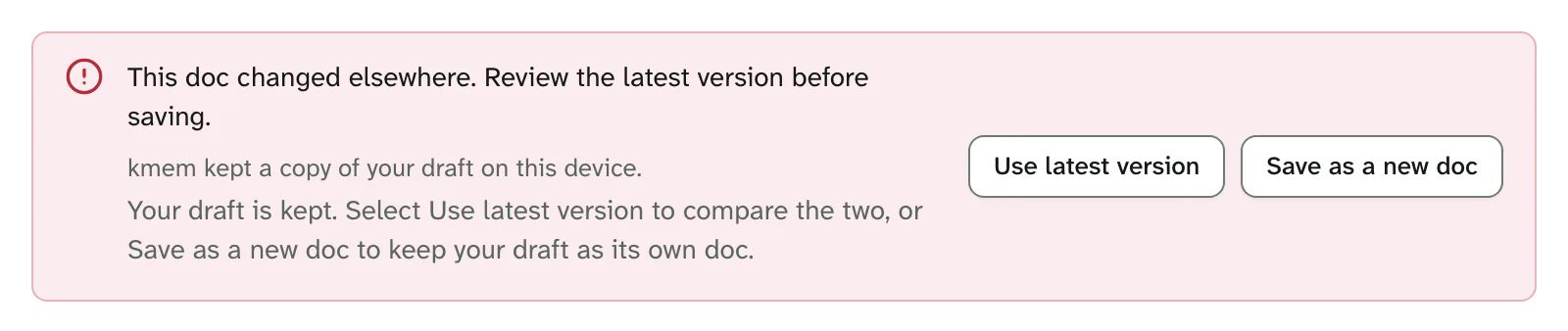
kmem keeps your draft. Choose one of these actions:
- Use latest version. kmem puts the latest version in the editor and keeps your draft on this device. Then:
- Select Compare with your draft to see both texts.
- Copy the parts of your draft that you need. Use Copy your draft to copy all of it.
- Add your changes to the latest version, and save.
- Or select Put your draft back to use your draft. When you save, your draft replaces the changes of the other person.
- Select Discard your draft when you do not need it.
- Save as a new doc. kmem saves your draft as a separate doc. The original doc keeps the changes of the other person.
If the other person deleted the doc, kmem says This doc was deleted while you were editing it, so your changes were not saved. Undo the deletion and save again, or select Save as a new doc.
Rename or move a doc
The title and the address of a doc are separate. You can change one or both.
- Open the doc.
- Select Doc actions, then Rename or move.
- In Title, type the new title.
- In Address, type the new address. The folder comes from the address. For example,
decisions/session-cookiesputs the doc in the decisions folder. - Select Rename doc or Move doc.
kmem updates every wikilink that points to the old address. It tells you how many docs link to the doc before you move it. After the move, the doc shows the old address, for example Moved from engineering/deploy. Select Move it back to undo the move.
kmem does not change a kmem:// reference in the text of a doc. A reference that starts with sp:// is an older spelling of the same reference, and it still opens the doc. kmem tells you how many references still point at the old address. Change them by hand.
Save or discard your changes before you rename or move a doc.
Delete and restore a doc
- Open the doc.
- Select Doc actions, then Delete doc.
- In Reason, type why you delete the doc, for example "Superseded by the managed service." kmem stores the reason in the audit log.
- Select Delete doc. Select Keep the doc to cancel.
The doc leaves Docs and search, and agents cannot find it. kmem keeps every version.
To restore the doc, open its address again. kmem says when the doc was deleted, for example This doc was deleted 2 hours ago. Every version is kept. Select Undo the deletion. The doc comes back at the same address, with the same history.
Links to a deleted doc stay unresolved until the doc comes back.