Import and export docs
Import adds the docs that your team already has. Export downloads your docs as plain Markdown. This page tells you how to do both and how to read the result.
To bring context from another AI, see Import memory from another AI.
What you can import
You can import these files:
- Markdown files (
.md) and plain text files (.txt). - A folder of such files. kmem keeps the subfolders.
- One zip file of such files. An Obsidian vault in a zip works too.
The Import docs page shows the limits before you choose files: Up to 300 files · 976 KB per file · 25 MB per zip.
These rules also apply:
- kmem reads one zip in each import. Import a second zip on its own.
- Import a zip without other files. Import the other files after the zip.
- kmem does not add
README.md,AGENTS.md,CLAUDE.mdor the.signpostfolder as docs. Rename such a file to add it. - kmem does not add images or other file types. It tells you which files it left out, and why.
Import docs
- Select Connect, then Import → Import files. You can also select Import docs in Docs.
- Add the files in one of these ways:
- Drop the files, a folder or a zip on the page.
- Select Choose files.
- Select Choose a folder.
- Check the list of files. kmem marks each file that it cannot import, with the reason. Select Clear selection to start again.
- Choose a destination folder. The next section explains this step.
- Select the import button, for example Import 18 files.
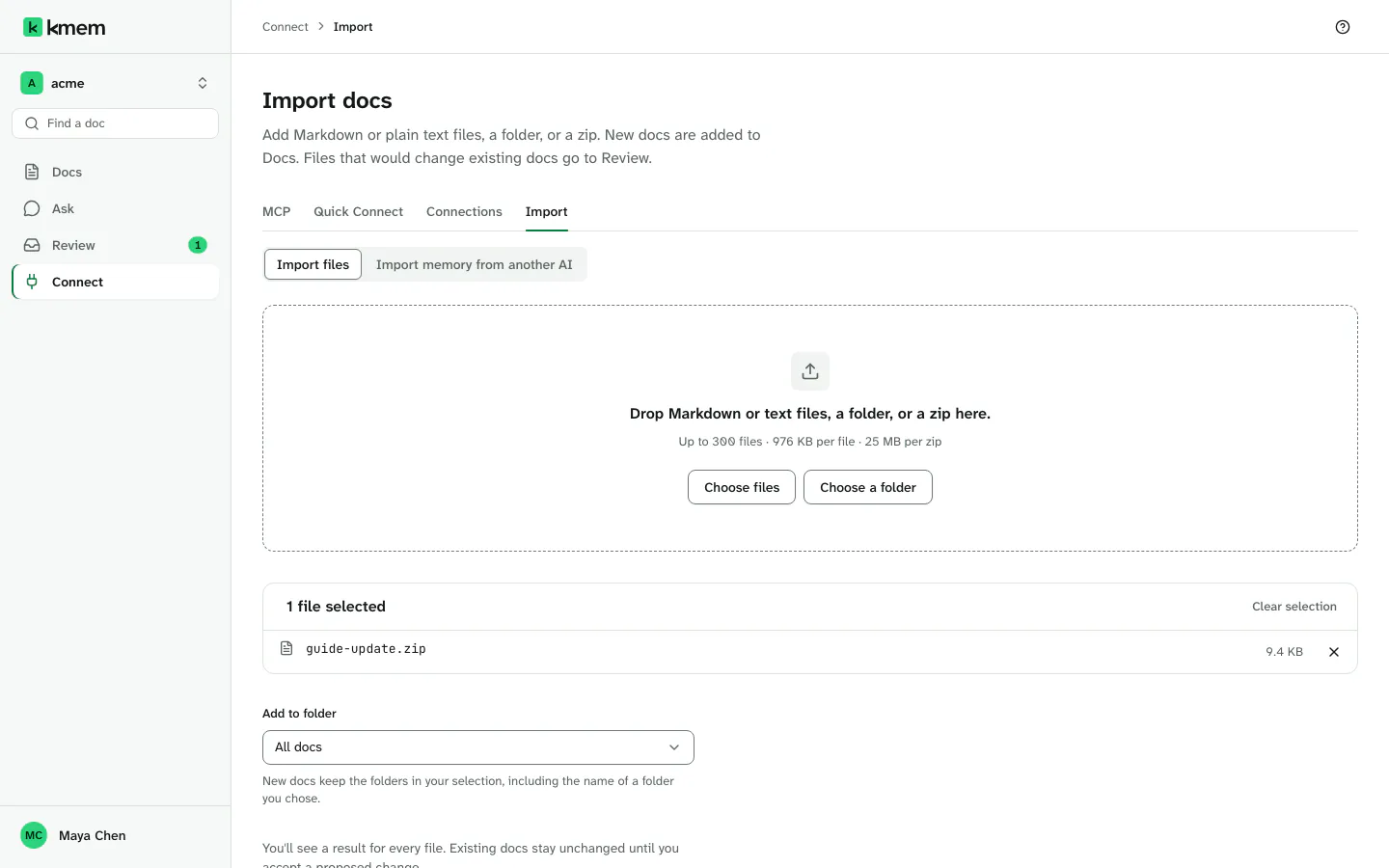
kmem shows the progress. Keep the page open until the browser sends every file. After that, you can leave the page. The import continues, and you can come back to it from Recent imports.
Select Cancel import to stop the import before every file arrives. kmem then adds nothing.
Nothing changes an existing doc without a person. A file that would change an existing doc goes to Review.
Choose a destination folder
Use Add to folder to choose where the new docs go:
- All docs puts the files at the top level. kmem keeps the folders in your selection, for example
handbook/onboarding.mdbecomes the dochandbook/onboarding. - An existing folder puts the files in that folder, and keeps the folders in your selection below it.
- A new folder puts the files in a folder that you name. Type the name in New folder name, for example
handbook.
kmem shows where the new docs will go before you import.
To import into a folder from Docs, open the folder options menu, and select Import to this folder.
Read the import result
When the import ends, kmem shows Import complete and the totals, for example 12 docs added · 5 skipped · 1 sent to review.
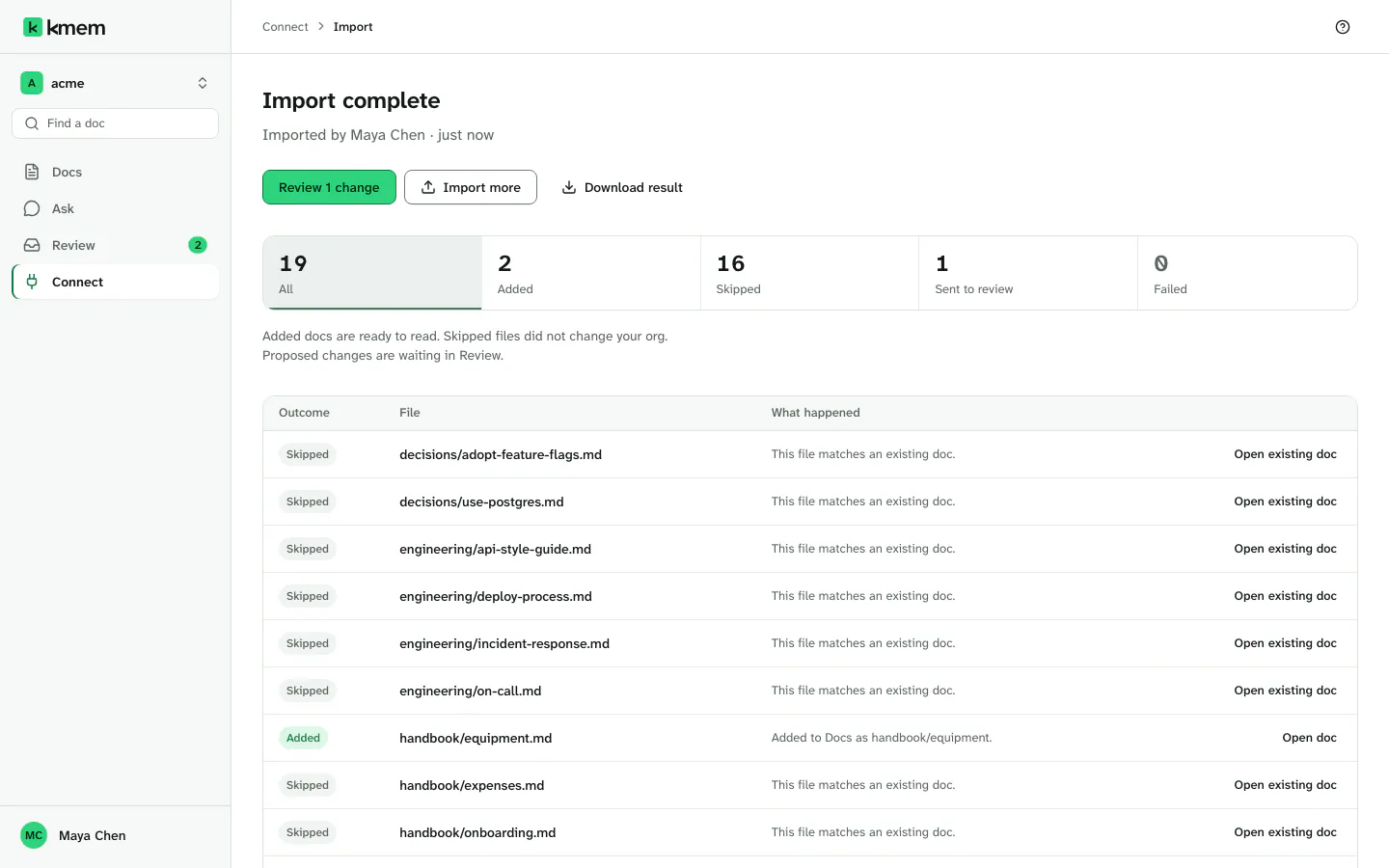
The table shows each file with its outcome. Use Outcome to show one outcome only.
| Outcome | What it means |
|---|---|
| Added | kmem added the file as a new doc. It is ready to read. |
| Skipped | kmem did not change your org. For example, the file matches an existing doc. |
| Sent to review | The file would change an existing doc. The change waits in Review for a person. |
| Failed | kmem could not add the file. |
Each row also gives the reason. These are the common reasons, with what to do:
| Reason | What to do |
|---|---|
| This file matches an existing doc. | Nothing. The doc is already in kmem. |
| This file would change an existing doc. | Decide the change in Review. |
| This change is already waiting in Review. | Decide the earlier change in Review. |
| kmem keeps README.md, AGENTS.md, CLAUDE.md and the .signpost folder out of the knowledge base. Rename the file to add it as a doc. | Rename the file, then import it again. |
| This file name cannot become a doc address. Rename the file and import it again. | Rename the file, then import it again. |
| Two files in this import share one address. Rename one and import it again. | Rename one of the files, then import it again. |
| This file is too large for one doc. Split it into smaller files and import them again. | Split the file, then import the parts. |
| kmem could not process this file. Retry it, or import it on its own. | Select Retry failed files, or import the file alone. |
Each row has actions:
- Open doc opens a doc that the import added.
- Open existing doc opens the doc that a skipped file matches.
- View change opens the change in Review.
- Use this file instead is for a file that disagrees with an existing doc. The next section explains it.
Below the table, use these actions:
- Review 1 change opens Review. The count shows the number of changes.
- Open docs opens Docs.
- Download result downloads the table.
- Retry failed files imports the failed files again.
- Import more starts a new import.
If kmem says You cannot add a doc at this address. Choose another folder, or ask an owner for access., you cannot write in that folder. Choose another destination.
Use this file instead
A file can say something different from a doc that already exists. kmem then sends the file to Review. You can decide in Review, or you can use the file at once:
- In the result table, select Use this file instead on the row of the file.
- Read the message Use this file instead?.
- Select Use this file. Select Cancel to stop.
kmem adds the file to Docs. It marks each doc that the file still disagrees with as superseded. Search, Ask and agents then leave out a superseded doc.
Recent imports
Recent imports on the Import docs page lists your last imports. Each row shows the status, the time and the result.
| Status | What it means |
|---|---|
| Waiting | The files arrived. kmem starts to add them soon. |
| In progress | kmem adds the files now. |
| Complete | The import ended with no failure. |
| Needs attention | The import ended, and some files need a decision or failed. |
| Failed | The import stopped. |
Select View result or View progress to open an import.
If an import takes long, kmem restarts it. Keep the page open, or come back later.
Export docs
Every member can export the docs that they can read. You do not need to be an owner or an admin.
- Open the account menu, and select Export docs. An owner or an admin can also open Org settings, then Export.
- Under Folders, select the folders to export. Select Every folder to export all of them.
- In Single docs, you can add the addresses of single docs, one address on each line, for example
handbook/onboarding. - Under Format, choose one format:
- One Markdown file, everything inlined. All docs in one file.
- A zip with one file per doc and its folder path. The same structure as in kmem.
- Read the summary. It says what the export holds.
- Select Export docs.
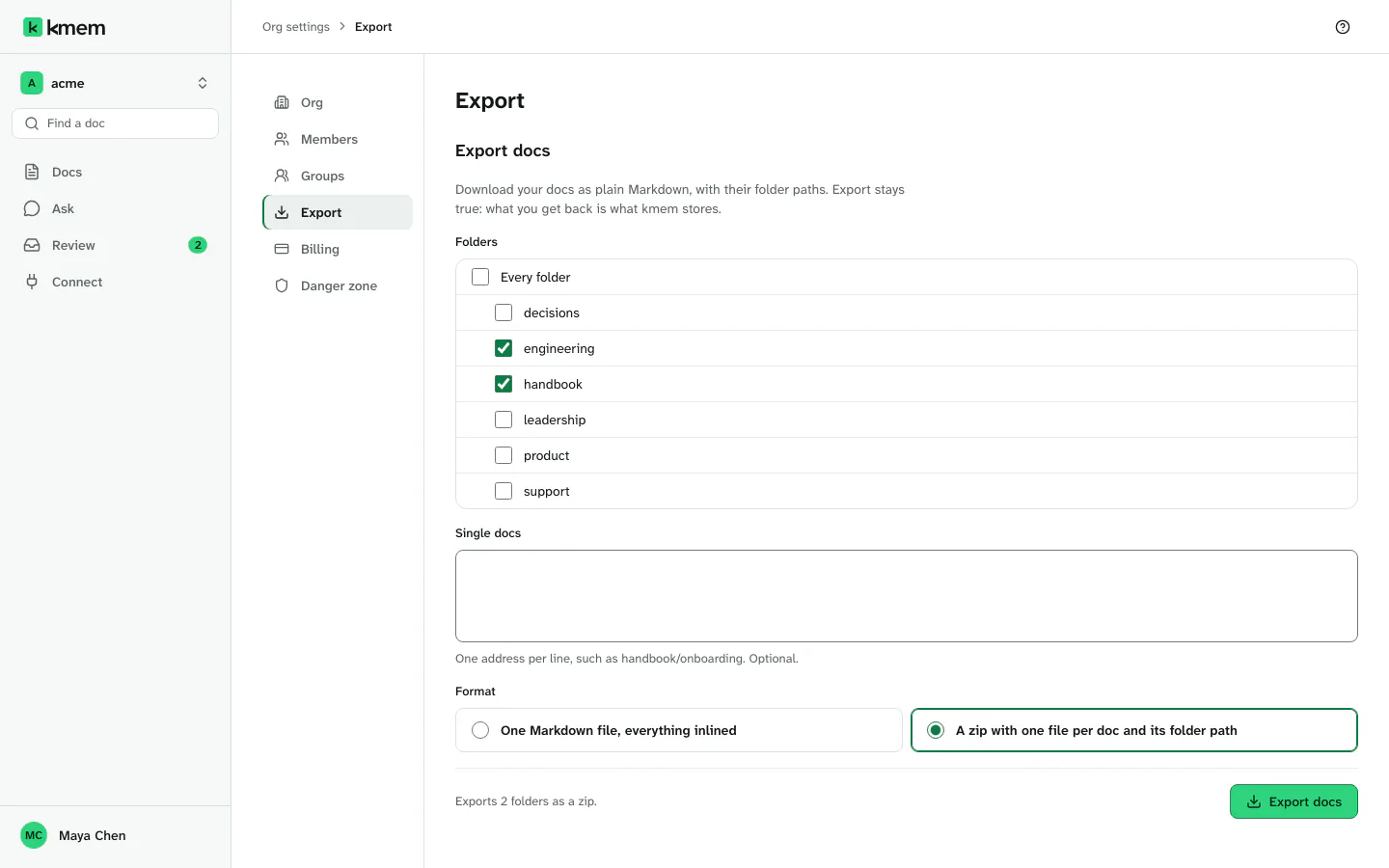
kmem downloads the file. A message gives the name of the file and the number of docs in it.
If kmem says that the export stopped at a limit, the file does not hold everything that you chose. Export fewer folders at a time.
If kmem says that no doc you can read is at an address, check the address against the address of the doc.
What an export holds
- Each doc as the Markdown that kmem stores. kmem does not change the text on the way out.
- The folder path of each doc, in a zip.
- The access lists and the visibility of each doc, because they are part of the Markdown.
An export holds only the docs that you can read. It does not hold images that kmem stores. A doc keeps the address of each image.
You can open the files in any text editor. You can import a zip export into another org.