Connect ChatGPT
ChatGPT connects to kmem over MCP and signs in to kmem. You do not copy a token.
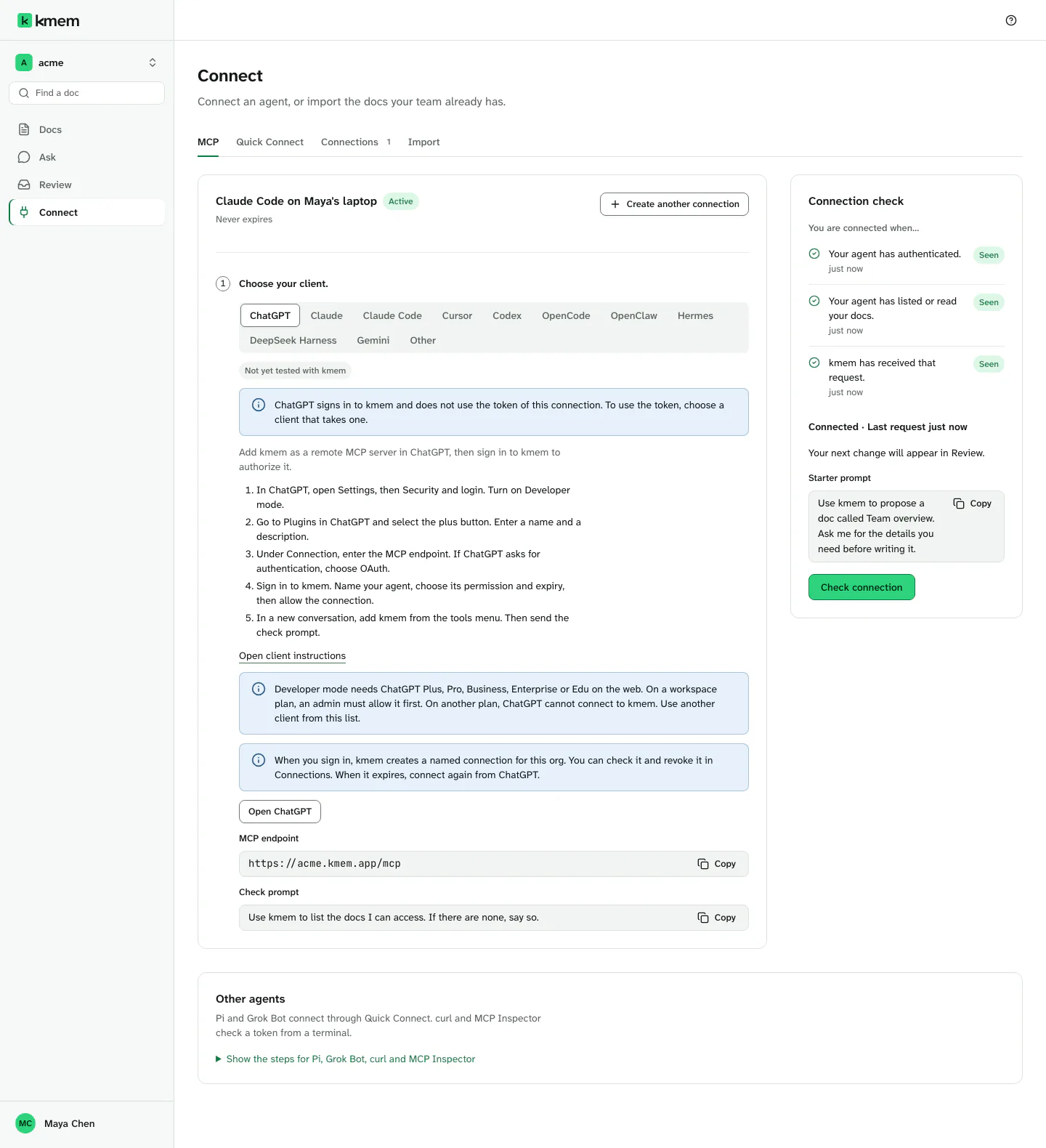
The Connect screen marks ChatGPT Not yet tested with kmem. The steps on this page come from the ChatGPT documentation. ChatGPT can change its screens without notice.
Before you start
Check these points first:
- Developer mode needs ChatGPT Plus, Pro, Business, Enterprise or Edu, on the web.
- On a workspace plan, such as Business or Enterprise, an admin must allow developer mode first.
- On another plan, ChatGPT cannot connect to kmem. Use another client.
- You need a kmem account that is a member of the org.
Get the MCP endpoint of your org:
- In kmem, select Connect. The MCP tab opens.
- Select ChatGPT in the list of clients.
- Under MCP endpoint, select Copy endpoint. The endpoint looks like
https://acme.kmem.app/mcp.
The ChatGPT tab has no Quick Connect choice. In earlier tests, ChatGPT did not open a Quick Connect URL, and it once gave an answer that it did not get from kmem.
Turn on developer mode
- In ChatGPT, open "Settings", then "Security and login".
- Turn on "Developer mode".
If you do not see the setting, your plan does not have it, or an admin of your workspace did not allow it.
Add kmem in ChatGPT
- In ChatGPT, go to "Plugins". In kmem, Open ChatGPT opens this page.
- Select the plus button.
- Enter the name that the ChatGPT tab in kmem shows, for example "acme-kmem", and a description, for example "The knowledge base of my team". Each org has its own name, so ChatGPT can hold the kmem of more than one org.
- Under "Connection", paste the MCP endpoint.
- If ChatGPT asks for authentication, choose "OAuth".
- Continue. ChatGPT opens a kmem page in your browser.
If you are not signed in to kmem, kmem asks you to sign in first. After you sign in, kmem shows the approval page.
Approve kmem
The approval page has the title "Connect an agent to" and the name of your org. Read it carefully before you allow the connection.
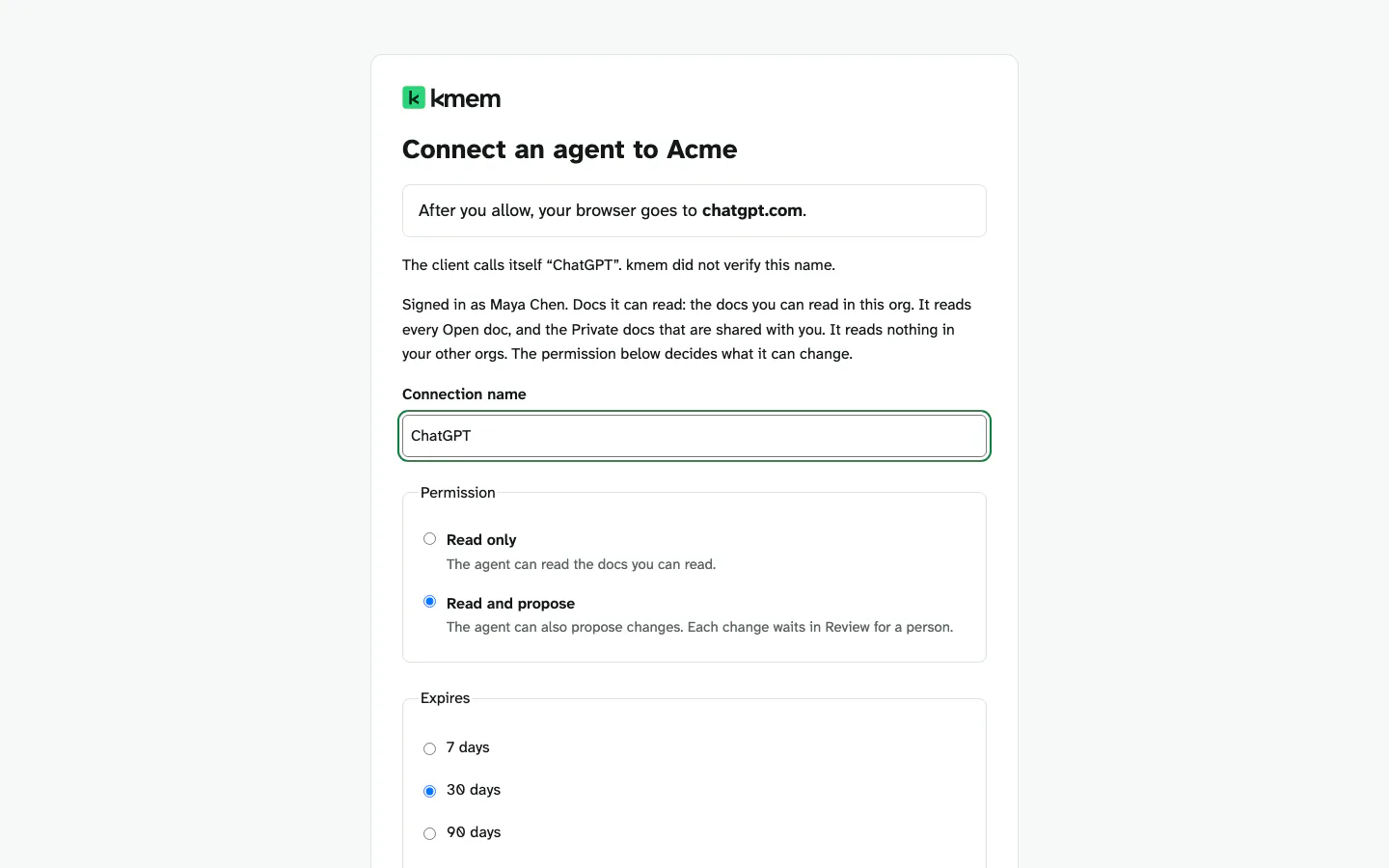
- Check the return address. The page says "After you allow, your browser goes to" and a host name. For ChatGPT, the host is
chatgpt.com. - If the page says that kmem does not know the host, stop. Allow the connection only if you started it from that host.
- Check the client name. The page says what the client calls itself. kmem did not verify this name. The return address is the fact that identifies the client.
- Check the name in "Connection name". kmem fills in the client, your first name and the date, for example "ChatGPT · Maya · 8 Oct". You can change the name. The field must not be empty.
- If kmem does not know the return address, the name starts with that host, not with the name that the client gives itself.
- Under "Permission", choose what ChatGPT can do. The page shows the choices up to the widest permission that ChatGPT asked for:
- "Read only": ChatGPT can read the docs you can read.
- "Read and propose": ChatGPT can also propose changes. Each change waits in Review.
- "Read, propose and write": ChatGPT can also add and edit docs directly. This choice is not available while Agent writes is off.
- Under "Expires", choose 7 days, 30 days, 90 days or Never. The page selects 30 days first.
- Select "Allow connection". Select "Cancel" to stop.
The page never selects "Read, propose and write" for you. It selects "Read and propose" at most. Choose write access only on purpose.
After you allow, kmem sends your browser back to ChatGPT. kmem creates a connection with the name in the field. The connection can read the docs you can read in this org, and nothing in your other orgs.
In kmem, the connection appears in Connections with Via ChatGPT (sign-in).
Use kmem in a chat
- Start a new conversation in ChatGPT.
- Add kmem from the tools menu.
- Send the check prompt:
Use kmem to list the docs I can access. If there are none, say so.ChatGPT lists the docs that it can read. In kmem, open Connections and select Check connection in the menu of the connection. Read Check a connection.
Then ask questions about your docs, or ask ChatGPT to propose a doc. A proposal waits in Review.
When the connection expires
kmem gives ChatGPT no refresh token. When the connection expires, ChatGPT loses access.
- In ChatGPT, connect kmem again. ChatGPT opens the kmem approval page.
- Approve the connection again.
In kmem, the expired row in Connections offers Reconnect in ChatGPT. It shows the steps again.
To stop the access before the expiry date, revoke the connection in kmem. Read Revoke a connection.
If it does not work
| What you see | Cause | What to do |
|---|---|---|
| ChatGPT has no "Developer mode" setting. | Your plan does not have it, or an admin did not allow it. | Ask the admin of your workspace, or use another client. |
| ChatGPT cannot reach kmem. | The endpoint is wrong. | Copy the endpoint again from the MCP tab. It must end with /mcp. |
| kmem says that the client or its return address is not registered for this org. | ChatGPT registered with another org, or with an old endpoint. | Remove the kmem connector in ChatGPT. Add it again with the endpoint of this org. |
| kmem says that the signed-in person is not a member of this org. | You signed in with another account. | Sign out of kmem, then sign in with the account that is a member of the org. |
| The write choice is not available. | Agent writes is off for the org. | Choose another permission, or ask an owner or an admin to turn on Agent writes. |
| ChatGPT stops with an access error. | The connection expired, was revoked, or its person left the org. | Connect again from ChatGPT. |
| ChatGPT finds no docs. | The connection reads only the docs that you can read. | Check the visibility of the docs. Read What agents can read. |