Organize docs in folders
Folders put docs about one subject together. A folder can also limit who can read the docs in it. This page tells you how to create, move and make folders private.
How folders work
A folder is the first part of the address of a doc. For example, the doc engineering/deploy-process is in the folder engineering. A folder can hold other folders, for example engineering/backend.
kmem stores no empty folders. A folder appears when somebody writes its first doc, and it goes away when its last doc goes away.
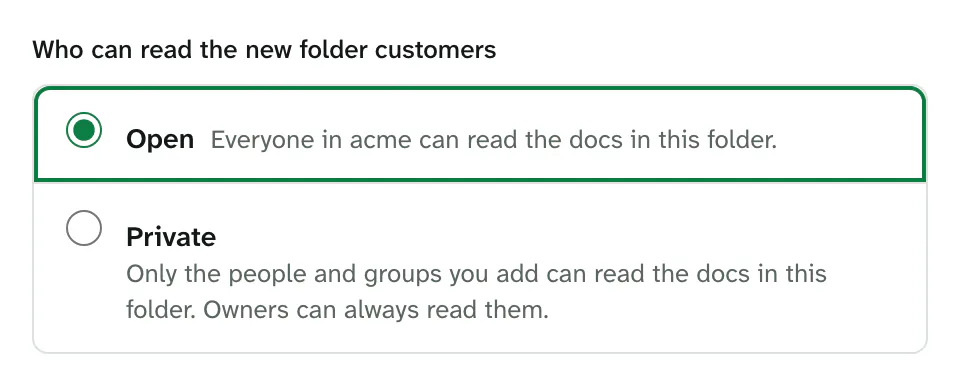
Each folder can also have a setting: who can read its docs, Open or Private. Agents read what the person who connected them can read. kmem keeps the setting in a file named _folder.md in the folder. Because the settings are Markdown, the history of the folder and every export show them.
Create a folder
- In Docs, select New folder. To create a folder inside another folder, open the menu of that folder. Then select the item with its name, for example New folder in engineering.
- In Folder name, type the name, for example
leadership. - kmem changes spaces to hyphens.
- Add
/for a nested folder, for examplebackend/auth. - A name cannot have
#,?,*or\, and it cannot be.or..alone. - Select Continue to the first doc.
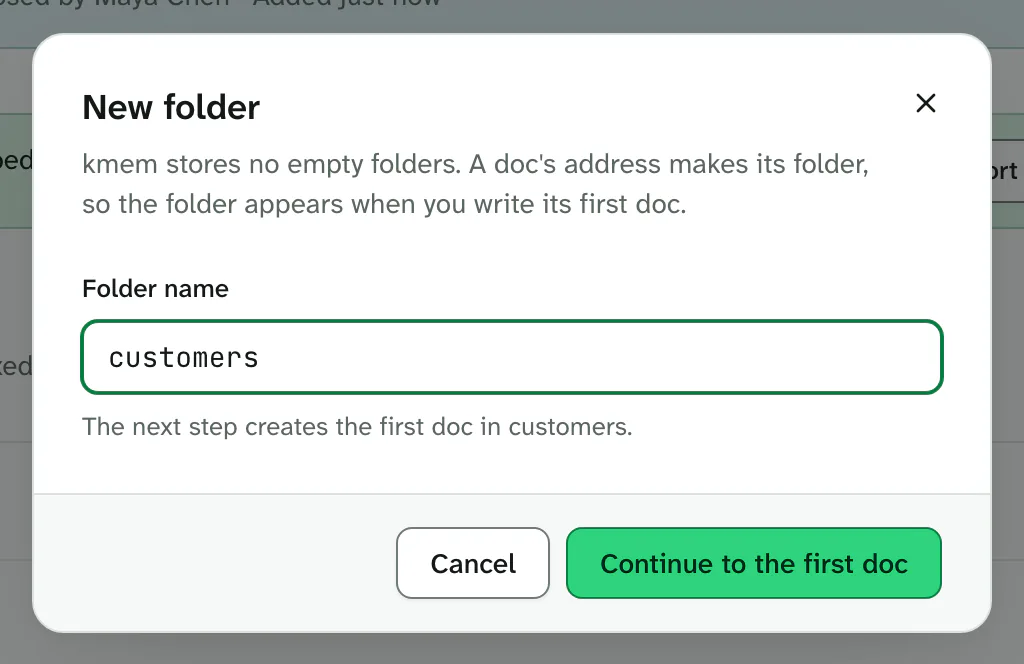
kmem opens the New doc page for the first doc of the folder. The page says that the doc creates the folder.
- Under Who can read the new folder leadership, select Open or Private. For Private, add the people and groups that can read the docs in the folder. The choices are the same as for a doc. Control who can read a doc explains them.
- Type the title of the first doc.
- Select Create doc.
kmem saves the folder settings and creates the first doc. The doc follows the settings of the folder.
If you leave the page before you select Create doc, kmem creates neither the folder nor the doc.
If kmem saved the folder settings but could not create the doc, it says so. Fix the problem in the message, then select Create doc again.
Change the folder settings
You can change who can read a folder when you can open and edit the folder.
- In Docs, open the folder menu of the folder. You can also open the folder and select Share at the top of the page.
- Select Share. kmem opens the Share dialog for the folder.
- Select Open or Private. For Private, choose the people and groups.
- Select Save access.
kmem says Access to leadership saved. with the name of the folder.
A doc in the folder can narrow the settings of the folder. It cannot widen them. For example, a doc in a folder that only Engineering can open can limit itself to two people. It cannot open itself to the whole org.
The top level of the org has no Share item. Membership of the org decides who can read the top level.
Rename or move a folder
A folder is the shared start of the addresses of its docs. To rename or move a folder, kmem moves every doc in it.
- Open the folder menu, and select Rename or move folder.
- In New folder path, type the new path, for example
platform/deploys. - Select Move folder.
kmem moves each doc and updates the wikilinks that it finds.
A large folder can move in parts. If kmem says that some docs are still in the old folder, select Move folder again to move the rest.
If a doc could not move, kmem names the doc and says why. The doc stays in the old folder.
Delete a folder
Only an owner of the org can delete a folder.
- Open the folder menu, and select Delete folder.
- Read the count. kmem says how many docs it deletes.
- In Reason, type why you delete the folder. kmem stores the reason in the audit log.
- Select Delete folder. Select Keep the folder to cancel.
kmem deletes the docs and keeps every version of each doc. It says how many docs it deleted, for example Deleted 4 docs from leadership.
To restore the folder, select Undo the deletion in the message. kmem restores every doc in the batch, at the same addresses, with the same history.
The settings of the folder stay in its _folder.md file. A doc that somebody creates in the folder later gets the same access level.
Import into a folder
You can import Markdown files straight into a folder.
- Open the folder.
- Open the folder options menu at the top of the page.
- Select Import to this folder.
kmem opens Import docs with the folder already chosen. Import and export docs explains the rest.
Make a folder private
A private folder is a folder that only chosen people and groups can read. Use it for docs that only part of the team may read, for example leadership plans or payroll.
- Open the Share dialog of the folder.
- Select Private. kmem adds you to the list.
- Under People and groups, select the people and the groups that can read the folder.
- Select Save access.
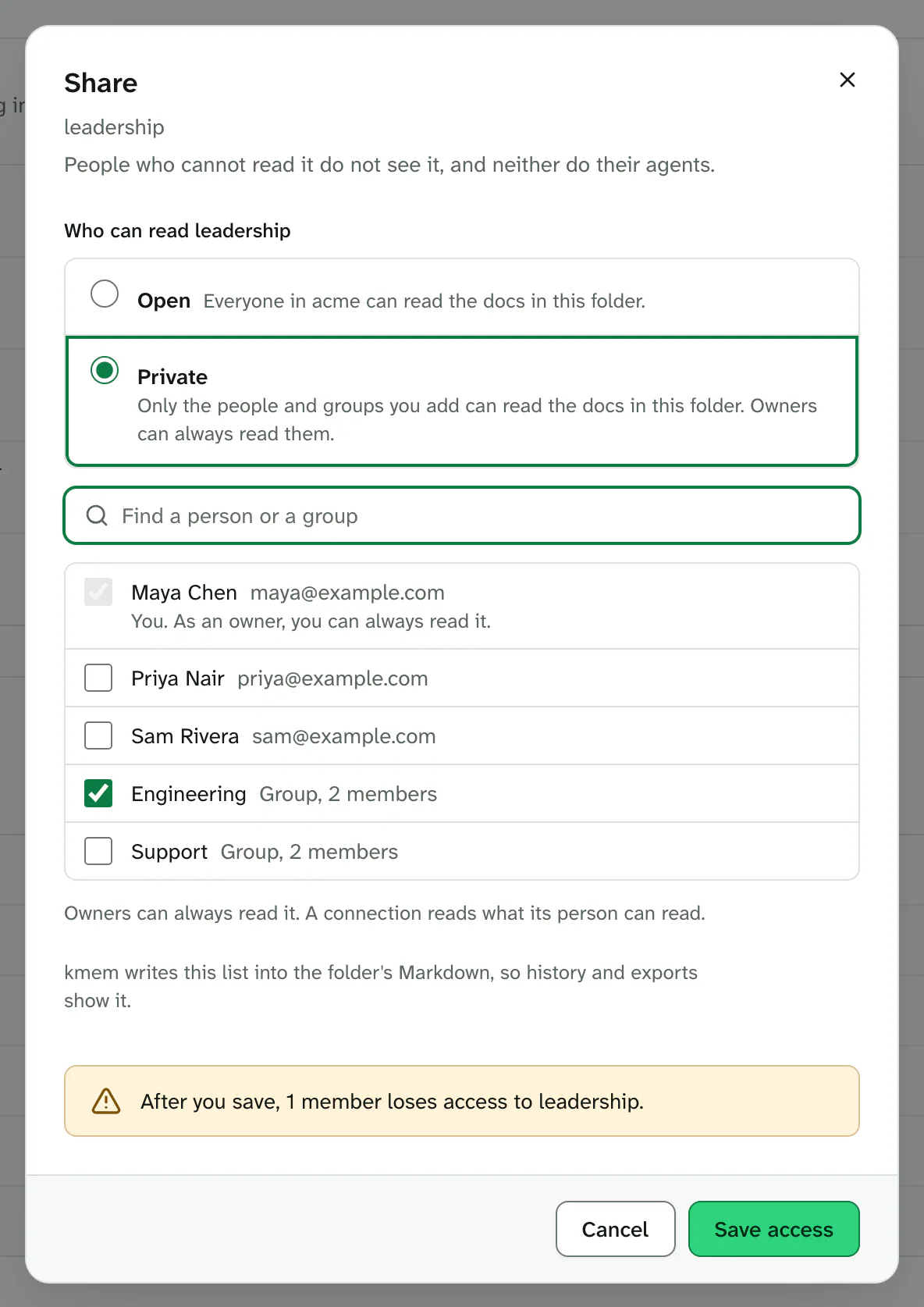
These rules apply to a private folder:
- Owners of the org can always read it. You do not need to add them. A private folder with nobody on its list is readable by owners only.
- An admin is a member for this rule. An admin who is not on the list cannot open the folder.
- A nested folder uses the strictest list. To open
leadership/hiring, a person must be on the list ofleadershipand on the list ofleadership/hiring. - A person who is not on the list sees nothing of the folder. That person sees no doc, no doc count and no folder name. Search, Ask and Review leave the docs out for that person. A direct link answers "not found".
- A group gives access to every member of the group. When you remove a person from the group, that person loses the access that the group gave.
- Agents cannot change the list. Only a person can change who can open a folder.
- A connection reads what the person who made it can read. If the person is on the list, the connection reads the folder. If the person is not, the connection cannot read it.
If you save a change that removes access from members, kmem tells you first, for example After you save, 2 members lose access to leadership.
You cannot remove your own access. If a change would lock you out, kmem says This change removes your access. Add yourself or a group that you are in, or ask an owner to make the change.