Manage your account
Your account holds your name, your email address and your password. The same account works in every org that you belong to.
Open your account
- Open the account menu. Select your name at the bottom of the side navigation, or your initials at the top right of a narrow window.
- Select Account.
The Account page opens. It works on kmem.app and at the address of each of your orgs. A change on this page applies to all of your orgs.
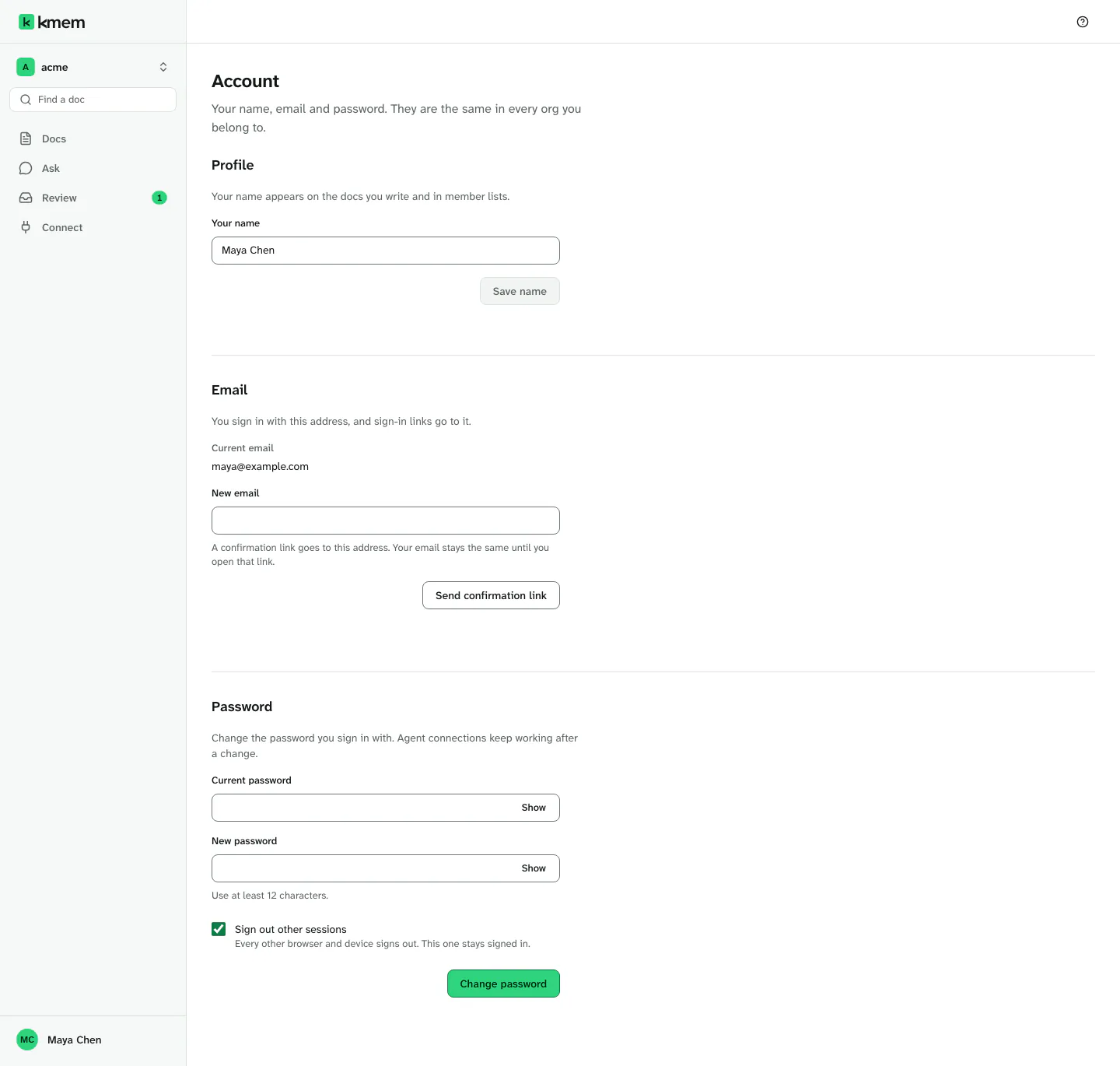
The page has these sections:
- Profile: your name.
- Email: the address that you sign in with.
- Password: the password that you sign in with.
Change your name
Your name appears on the docs that you write, on your review decisions and in member lists.
- In Profile, type your new name in Your name.
- Select Save name.
kmem says Name saved. A name cannot be empty.
Change your email address
You sign in with your email address, and kmem sends sign-in links to it. kmem changes the address only after you confirm the new address.
- In Email, check Current email.
- In New email, type the new address.
- Select Send confirmation link.
- Open the email that kmem sends to the new address.
- Open the confirmation link in a browser that is signed in to this account.
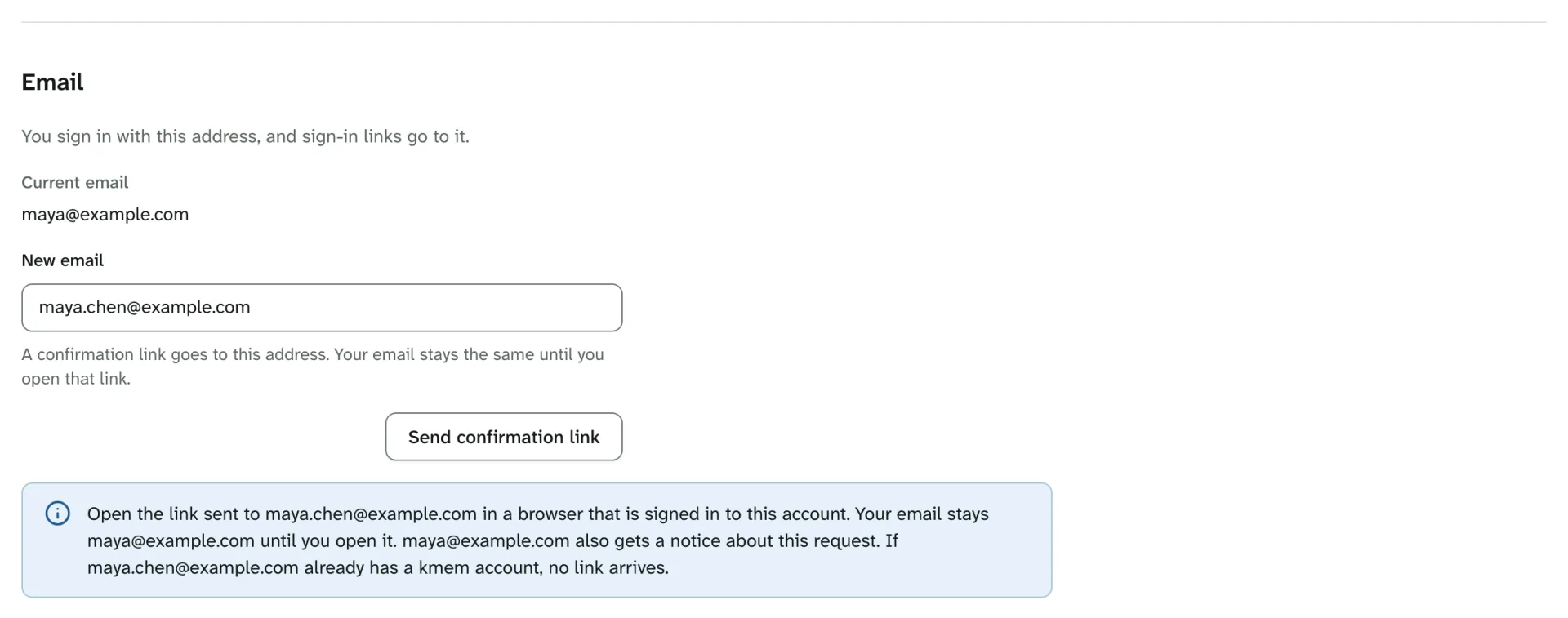
These rules apply:
- Your email address stays the same until you open the link.
- kmem also sends a notice to your current address. If you did not ask for the change, act at once. Change your password, and tell an owner of your org.
- The link expires after 60 minutes. If it expires, send a new link.
- If the new address already has a kmem account, no link arrives. Use another address.
- Your other sessions stay signed in.
- An invitation that somebody sent to your old address stays bound to the old address.
When the change is complete, kmem shows the new address, for example Your email is now sam.rivera@example.com.
If kmem says that the link belongs to a different kmem account, sign out. Then sign in to the account that asked for the change, and open the link again.
If you type your current address, kmem says That is already your email. Enter a different address.
Change your password
- In Password, type your password in Current password.
- Type the new password in New password. Use at least 12 characters.
- Leave Sign out other sessions selected, or clear it.
- Select Change password.
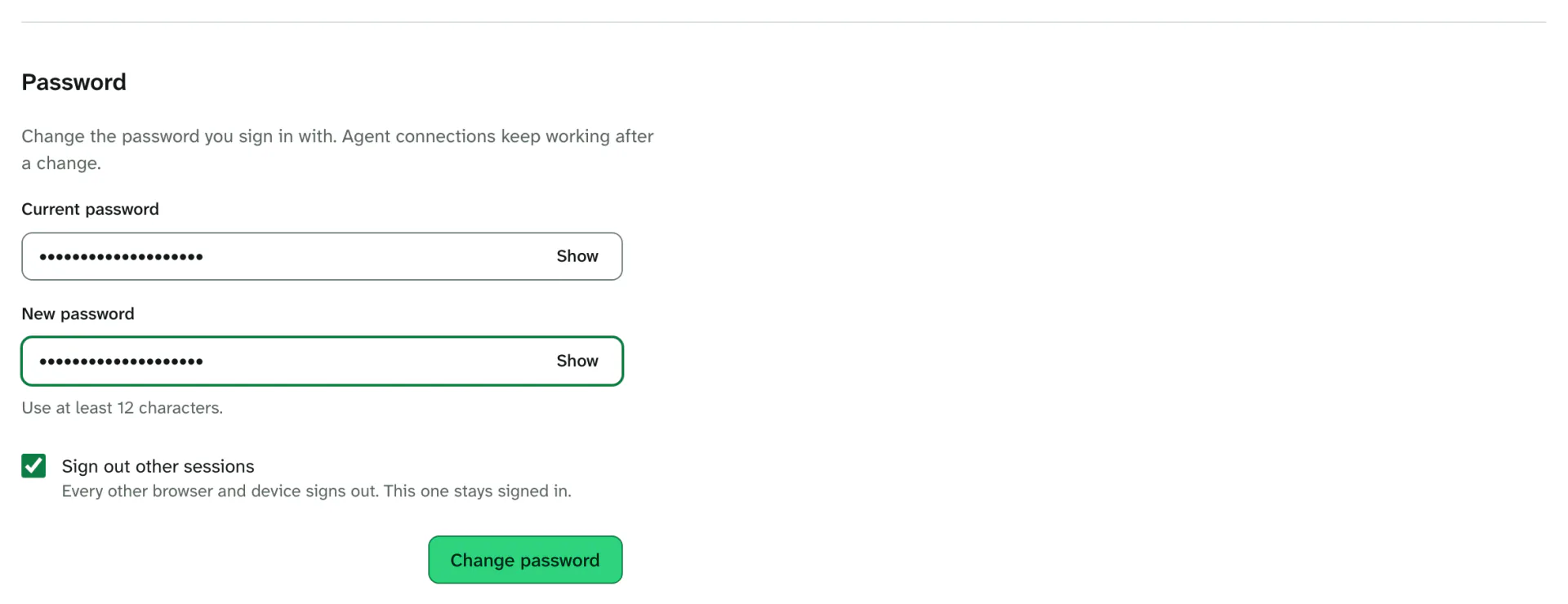
kmem selects Sign out other sessions for you. With this box selected, every other browser and device signs out, and this browser stays signed in. kmem then says Password changed. Other sessions are signed out.
Agent connections continue to work after a password change. To stop an agent, revoke its connection. Read Revoke a connection.
If kmem says The current password did not match. Type it again, or sign out and use Forgot password., type the current password again. If you do not know it, sign out and reset it. Read Reset your password.
Set a password when you sign in with email links
An account that you created with a magic link has no password. The Password section then says that you sign in with a link sent to your email address.
- Select Email me a link to set a password.
- Open the email. The link expires in 60 minutes.
- Set the password on the page that the link opens.
After that, you can sign in with the password or with a magic link.
Passkeys
Passkeys are not available yet. When kmem makes them available, the Account page gets a Passkeys section. The org settings do not hold passkeys.
Choose a theme
The theme is in the account menu, not on the Account page. Read Choose a theme.
Sign out
- Open the account menu.
- Select Sign out.
kmem signs you out in this browser, and says You are signed out. If you have unsaved changes in a doc, kmem asks what to do with them first.
To sign out on every other device too, change your password with Sign out other sessions selected.
A sign-in session ends after about 7 days without use. kmem then asks you to sign in again. Your screen stays as it is behind the sign-in panel.