Find your way around
kmem has four main areas: Docs, Ask, Review and Connect. This page shows where each area is, and where you find settings, your account and help.
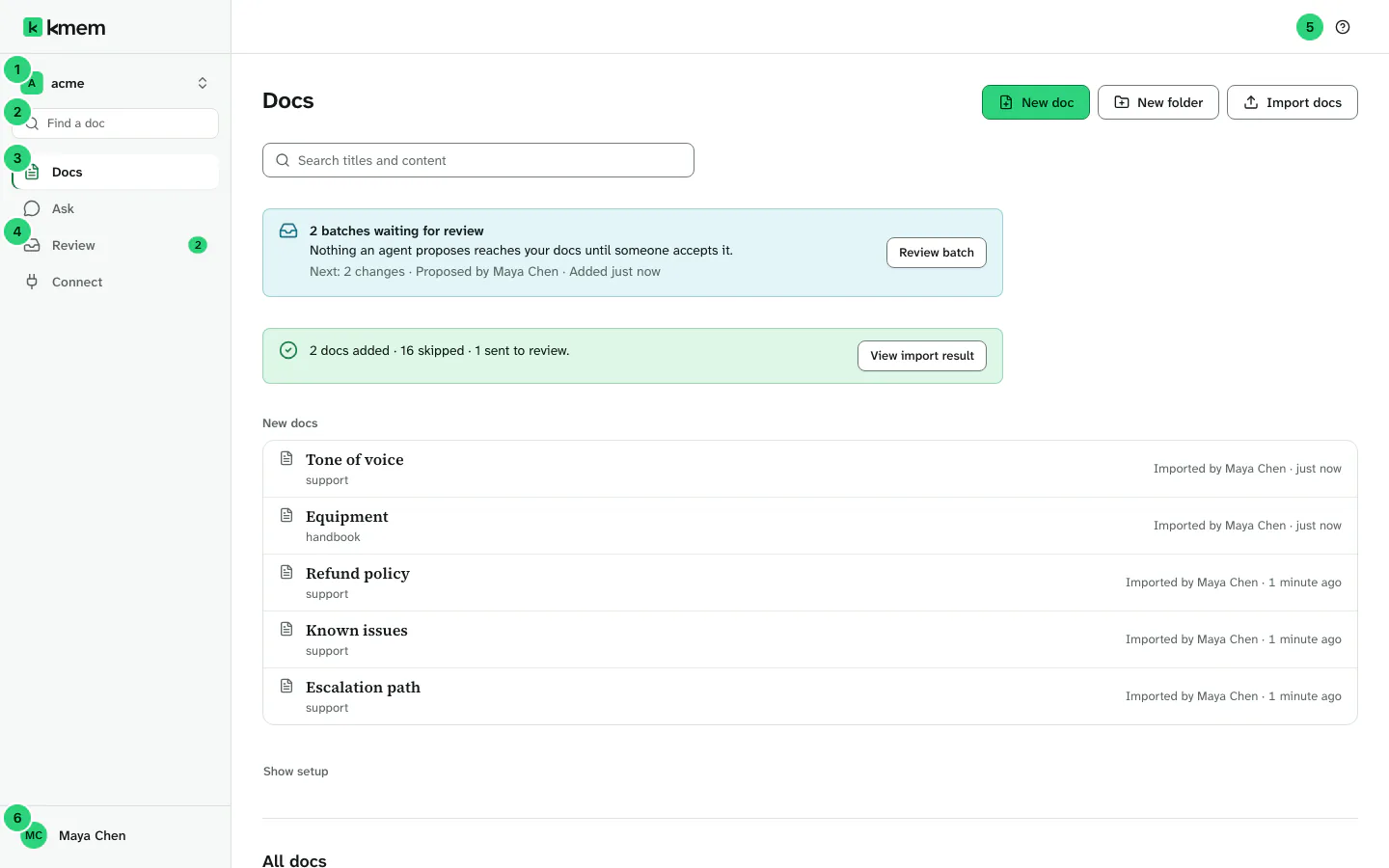 (open the full-size image, opens in a new tab)
The numbers in the image show these parts:
- The org menu. It shows the name of the current org.
- Find a doc, the search field of Docs.
- The four main areas.
- Review opens the batches that wait for you. When a count shows, it is the number of waiting batches.
- The help button, with a question mark.
- The account menu. It shows your name and your initials.
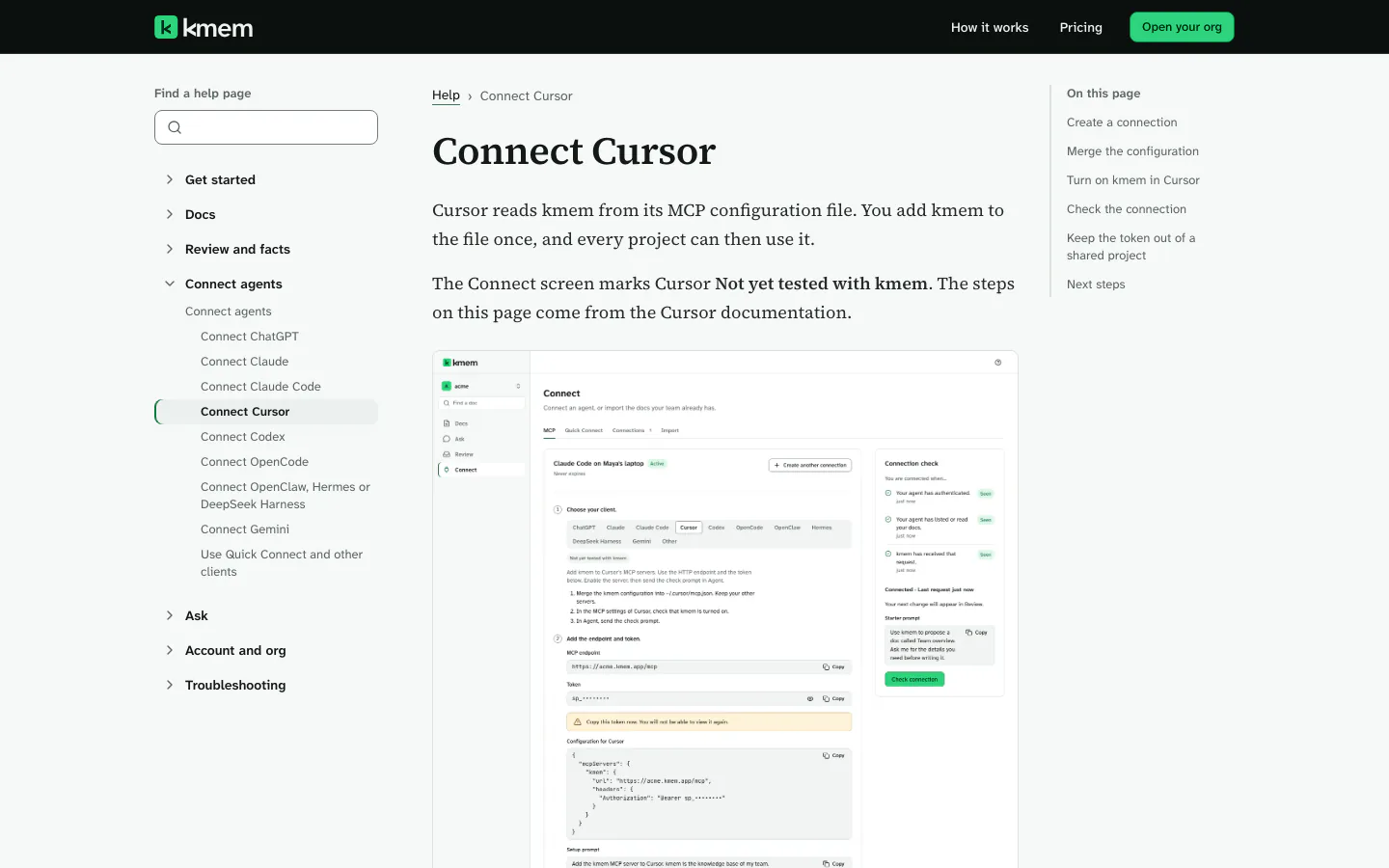
The four main areas
The navigation always shows the same four areas, for every person in the org.
| Area | What you do there |
|---|---|
| Docs | Read, find, write and organize the docs of your team. Docs is the first area that you see. Read Read and find docs. |
| Ask | Ask a question in plain words. kmem answers from your docs and shows the docs that it used. Read Ask questions. |
| Review | Accept or reject the changes that wait for a person. The count beside Review shows the number of batches that wait. Read Review changes. |
| Connect | Connect an agent to your docs, and see your connections. You also import docs from here. Read Connect agents. |
In a window that is 1280 pixels wide or wider, the four areas are in the side navigation on the left. The org menu is at the top of the side navigation, and the account menu is at the bottom.
In a narrower window, the org menu is at the top left and the account menu is at the top right. The four areas are in a bar at the bottom of the window.
The org menu
The org menu shows your orgs, and it opens the settings of the current org. Select the name of the org to open the menu. The menu has the title Orgs.
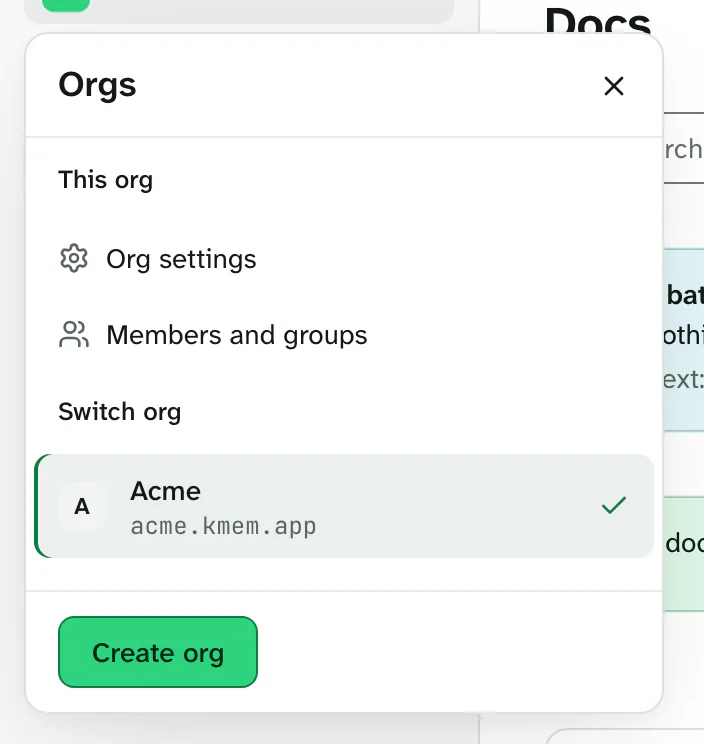
The menu has these parts:
- This org. This group shows only to owners and admins of the org. It has two rows:
- Org settings opens the settings of the org. Read Manage org settings.
- Members and groups opens the list of members. Read Manage members and groups.
- Switch org. This group lists every org that you belong to, and it marks the current org. Select an org to open it. If you have more than five orgs, type in Find an org to filter the list.
- Create org. This button opens the form that creates a new org. Read Create another org.
Each org has its own address. When you switch to another org, the browser opens the address of that org, and you stay signed in. Save your changes before you switch.
A member who is not an owner or an admin sees no This org group. That member cannot open the org settings. The one exception is Export. Every member can export docs from the account menu.
Your account menu
The account menu holds your personal choices. To open it, select your name at the bottom of the side navigation. In a narrower window, select your initials at the top right. The menu has the title Account.
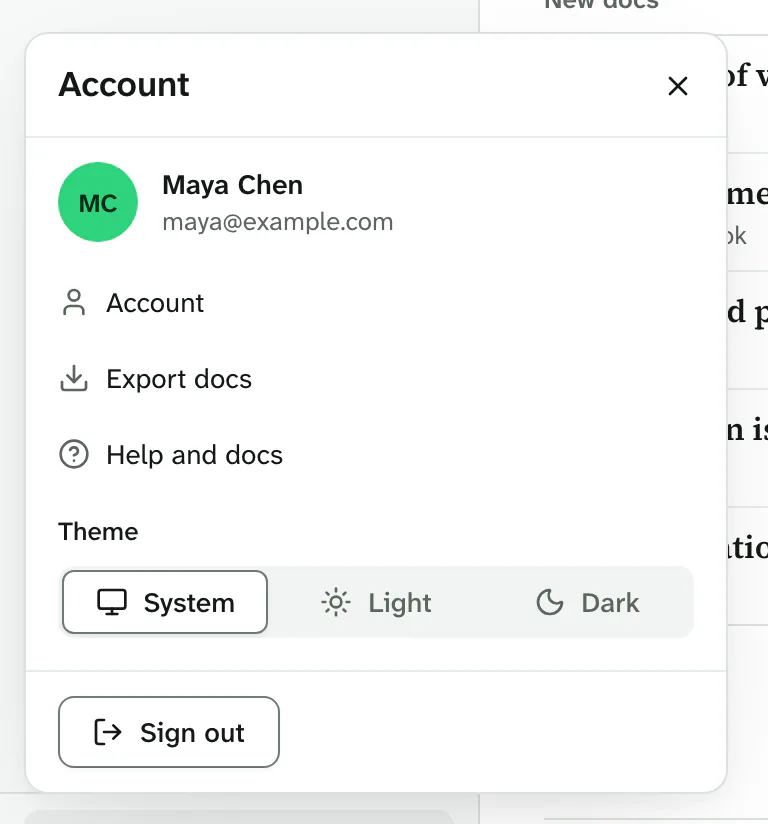
The menu shows your name and your email address at the top. Below them, it has these items:
- Account opens your account page. There you change your name, your email address and your password. Read Manage your account.
- Export docs opens the Export page. This item shows only at the address of an org. Read Export docs.
- Help and docs opens this user guide.
- Theme sets the colors of kmem. Read Choose a theme.
- Sign out signs you out of kmem in this browser.
If you have unsaved changes in a doc, kmem asks what to do with them before it signs you out.
Get help
You can open this guide from two places:
- Select Help and docs in the account menu.
- Select the help button, with the question mark, at the top of the window. The window must be 1280 pixels wide or wider.
Both open the guide page for the area that you are in. For example, in Review they open Review changes.
If the guide does not answer your question, read Troubleshooting. If that page does not solve the problem, write to contact@kmem.app. Never send a token or a Quick Connect URL in a help request.
Find a doc
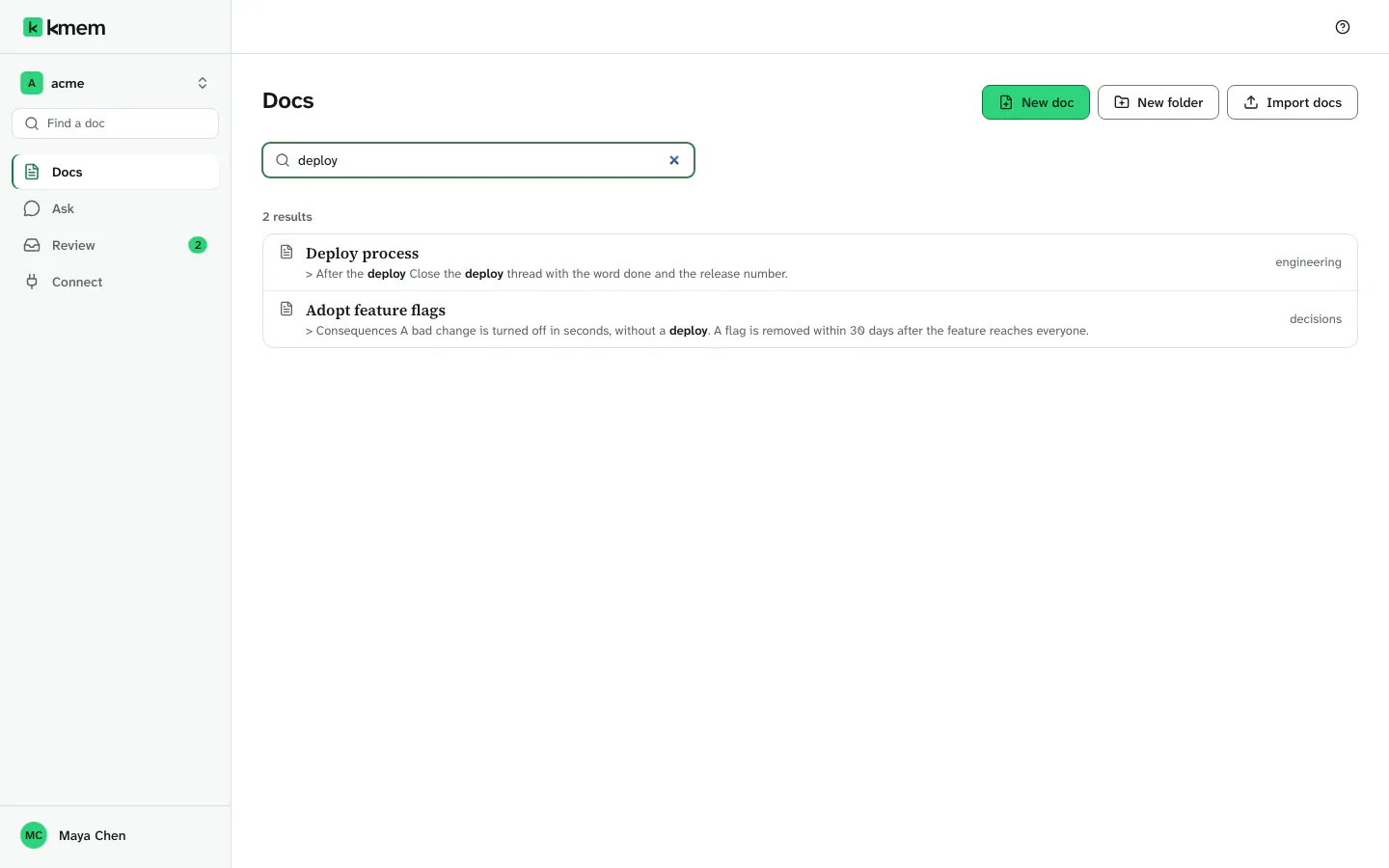
Use Find a doc in Docs to search the titles and the content of all docs that you can read.
- Select Docs.
- Select Find a doc.
- Type one or more words, for example
deploy.
kmem shows the docs that match, from all folders. Select a doc to open it. Select Clear search to go back to the folder list.
If kmem says No docs match “deploy”, try other words, or open the folders. A search can have up to 2,000 characters.
A new doc can take a few minutes to appear in search. kmem tells you when it has not indexed some docs yet.
The breadcrumb
The breadcrumb shows where you are. For example, the breadcrumb of the Deploy process doc is Docs, then engineering, then Deploy process.
- Select a part of the breadcrumb to go to that folder.
- The last part is the page that you are on. It is not a link.
On a phone, a long breadcrumb shows only the first part and the last part. Select Show path to see the parts between them. Select Hide path to hide them again.
In a wide window, a breadcrumb with more than four parts hides its middle parts behind an ellipsis. Select the ellipsis to show them.
On a phone
kmem works in the browser of a phone. You do not install an app.
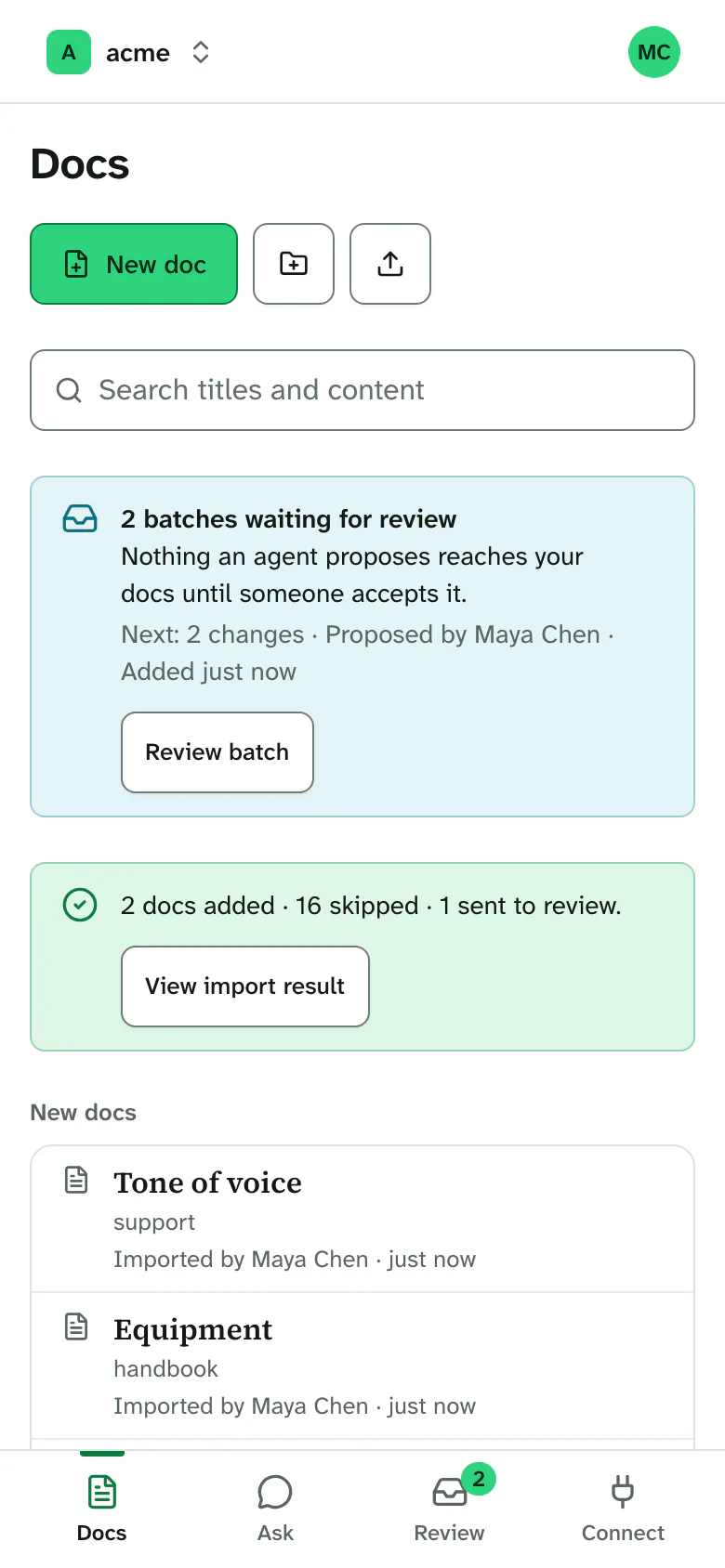
- The bar at the bottom of the screen shows Docs, Ask, Review and Connect. It never shows more than five items.
- The org menu is at the top left. The account menu is at the top right.
- On the page of a doc or a batch, a Back button is at the top left.
- The org menu and the Details panel open as sheets from the bottom of the screen.
Choose a theme
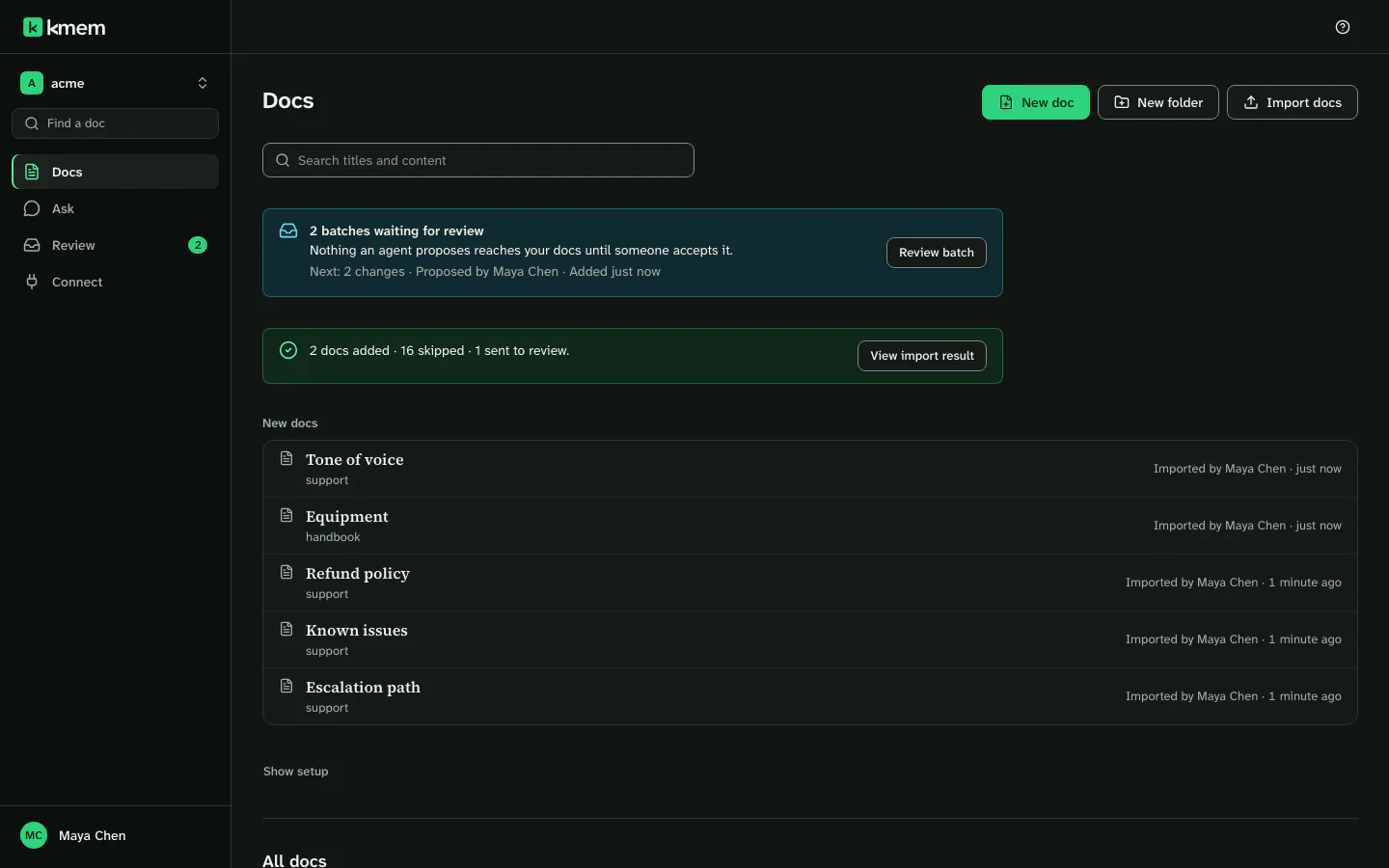
kmem has a light theme and a dark theme.
- Open the account menu.
- Under Theme, select one of these choices:
- System uses the setting of your device.
- Light always uses the light theme.
- Dark always uses the dark theme.
kmem remembers your choice in this browser.
Keyboard shortcuts
On a Mac, use Cmd. On Windows and Linux, use Ctrl.
| Keys | Where | What it does |
|---|---|---|
| Ctrl+S or Cmd+S | The editor | Saves the doc. |
| Ctrl+B or Cmd+B | The editor | Makes the selected text bold. |
| Ctrl+I or Cmd+I | The editor | Makes the selected text italic. |
| Ctrl+K or Cmd+K | The editor | Adds a link. |
| Ctrl+Shift+K or Cmd+Shift+K | The editor | Adds a wikilink to another doc. |
| Esc, then Tab | The editor | Moves the focus out of the editor. |
| / | Ask | Moves the focus to the question field. |
| Enter | Ask | Sends the question. |
| Shift+Enter | Ask | Adds a new line to the question. |
| Ctrl+Enter or Cmd+Enter | A batch in Review | Accepts the batch. |
| Esc | A dialog or a menu | Closes it. |