Connect OpenClaw, Hermes or DeepSeek Harness
These three agent harnesses connect to kmem over MCP with a token. Each one keeps its settings in a different file.
The Connect screen marks all three Not yet tested with kmem. The steps on this page come from the documentation of each harness.
For each harness, create a connection first:
- In kmem, select Connect. The MCP tab opens.
- Select the harness in the list of clients.
- Check the New connection form. kmem fills in a name, for example "OpenClaw · Maya · 8 Oct". You can change it. Then select Create connection.
- Copy the token now. kmem shows it only one time.
Create a connection explains each field.
Each configuration on this page names the server <your-org>-kmem, for example acme-kmem. Each org has its own server name, so one computer can hold the kmem of more than one org.
OpenClaw
OpenClaw keeps its settings in ~/.openclaw/openclaw.json. The file uses JSON5, which allows comments and a comma after the last item. OpenClaw reads the token from the variable KMEM_TOKEN, so the file holds no token.
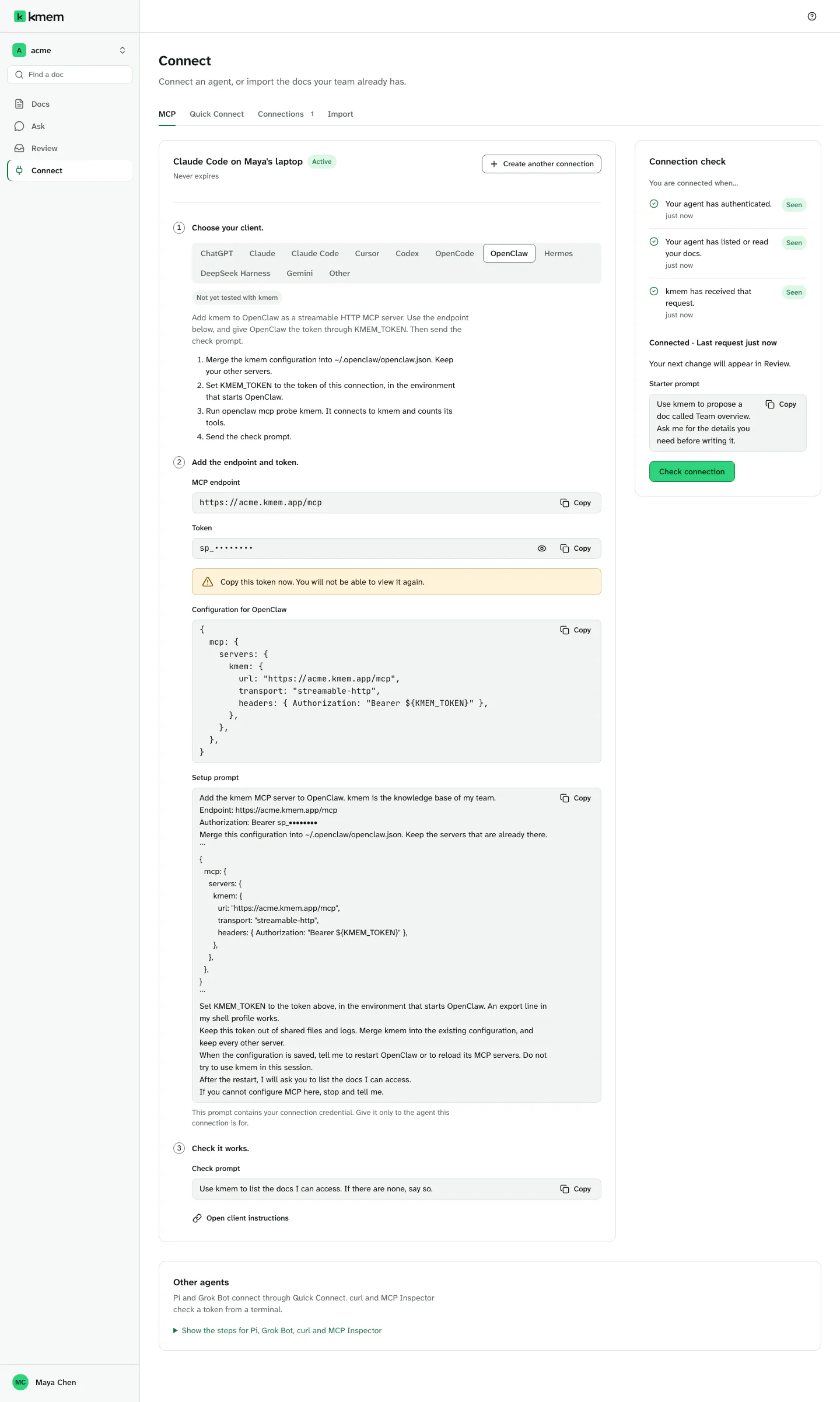
- Under Configuration for OpenClaw, select Copy configuration.
- Merge the configuration into
~/.openclaw/openclaw.json. If the file already hasmcp.servers, add only theacme-kmementry. Keep your other servers. - Set
KMEM_TOKENto the token of the connection, in the environment that starts OpenClaw. For example, addexport KMEM_TOKEN="YOUR_TOKEN"to your shell profile. - Start OpenClaw again.
- Run
openclaw mcp probe acme-kmem. The command connects to kmem and counts its tools. - Send the check prompt.
The configuration looks like this:
{
  mcp: {
    servers: {
      "acme-kmem": {
        url: "https://acme.kmem.app/mcp",
        transport: "streamable-http",
        headers: { Authorization: "Bearer ${KMEM_TOKEN}" },
      },
    },
  },
}
Replace acme with your org's subdomain, in the server name and in the endpoint. The Connect screen fills it in for you. Keep the quotation marks around the server name, because JSON5 needs them for a name with a hyphen. Keep ${KMEM_TOKEN} as it is. OpenClaw puts the value of the variable there.
If the probe finds no tools, check two things. The environment of OpenClaw must have a value in KMEM_TOKEN, and the connection must be active.
Hermes
Hermes keeps its MCP servers in ~/.hermes/config.yaml.
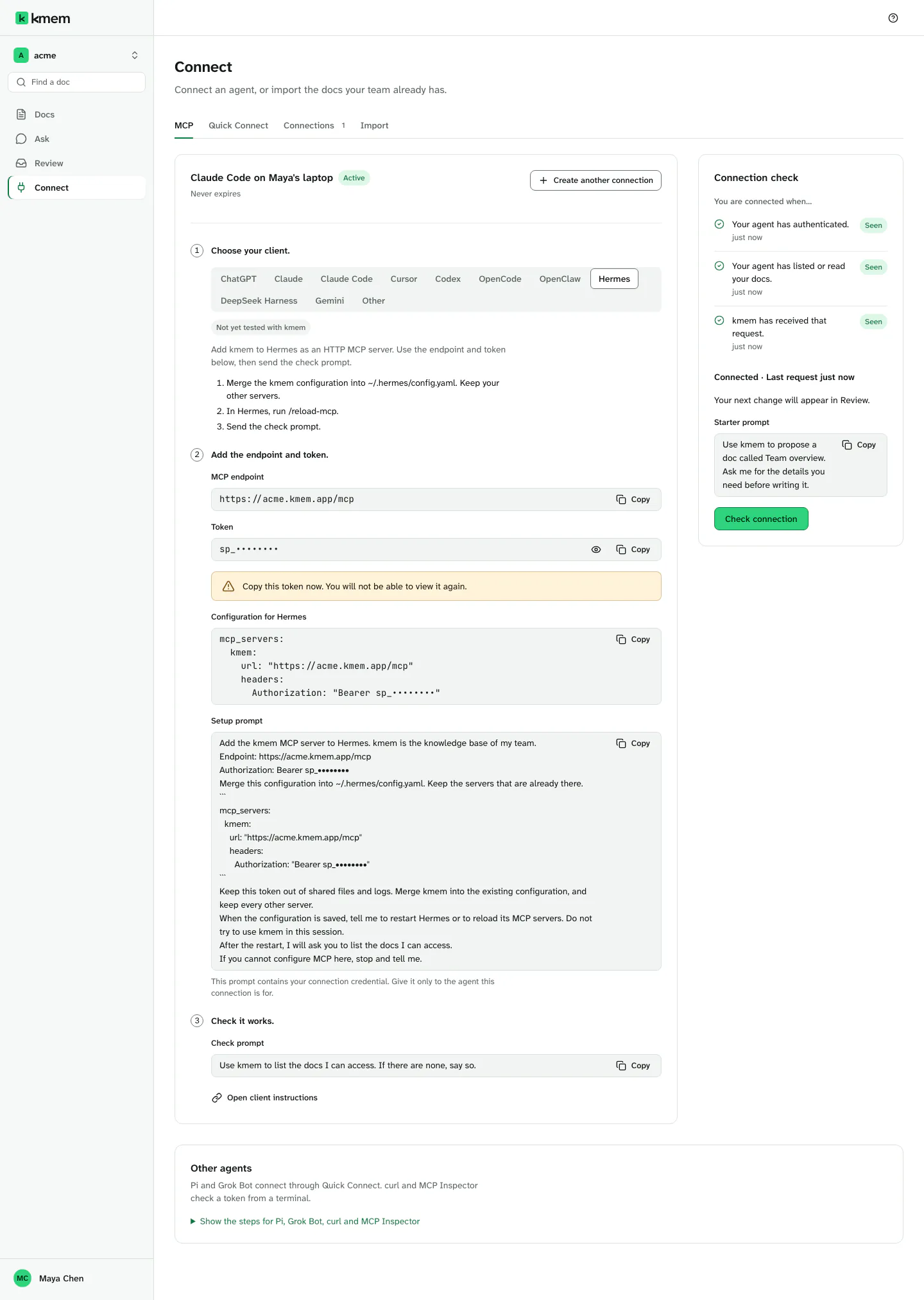
- Under Configuration for Hermes, select Copy configuration.
- Merge the configuration into
~/.hermes/config.yaml. If the file already hasmcp_servers, add only theacme-kmementry below it. Keep your other servers. - In Hermes, run
/reload-mcp. - Send the check prompt.
The configuration looks like this:
mcp_servers:
  acme-kmem:
    url: "https://acme.kmem.app/mcp"
    headers:
      Authorization: "Bearer YOUR_TOKEN"
Replace acme with your org's subdomain, in the server name and in the endpoint. Replace YOUR_TOKEN with the token of your connection. The Connect screen fills in these values for you.
YAML uses spaces for its structure. Keep the indentation exactly as it is. Do not use tabs.
The file holds your token. Keep it private.
DeepSeek Harness
DeepSeek Harness reads MCP servers through its MCP client plugin. You add kmem as an entry in the patch file $DSH_HOME/cordis.patch.yml. DeepSeek Harness reads the token from the variable KMEM_TOKEN.
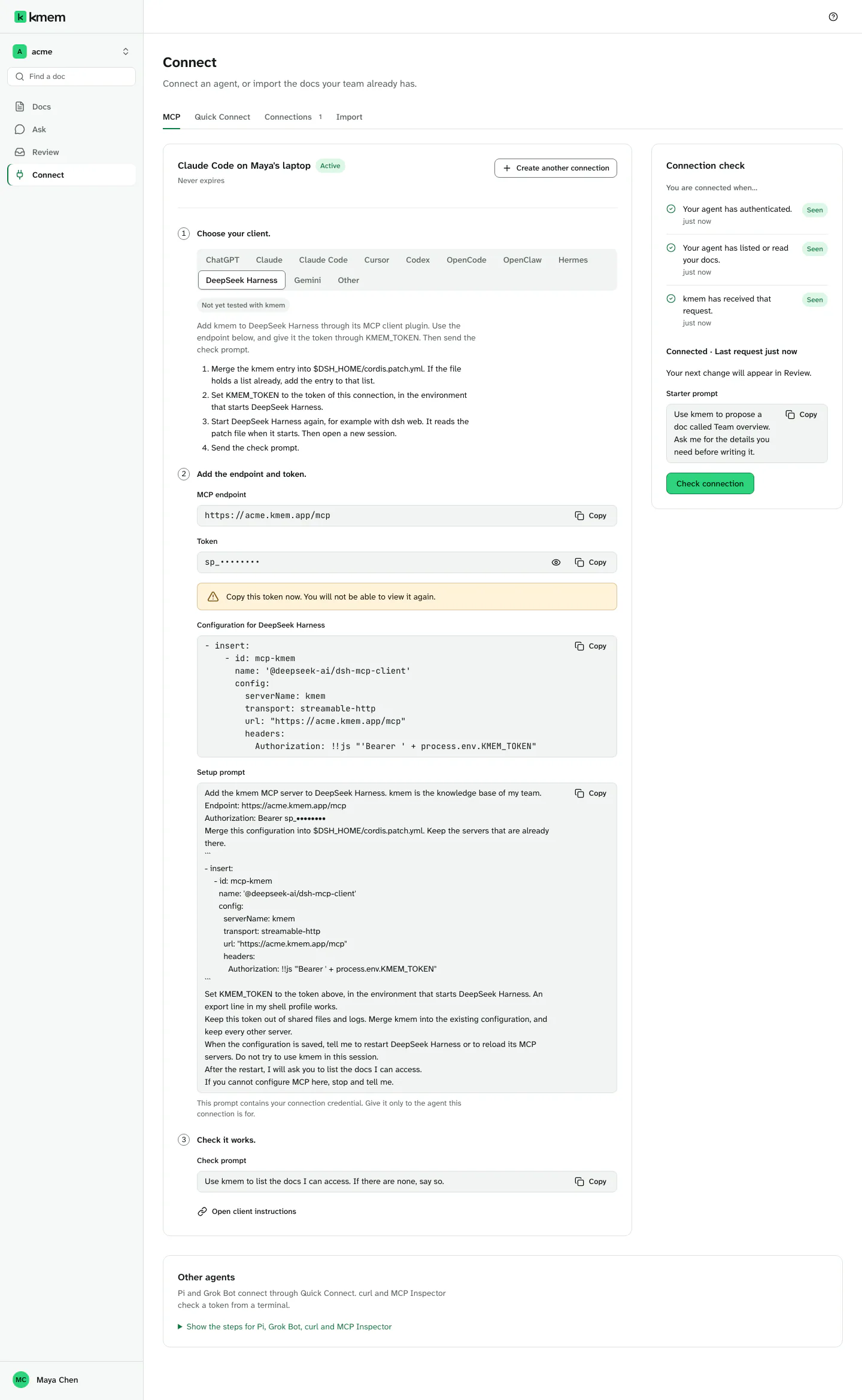
- Under Configuration for DeepSeek Harness, select Copy configuration.
- Merge the entry into
$DSH_HOME/cordis.patch.yml. If the file already holds a list, add the entry to that list. - Set
KMEM_TOKENto the token of the connection, in the environment that starts DeepSeek Harness. - Start DeepSeek Harness again, for example with
dsh web. It reads the patch file when it starts. - Open a new session.
- Send the check prompt.
The entry looks like this:
- insert:
    - id: mcp-acme-kmem
      name: '@deepseek-ai/dsh-mcp-client'
      config:
        serverName: acme-kmem
        transport: streamable-http
        url: "https://acme.kmem.app/mcp"
        headers:
          Authorization: !!js "'Bearer ' + process.env.KMEM_TOKEN"
Replace acme with your org's subdomain, in the entry ID, in the server name and in the endpoint. The Connect screen fills it in for you. The last line builds the header from KMEM_TOKEN when DeepSeek Harness starts. Keep it as it is.
Check each harness
Send this check prompt in a new session of the harness:
Use kmem to list the docs I can access. If there are none, say so.Then, in kmem, select Check connection. The three checks must show Seen. Read Check a connection.