Review changes
Review holds the changes that wait for a person. This page tells you what arrives in Review, and how to accept, reject or keep both versions of a change.
What arrives in Review
A change arrives in Review when kmem needs a person to decide it. The count beside Review in the navigation shows how many batches wait.
| Change | When it waits in Review |
|---|---|
| A change from a connection with Read and propose | Always. New docs, edits and deletions all wait. |
| Any change from an agent while Agent writes is off | Always. The setting stops every direct write. |
| A change from a connection with Read, propose and write, while Agent writes is on | Only these changes wait: a deletion, an edit to an older version of a doc, a new doc at an address that is taken, and a doc that replaces another doc. New docs and edits to the current version go straight to Docs. |
| A file from an import | Only when the file would change an existing doc. |
An agent change to an existing doc can wait in Review even when Agent writes is on. This rule protects the work of people. An agent cannot silently replace a doc that somebody changed after the agent read it.
A connection in write mode has no limit on direct writes or deletes. kmem counts every change it makes, and you can undo the changes of a connection in Connect.
Read Connect agents for the connection modes and the Agent writes setting.
Open a batch
A batch is a set of changes that arrived together, from one agent or from one import.
- Select Review. The queue shows the batches that wait.
- Select a batch to open it.
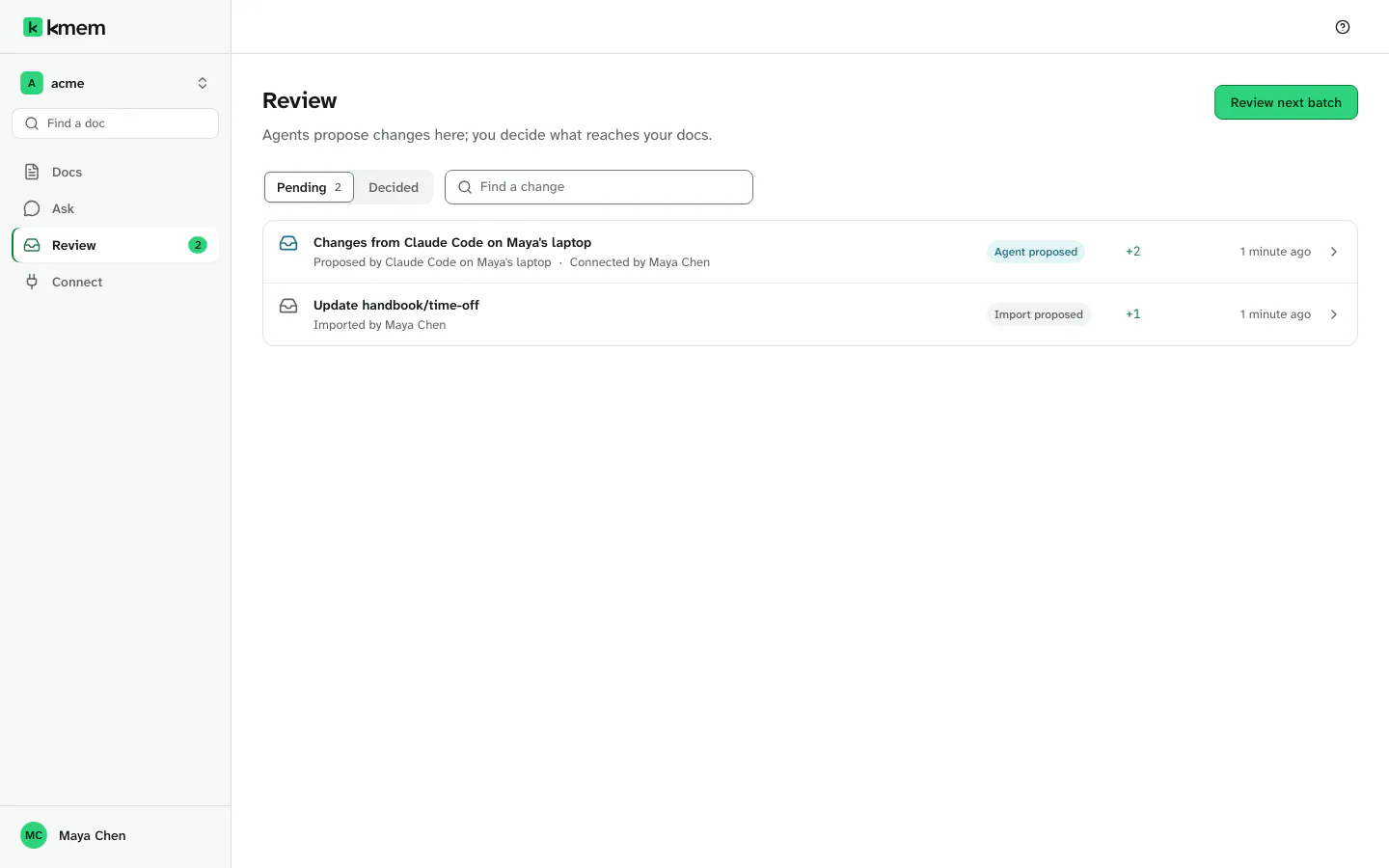
Each batch in the queue shows these facts:
- A title that names the change, for example Update engineering/deploy-process, or 2 changes in engineering.
- The agent and the person who owns its connection, for example Proposed by Claude Code for Maya Chen. An import shows Import proposed and Imported by Maya Chen.
- The number of new, updated and deleted docs, for example 1 new and 1 updated.
To find a batch:
- Use Show to choose Pending or Decided batches.
- Use Agent to show the batches of one agent only. All agents shows all of them.
- Type in Find a change to search the batches.
- Select Clear filters to show everything again.
Read a change
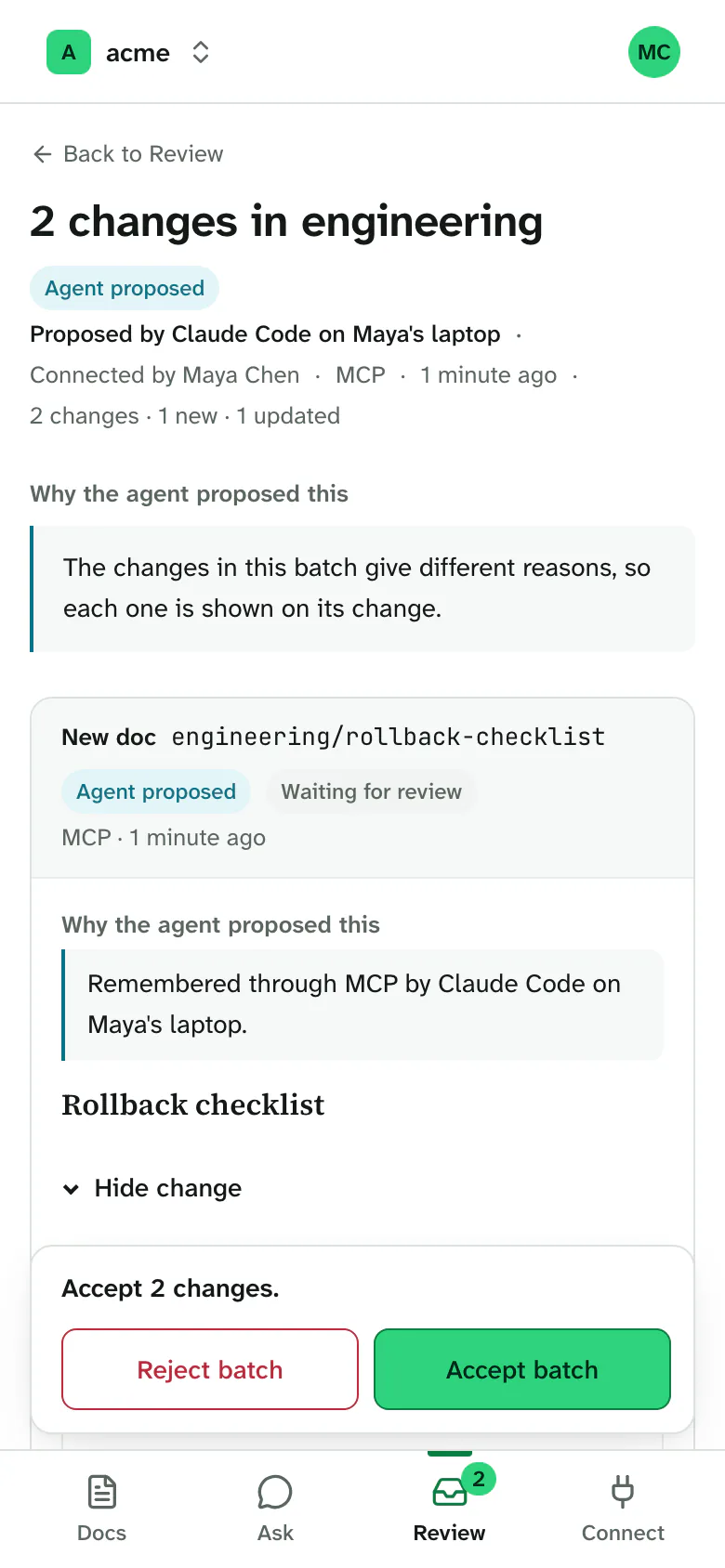
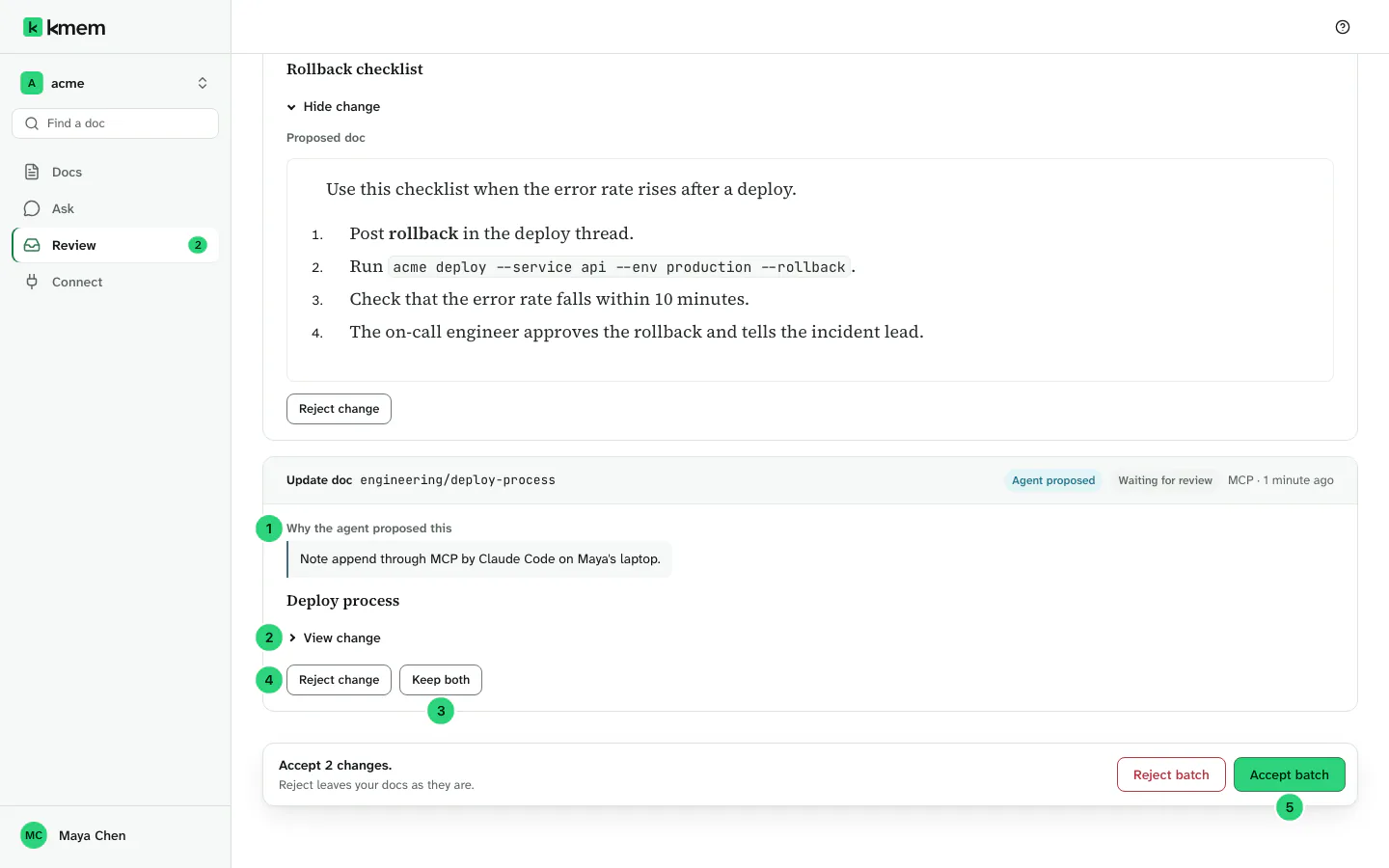
The batch page shows the reason and the changes.
 (open the full-size image, opens in a new tab)
The numbers in the image show these parts:
- Why the agent proposed this. The reason that the agent gave. For an import, it is Why this import proposed a change. If the changes in a batch give different reasons, kmem shows each reason on its change. When the agent gave no reason, kmem writes one that names the connection and the person who owns it, for example Remembered through MCP by Claude Code for Maya Chen.
- View change. It opens the change.
- Keep both. It keeps the current doc and adds the proposed text as a separate doc.
- Reject change. It rejects this change only.
- Accept batch. It accepts every change in the batch that you did not reject.
Each change shows its type (New doc, Update doc or Delete doc) and the address of the doc.
Select View change to open the change. kmem shows the Current text and the Proposed text. Added lines and removed lines have different colors, and a line count tells you how much changes, for example 3 added and 1 removed. Select Show 12 unchanged lines to see the lines around a change. Select Hide change to close it.
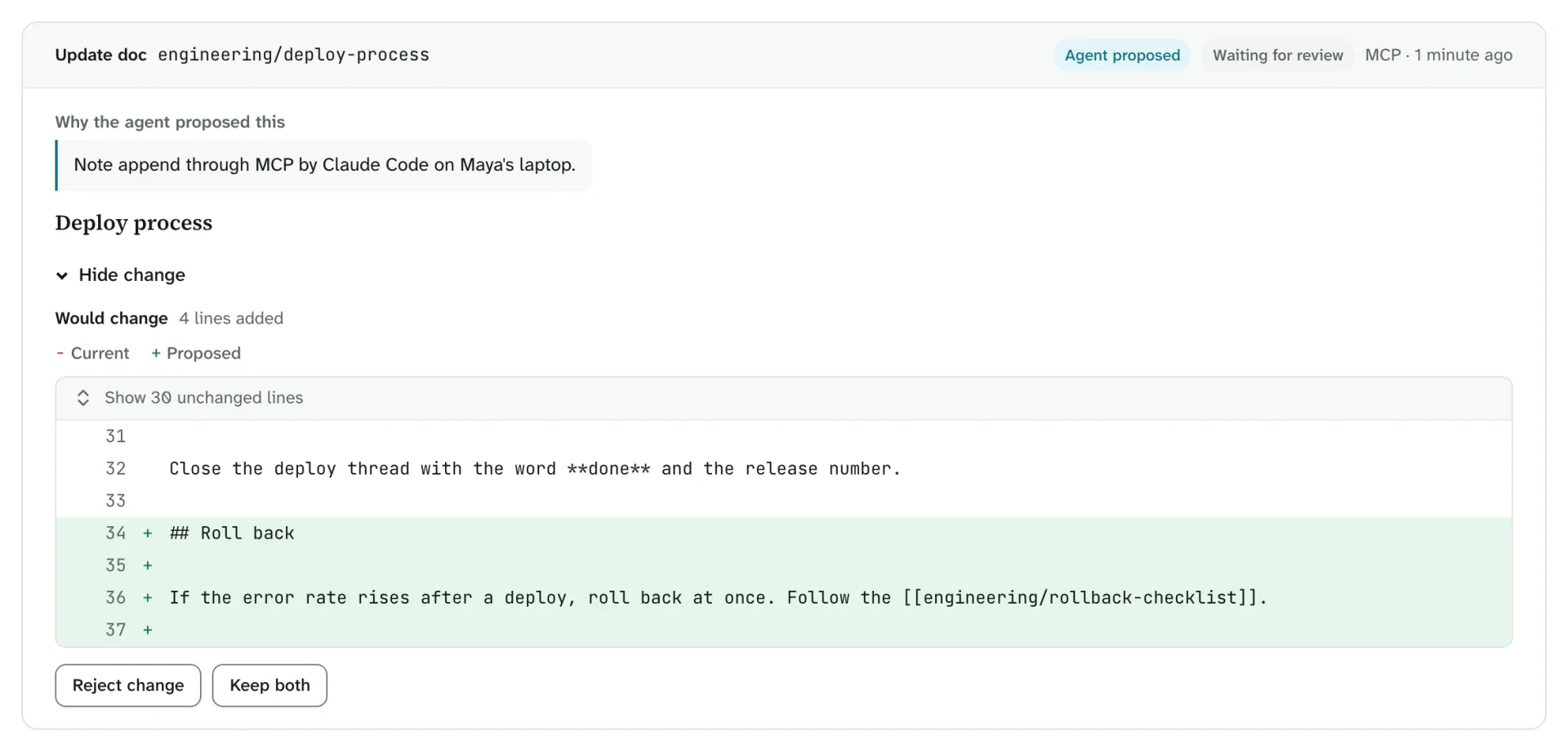
A new doc shows the whole Proposed doc. A deletion says Accepting this change will delete this doc.
Reject one change
- Open the change.
- Select Reject change.
- Confirm. kmem asks Reject this change? The current doc will stay as it is.
The change now shows Will reject. Nothing happens until you decide the batch. To change your mind, select Change resolution.
Keep both versions
Use Keep both when the proposed text is useful, but it must not replace the current doc.
- Open the change.
- Select Keep both.
- In New doc title, check the title of the new doc. kmem suggests the current title with "(proposed)" at the end. kmem shows the address of the new doc below the field.
- Select Use this title.
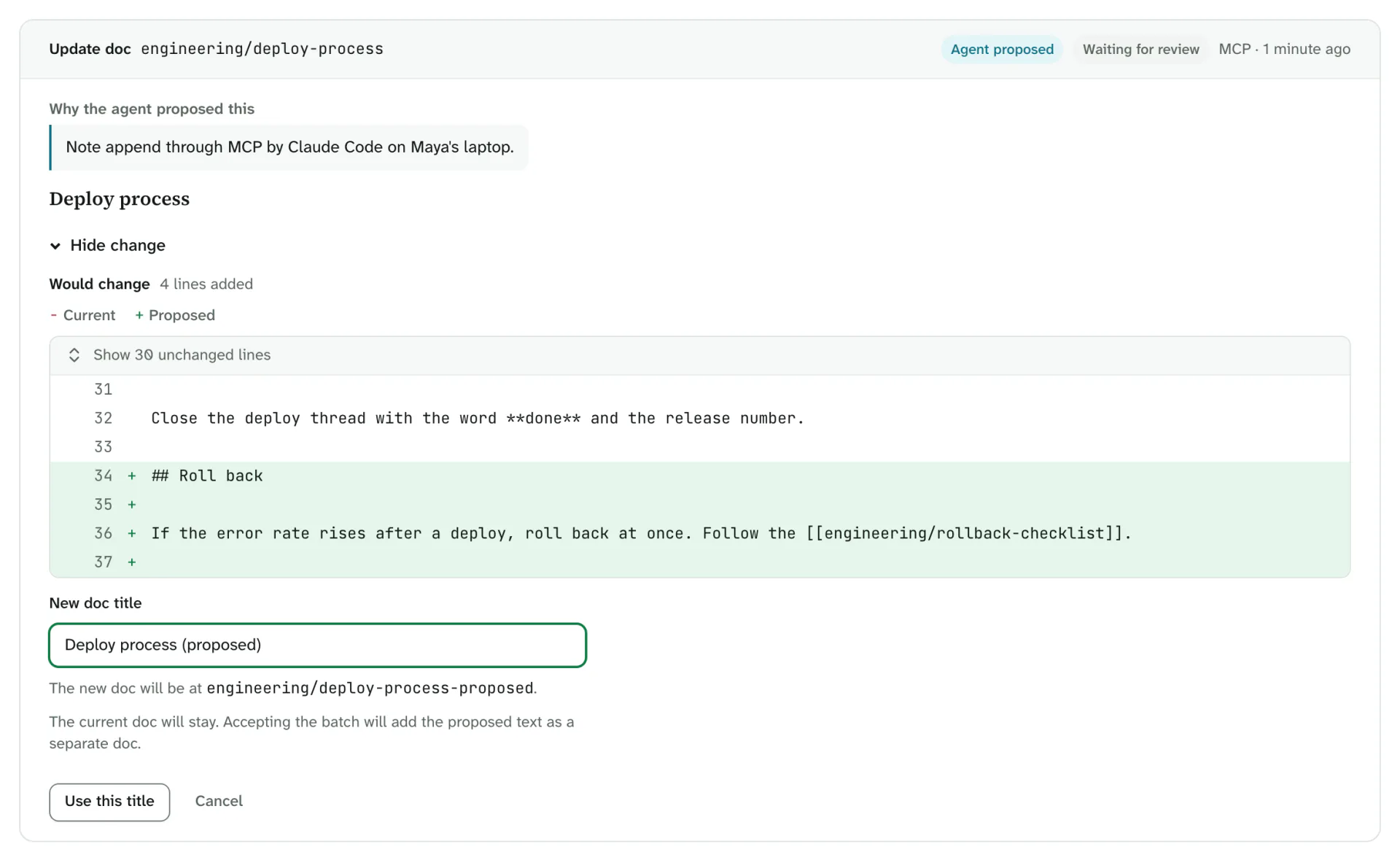
The change now shows Will keep both. When you accept the batch, the current doc stays as it is, and kmem adds the proposed text as a new doc.
A deletion has no second version, so Keep both is not available for it.
Accept a batch
- Decide each change that you do not want as it is: reject it, or keep both versions.
- Read the summary above the button, for example Accept 2 changes. The summary also counts the rejected changes and the changes that become separate docs.
- Select Accept batch, or press Ctrl+Enter (Cmd+Enter on a Mac).
kmem applies the changes and shows Batch accepted, with the number of changes that are now in Docs.
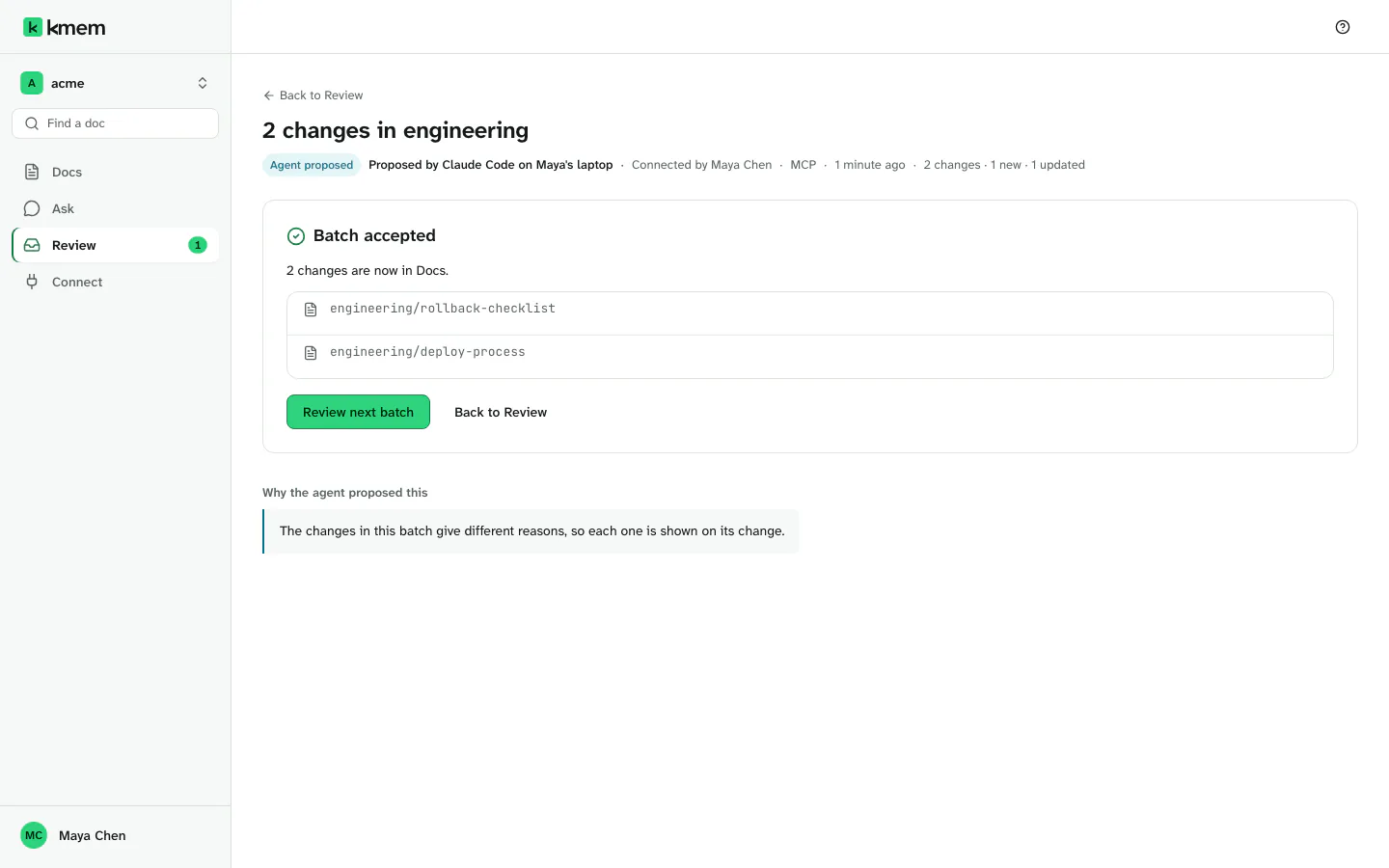
Select Open docs to see the result, or Review next batch to continue.
If some changes could not be applied, kmem says Some changes were not applied, and it tells you which ones. They stay in Review.
If every change in the batch is set to be rejected, there is nothing to accept. Reject the batch instead.
Reject a batch
Reject a batch when none of its changes should reach your docs.
- In Why this batch is being rejected, type the reason. You must give a reason. kmem stores it in the audit log beside the decision.
- Select Reject batch.
- kmem asks Reject this batch?. Select Reject batch again, or Keep reviewing to go back.
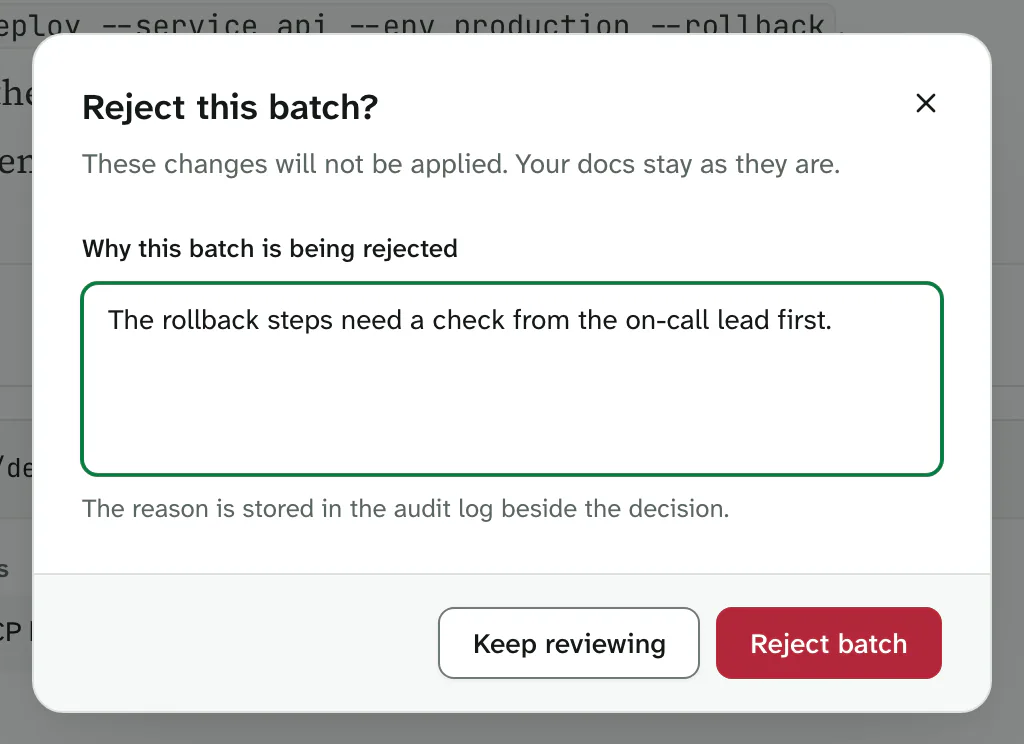
kmem shows Batch rejected and Your docs were not changed.
When a doc changed after the proposal
A person can change a doc after an agent proposed a change to it. kmem then marks the change, and it compares the proposal with the doc as it is now. A line marked "removed" can be a line that somebody added after the proposal.
- Read the change carefully.
- Select Mark as compared.
- Decide the batch.
kmem does not accept a batch until you mark each such change as compared.
If a change says that the block it replaces is no longer in the doc, reject the change. Then ask the agent to propose the edit again against the current doc.
See decided batches
- Select Review.
- In Show, select Decided.
Each decided batch shows the decision on each change, for example Accepted by Maya Chen or Rejected by Maya Chen.
Changes that an agent withdrew
An agent can take back a change that it sent before a person decides it. The change then shows Withdrawn and the name of the connection with the person who owns it, for example Withdrawn by Claude Code for Maya Chen. A withdrawn change is not a rejection. Nobody rejected it, and kmem does not count it as a rejection.
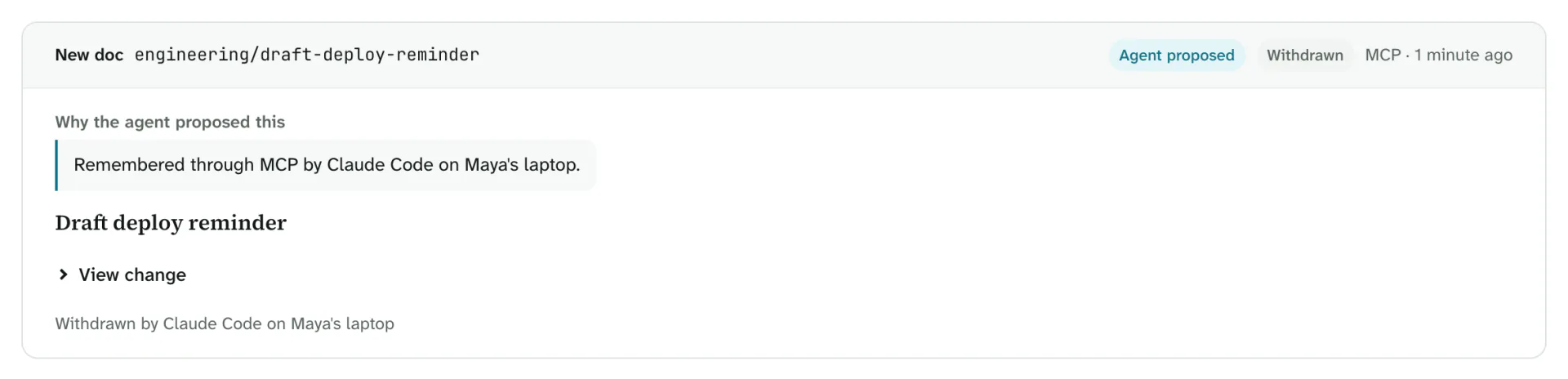
An agent often withdraws a change and then sends a new change to the same doc. The withdrawn change then also shows Replaced by a later change. The batch page does not show these changes at first, and a sentence above the list tells you how many it does not show.
- To see them, select Show withdrawn changes.
- To hide them again, select Hide withdrawn changes.