Import memory from another AI
ChatGPT, Claude, Gemini, Grok and other AI assistants keep a memory of you and your work. You can bring that memory into kmem. kmem proposes folders and docs from it, and you review every doc before kmem adds it.
The import has four steps. Open it from Connect: select Import, then Import memory from another AI.
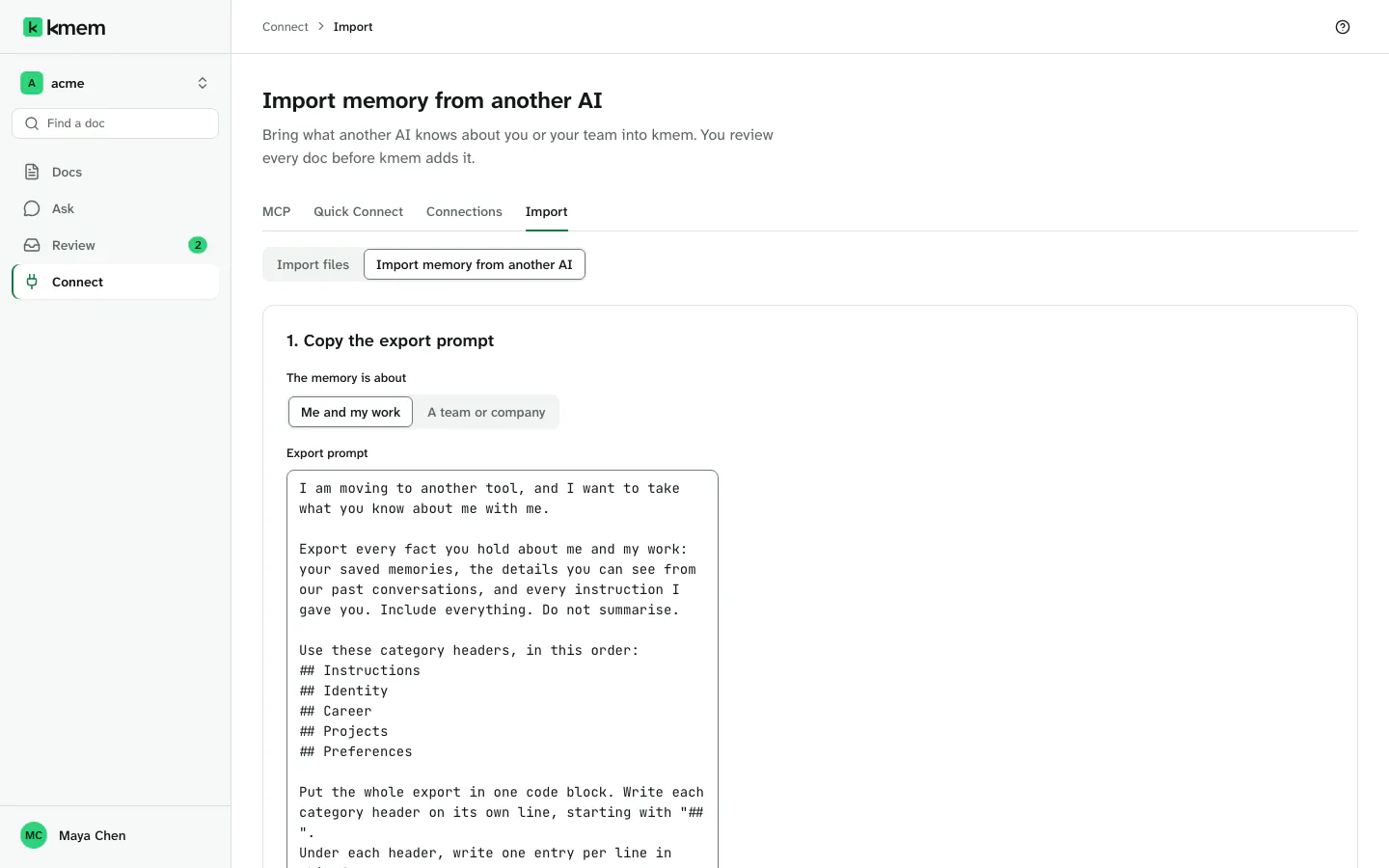
1. Copy the export prompt
- Under The memory is about, select Me and my work or A team or company.
- Read the Export prompt. You can change it before you copy it. Select Restore the prompt to go back to the prompt from kmem.
- Select Copy prompt.
- Under Export from, select the AI that holds the memory. If it is not in the list, select Another AI, and type its name.
The prompt for Me and my work asks for five categories, in this order: Instructions, Identity, Career, Projects and Preferences. The prompt for A team or company asks for everything the AI knows about your organization: its products, customers, processes, decisions, people and tools. That AI chooses the category names.
Both prompts ask for the same format: one code block, a ## header for each category, and one entry on each line.
## Instructions
[2026-02-28] - Always answer in British English.
[unknown] - Never schedule meetings on Friday afternoons.

## Projects
[2026-09-01] - I lead the Atlas migration.
The date is YYYY-MM-DD. The prompt tells the AI to write [unknown] when it does not know the date, and to keep your own words where it has them. After the code block, the AI writes Completeness: complete or Completeness: incomplete.
Then get the export from the other AI. The steps are the same for every AI, and you do not need a settings menu:
- Open the AI, and start a new chat.
- Paste the prompt, and send it.
- If the answer ends with
Completeness: incomplete, sendcontinue. Do this again until the answer says that the export is complete. - Copy each answer. Include the line after the code block.
An AI can export only the memory and the chats that it can see, and it can leave things out. Read the answer before you import it.
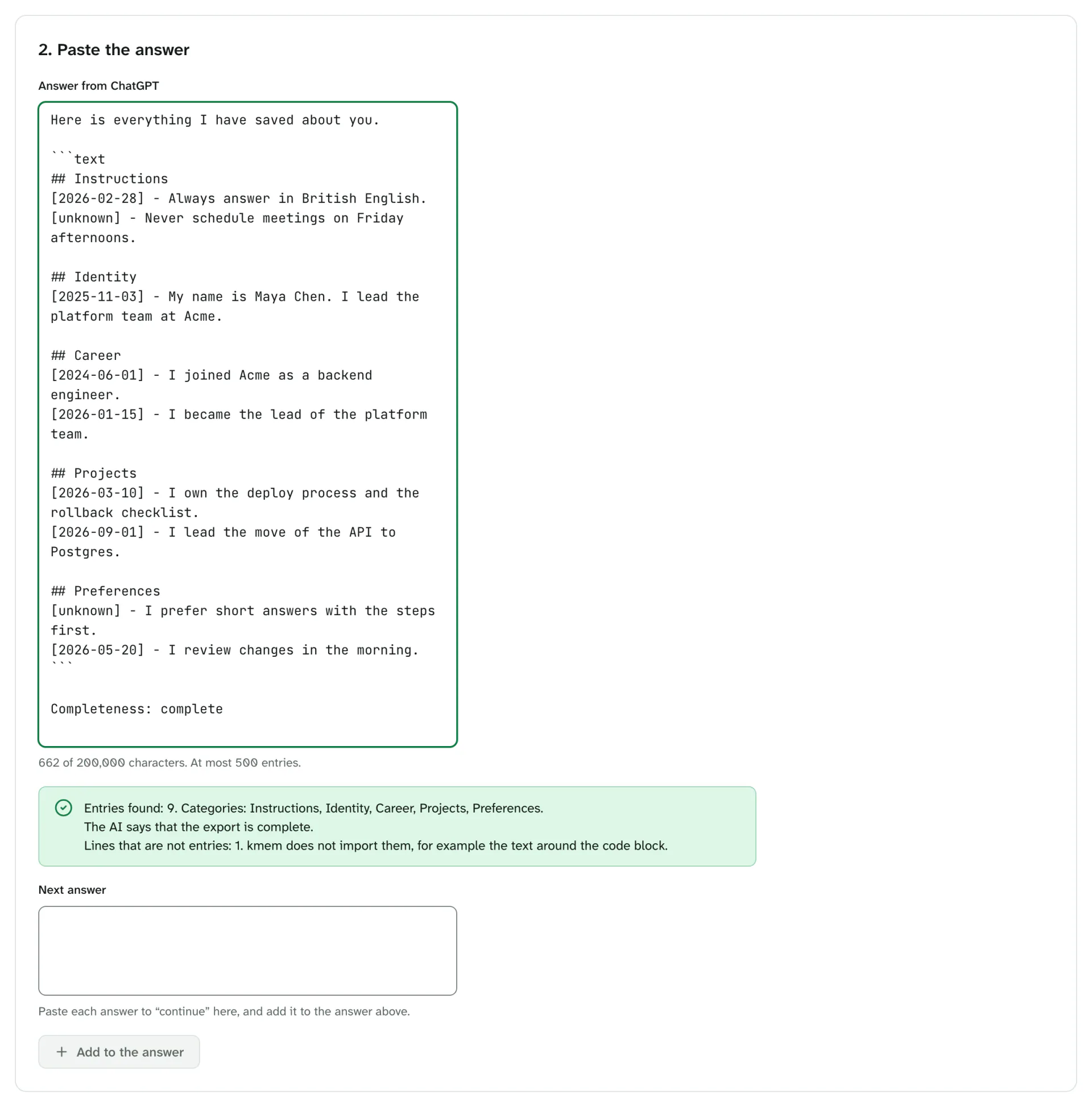
2. Paste the answer
- Paste the first answer into Answer from and the name of the AI.
- For each answer to
continue, paste it into Next answer, then select Add to the answer. kmem adds it under the first answer.
The answers together can have up to 200,000 characters and 500 entries. If your memory is larger, import one part now and the rest in a second import.
kmem reads the answer while you paste it. It shows how many entries it found, in which categories, and what the AI says about completeness. It also tells you how many lines are not entries, for example the text around the code block. kmem does not import those lines.
If an entry has a date that does not exist, for example [2026-02-31], kmem names the line. Change the date, or write [unknown].
3. Propose the docs
- Check Folder for new docs. The default is a new folder with the name of the AI, for example
imported/chatgpt-memory. You can type an existing folder instead. - Optionally, type Layout guidance, for example "group by client" or "one doc for each project".
- Select Propose docs.
kmem sends the entries, your guidance and the names of the folders that you can read to its AI model. The model groups the entries into docs, and writes a title and a short introduction for each doc. The layout comes from what the memory holds, so a personal memory and a company memory get different docs. For example, a personal memory can become an about page, a career page, a doc for each project and a doc of working rules. A company memory can become product, customer, process and decision docs.
When the subject of an entry fits a folder that you already have, kmem proposes a doc in that folder. Everything else goes into your folder for new docs.
The model never writes your entries. kmem puts the original lines of each entry into the doc, so your instructions stay word for word. If the model leaves an entry out, kmem puts it in a doc called Other memory.
This step uses one call to the AI model, and it can take up to two minutes. The call counts against your org's monthly Ask budget. kmem adds nothing in this step. If the model does not return a usable proposal, kmem tells you, and you can select Propose docs again.
kmem does not write your memory to its logs.
4. Review and import
kmem shows the proposed folders and docs. Select a doc to open it. In each doc you can:
- change the Title, the Type and the Address;
- change the Introduction;
- select Remove beside an entry to leave it out;
- read The doc as kmem will import it;
- select Edit the Markdown to change the whole text. After that, remove entries in the text. Select Discard Markdown edits to go back;
- select Remove this doc.
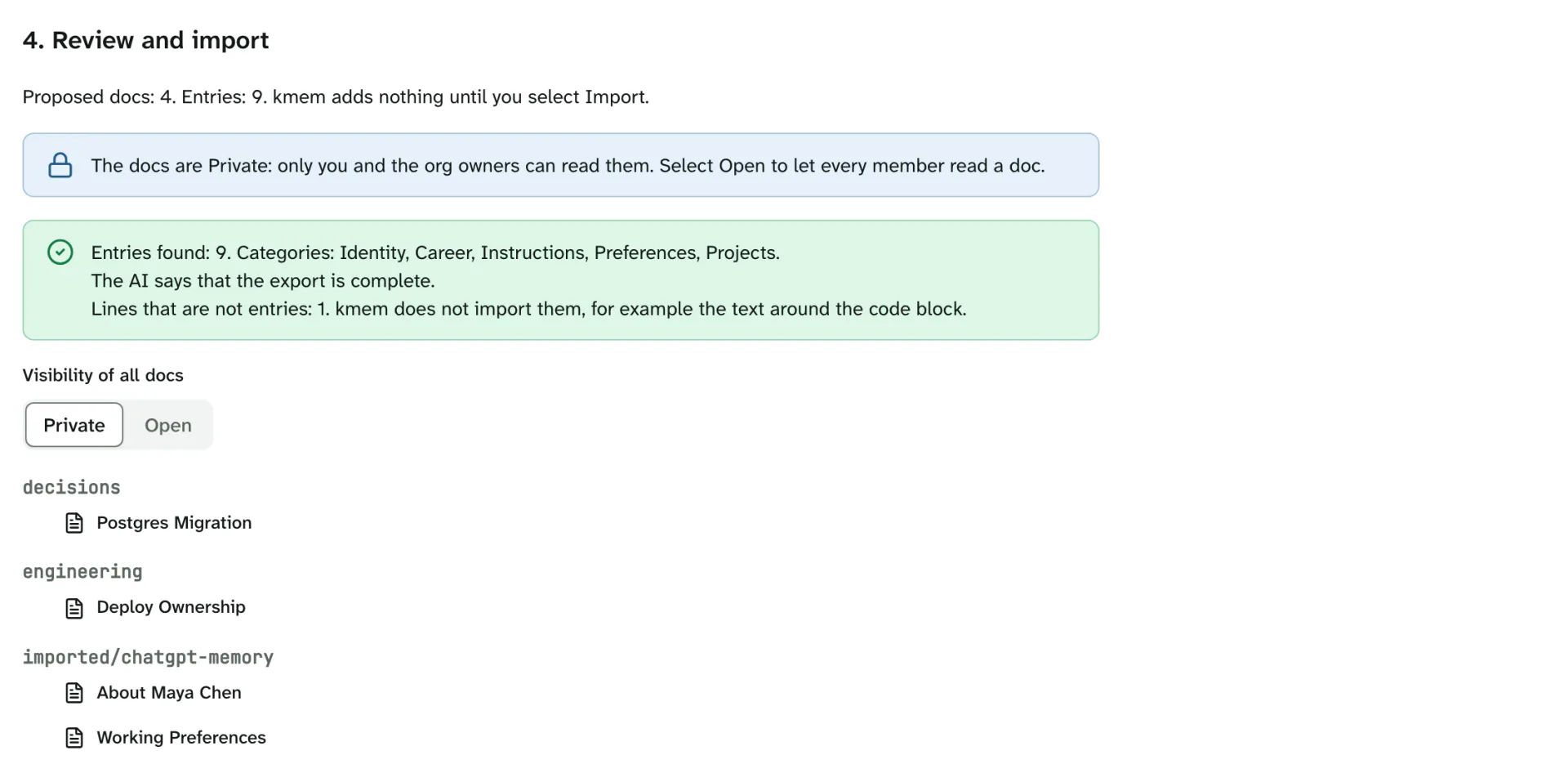
A chip on each doc can say more about where the doc goes:
- In a folder you have: the doc goes into a folder that exists.
- Moved into your folder: the proposed address was not usable, so kmem moved the doc into your folder for new docs.
- Not placed by the AI: the doc holds the entries that the model left out.
Choose who can read the docs
The docs are Private at first: only you and the org owners can read them. A memory can be personal, so check each doc before you share it.
- To change one doc, use Visibility in that doc.
- To change every doc, use Visibility of all docs.
Open lets every member of the org read the doc, unless a folder above it is Private. For more about the two levels, see Control who can read a doc.
Import
Select Import with the number of docs, for example Import 5 docs. kmem makes an import job, and opens the job's page. The job works the same way as a file import:
- kmem adds each new doc as your own doc. Each doc records its source, for example
Imported from ChatGPT memory. - A doc that is the same as an existing doc is skipped.
- A doc that would change an existing doc goes to Review. kmem does not replace an existing doc on its own.
You can leave the page while the job runs, and find it again under Recent imports in Import files.
Select Change the proposal to go back to step 3 before you import. If you leave the page before you import, kmem asks first, because it does not keep your paste or the proposal.
For file imports, the import result and export, see Import and export docs.