Control who can read a doc
Each doc is Open or Private. The level decides which people can read the doc. An agent reads what the person who connected it can read. This page explains the two levels and tells you how to share a doc.
The two levels
The Share dialog and the New doc page ask one question: who can read the doc? There are two answers:
| Level | Who can read it |
|---|---|
| Open | Everyone in the org. |
| Private | Only the people and groups that you add. Owners can always read it. |
When you choose Private, kmem shows a list of people and groups. You are on the list, so you keep your access. A private doc with nobody on its list is readable by owners only.
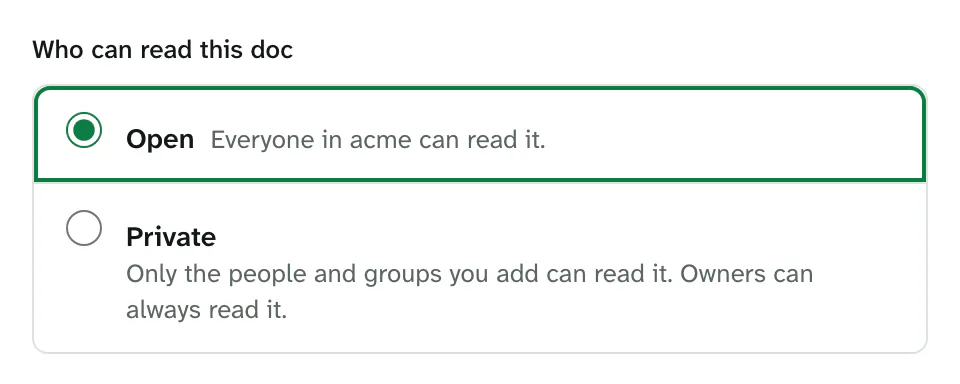
kmem stores the level in the Markdown of the doc, or in the _folder.md file of the folder. It shows the level as one word in Docs and in the Details panel: Open or Private.
A folder passes its level to the docs in it. A doc in a private folder is private too, and a person must be on the list of the folder and on the list of the doc to read it. A doc can be stricter than its folder, but not less strict. The Visibility row in the Details panel tells you where the level comes from.
A doc from an earlier version of kmem can say visibility: escorted or visibility: sealed. kmem reads both words as Open. It does not change the Markdown.
What agents can read
An agent reads your docs through a connection. Agents read what the person who connected them can read.
- A connection reads every Open doc, and each Private doc whose list includes the person who made it.
- A connection never reads a Private doc whose list does not include that person.
- The connection follows changes. When somebody adds the person to a list, or removes the person from it, the connection reads the new set of docs on its next request.
- A connection stops when the person who made it leaves the org, or when an owner or an admin removes that person.
- A connection never reads docs of another org.
For example, only the Support group can read the support folder. A connection that a person outside the group made cannot read the support folder.
A person who cannot read a doc does not see it in Ask either. Ask reads with the access of the person who asks.
Read Connect agents for the other limits of a connection.
Choose a level for a new doc
The New doc page asks Who can read this doc before it creates the doc.
- Select Open or Private.
- If you selected Private, add people and groups. The next sections explain how.
- Complete the rest of the page, and select Create doc.
A doc in a folder starts with the level of the folder. If the folder is private, the help text of Open names the folder: everyone who can read the folder can read the doc.
A new doc from an import or from an agent follows its folder.
Change the level of a doc
You can change who can read a doc when you can open and edit the doc.
- Open the doc.
- Select Share at the top of the doc. In a narrow window, select Doc actions, then Share.
- Select Open or Private.
- Select Save access.
kmem says Access to Deploy process saved. with the title of the doc. You can also open the dialog from the menu of the doc in Docs.
If you have unsaved changes in the editor, kmem asks you to save or discard them first.
If another person changed the doc while the dialog was open, kmem says so. Close the dialog and open it again to see the current settings.
Share a doc with people and groups
- Open the Share dialog of the doc.
- Select Private.
- Under People and groups, find the people and the groups:
- Type a name, an email address or a group name in Find a person or a group.
- Select the box beside each person or group that can read the doc.
- A group row shows the number of its members, for example Group, 3 members.
- Select Save access.
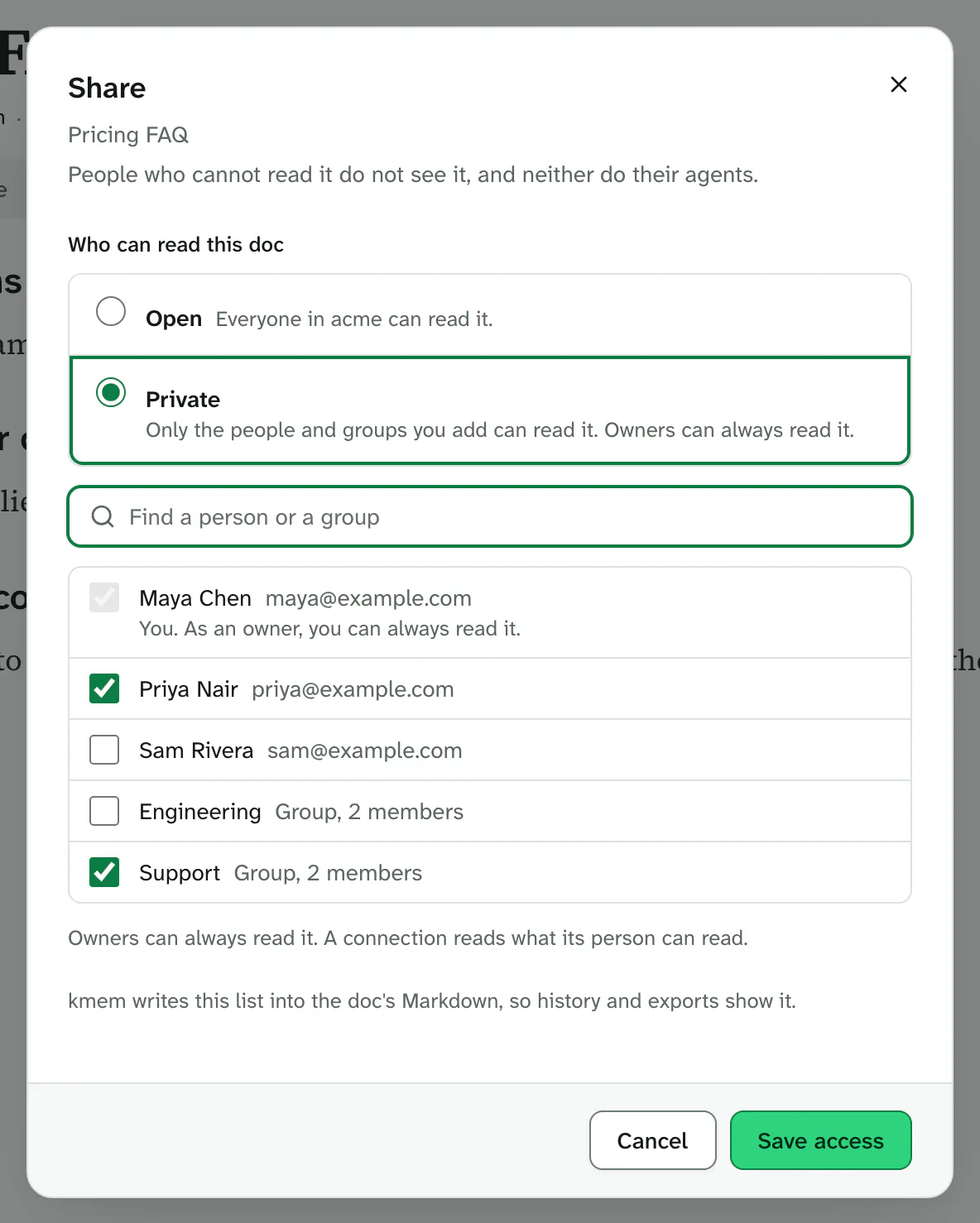
The list shows you and the owners of the org. You keep your access, and owners can always read the doc.
If the org has no groups, kmem says so. Owners and admins create groups in the org settings. Read Create a group.
If the doc is in a private folder, the list shows only the people who can read that folder. A doc can narrow the list of its folder. It cannot widen it.
A list can have at most 200 entries. For a larger set of people, share with a group.
After you save, the doc shows a Private chip. Select the chip to see who can read the doc.
Rules for the list
- If a change removes access from members, kmem tells you the number of members before you save.
- You cannot remove your own access. kmem stops the change and tells you how to fix it.
- When you make a doc private, kmem adds you to its list.
- An agent can never change who can read a doc.
- kmem stores the list in the Markdown of the doc. The history of the doc and every export show it.
Share a folder
A folder has the same Share dialog as a doc. The settings apply to every doc in the folder.
- In Docs, open the menu of the folder, or open the folder.
- Select Share.
- Select Open or Private, and choose the people and groups for Private.
- Select Save access.
A doc in the folder can narrow the settings of the folder. It cannot widen them.
Private folders
A private folder is a folder with the Private level. A person who is not on its list sees nothing of the folder: no doc, no count and no name. Make a folder private explains the rules.
Check who can read a doc
Use one of these ways:
- Open the Details panel of the doc. Visibility shows the level and what it means, for example Open · Everyone in the org can read it. When a folder sets the level, a line under it says Set by the folder and names the folder.
- Open the Share dialog. It shows the level and the people and groups.
- In Docs, look for a Private chip on a doc, or a lock mark on a folder.
- Above the list of a private folder, kmem shows one line that says the folder is private.