Create your account and org
An org holds the docs, members and agent connections of your team. This page tells you how to create an account, create an org and choose its two settings.
Create an account
You need one kmem account. The same account works in every org that you belong to.
- Open
https://kmem.appin your browser. - Select Create account.
- Enter your email address in Email.
- Choose how you want to sign in:
- Password: type a password in Password. Use at least 12 characters.
- Magic link: kmem sends a link to your email address. You then need no password.
- Select Create account, or Send magic link for a magic link.
- If you chose a magic link, open the email and select the link.
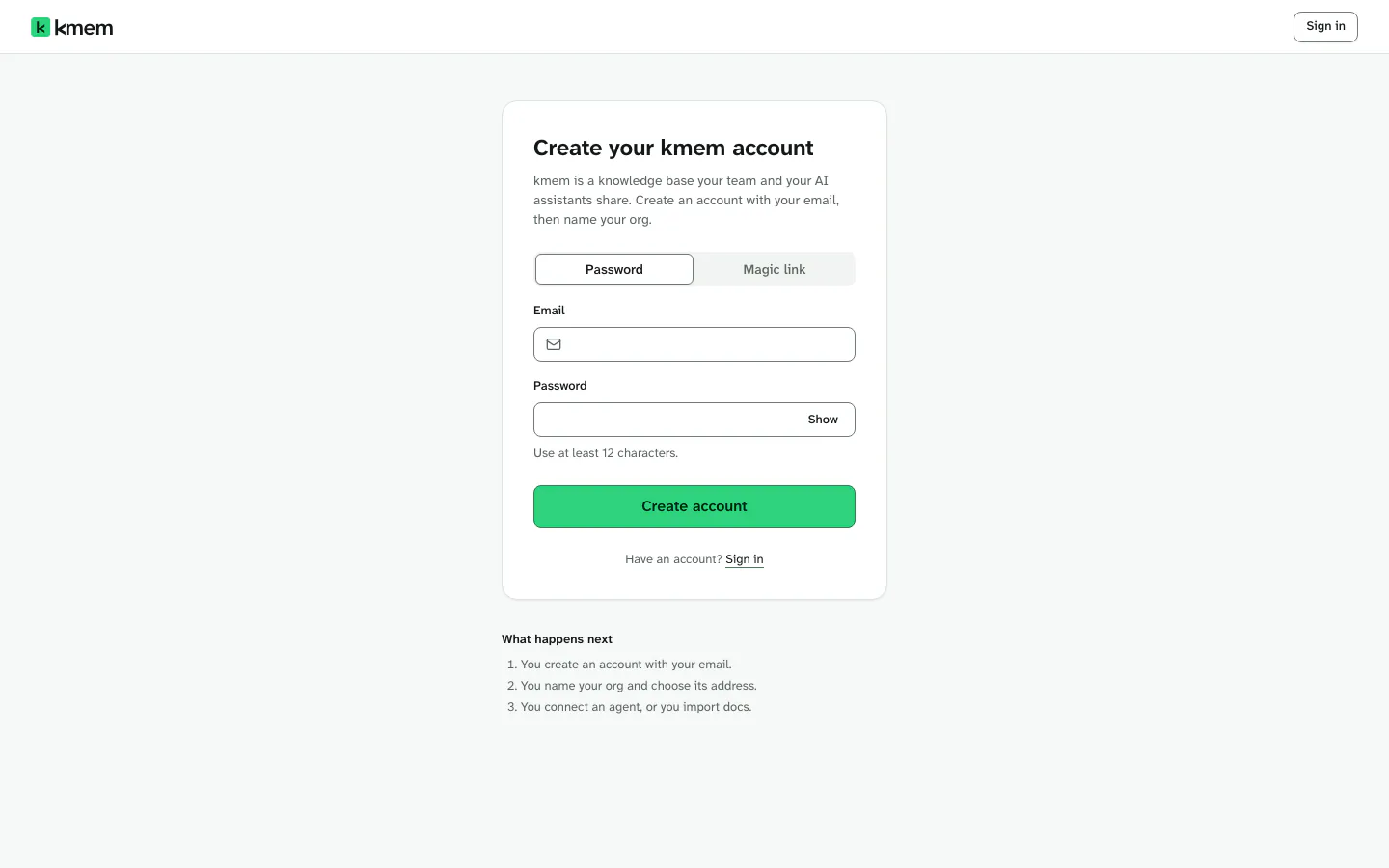
After this step, kmem shows the form that creates your org.
If kmem says An account already exists for that email. Sign in, or reset your password., you already have an account. Select Sign in, then continue with Create another org.
Create an org
The Create your org form asks for three things.
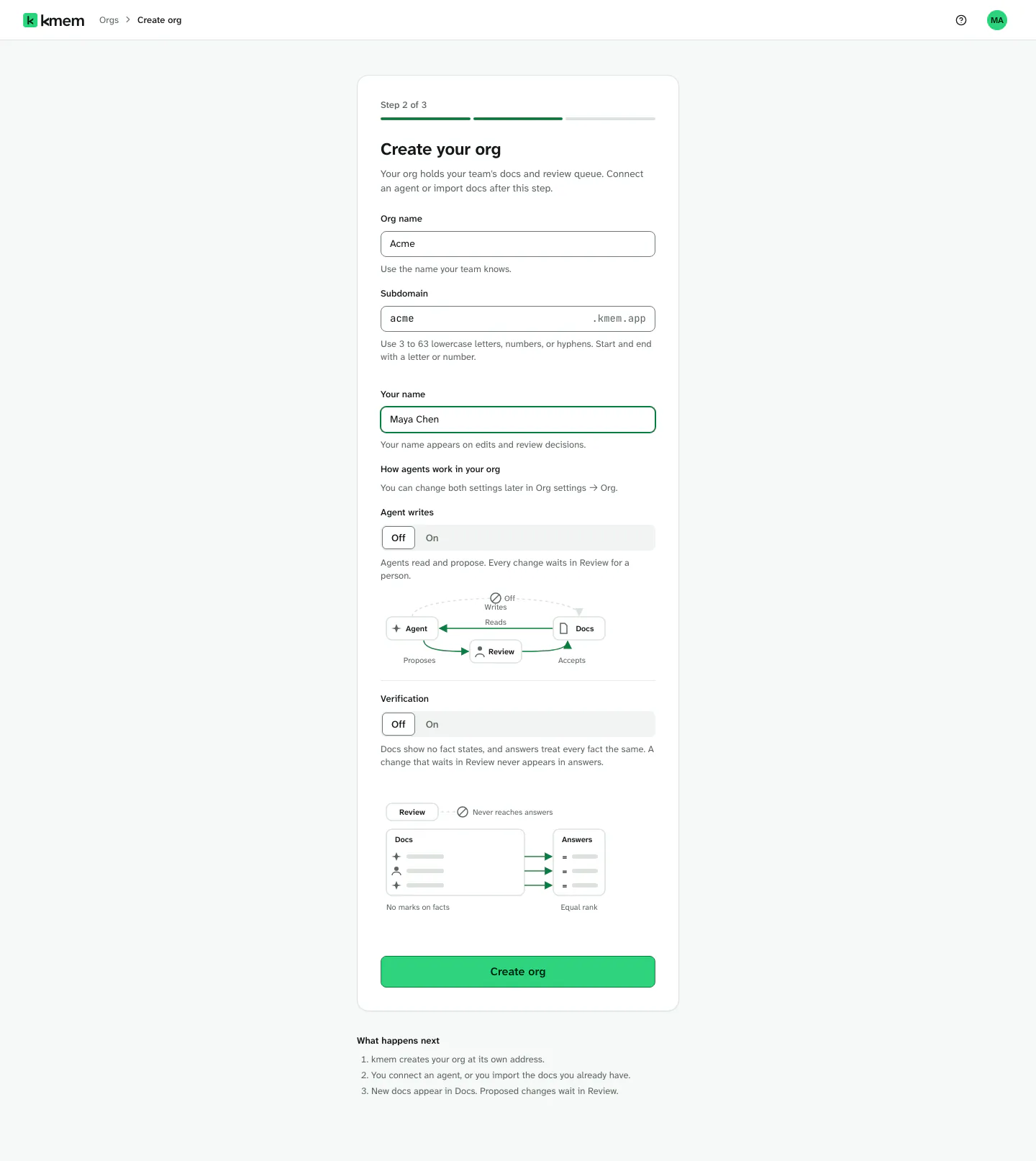
- In Org name, type the name that your team knows, for example Acme.
- In Subdomain, type the first part of the org address. For example,
acmegives the addressacme.kmem.app. - Use 3 to 63 lowercase letters, numbers or hyphens.
- Start and end with a letter or a number.
- kmem checks the address while you type. Address available means that you can use it.
- In Your name, type the name that your team knows you by. kmem shows this name on your edits and on your review decisions.
- Choose the two org settings. The next section explains them.
- Select Create org.
kmem creates the org and opens it at its own address.
You cannot change the subdomain later. Existing links and agent connections use the address, so kmem keeps it fixed. You can change the org name later.
If the subdomain is not available, kmem tells you why:
- This address is taken. Choose another subdomain. Another org uses it. kmem can suggest a free address.
- This address is reserved. Choose another subdomain. kmem keeps this address for its own use.
Choose the two org settings
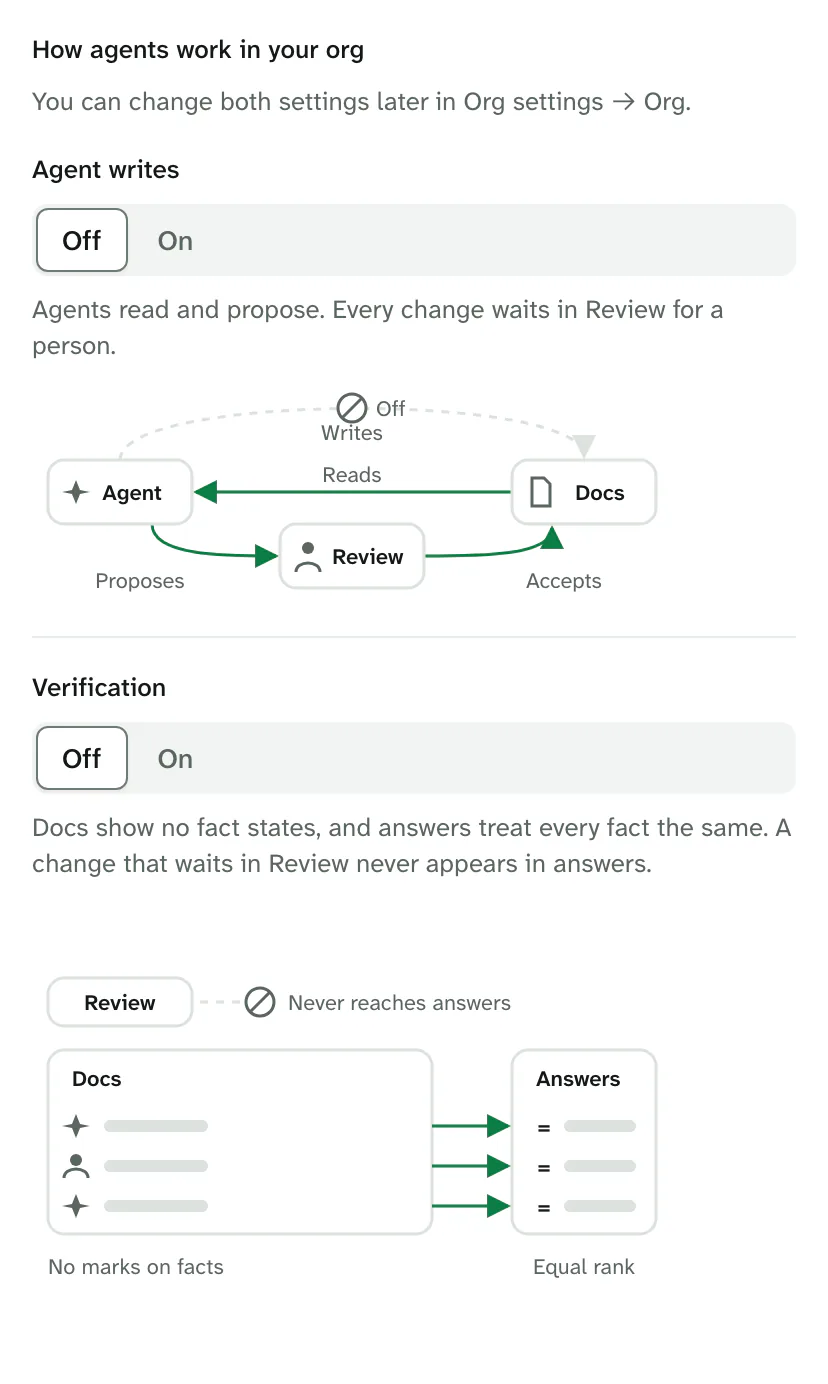
The form shows two settings under How agents work in your org. Both are Off for a new org. You can change both later in the org settings. Manage org settings tells you how.
| Setting | Off | On |
|---|---|---|
| Agent writes | Agents read and propose. Every change from an agent waits in Review for a person. | You can make connections that add docs and edit docs directly. Deletions and some other changes still wait in Review. |
| Verification | Docs show who wrote them and no state chips. Answers treat every fact the same. | Agent text shows Unverified, Accepted or Verified. Person-written text shows Written by or Imported by, and never Unverified. Answers rank verified facts first. Accepted and unverified facts still appear in answers. |
Keep both settings off if you are not sure. With both off, a person decides every agent change in Review, and every saved doc answers questions. A change that waits in Review never appears in answers.
For more detail, read Connect agents and Verify facts.
What you see first
A new org opens on the Docs overview. kmem shows Your org is ready. at the top. Select Dismiss to close the message.
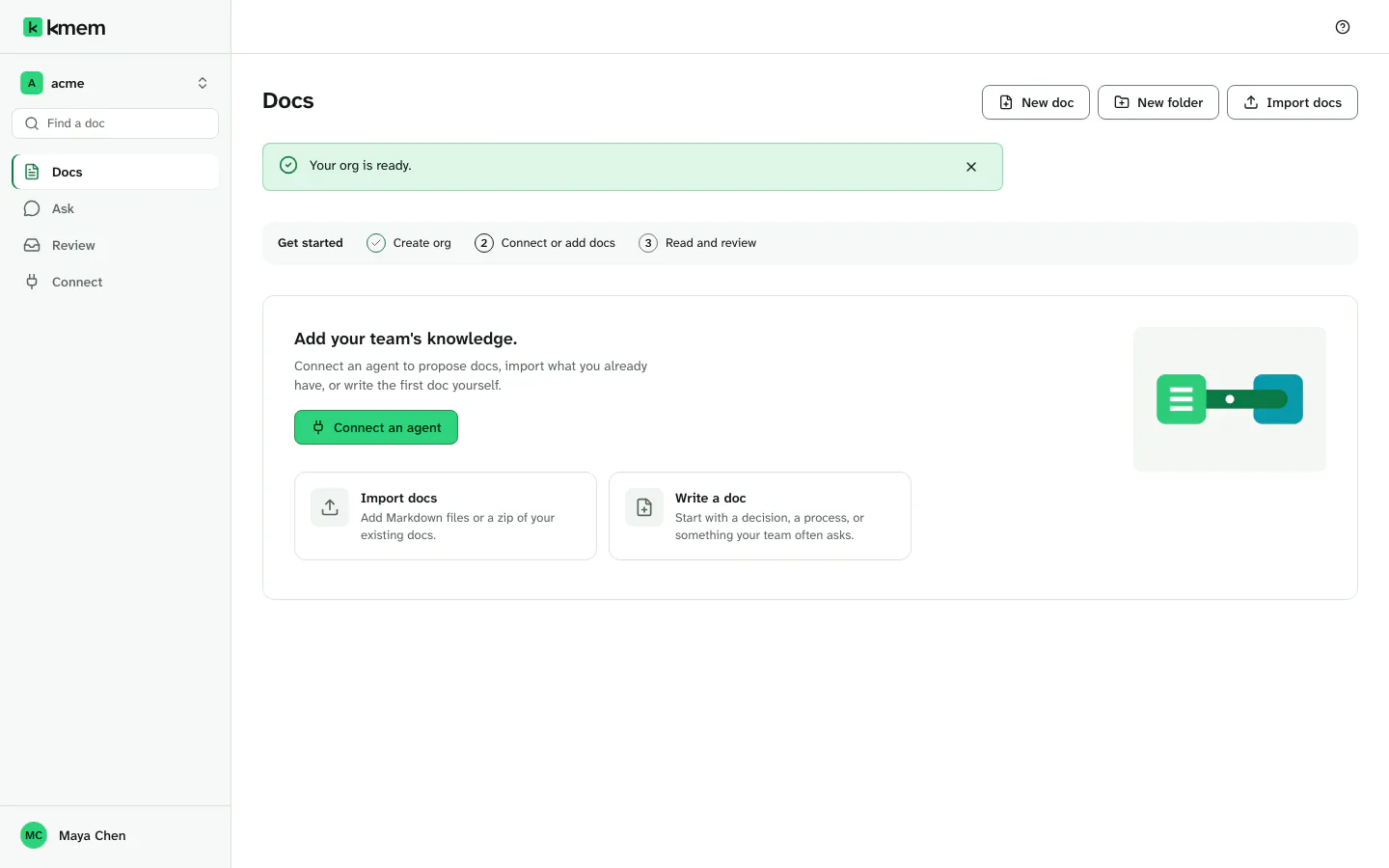
The Get started panel shows the steps of the setup:
- Create org. This step is complete.
- Connect or add docs. Put the first knowledge into kmem.
- Read and review. Open a doc, or decide a change in Review.
For the second step, choose one of these actions:
- Connect an agent opens Connect. An agent can then read your docs and propose changes. Read Connect agents.
- Import docs adds the Markdown files that your team already has. Read Import and export docs.
- Write a doc opens a new, empty doc. Read Write and edit docs.
kmem marks each step complete when you do it. Select Hide setup to hide the panel. Select Show setup to show it again.
Join an org from an invitation
An owner or an admin of an org can invite you by email. The email contains an invitation link.
- Open the invitation link from the email.
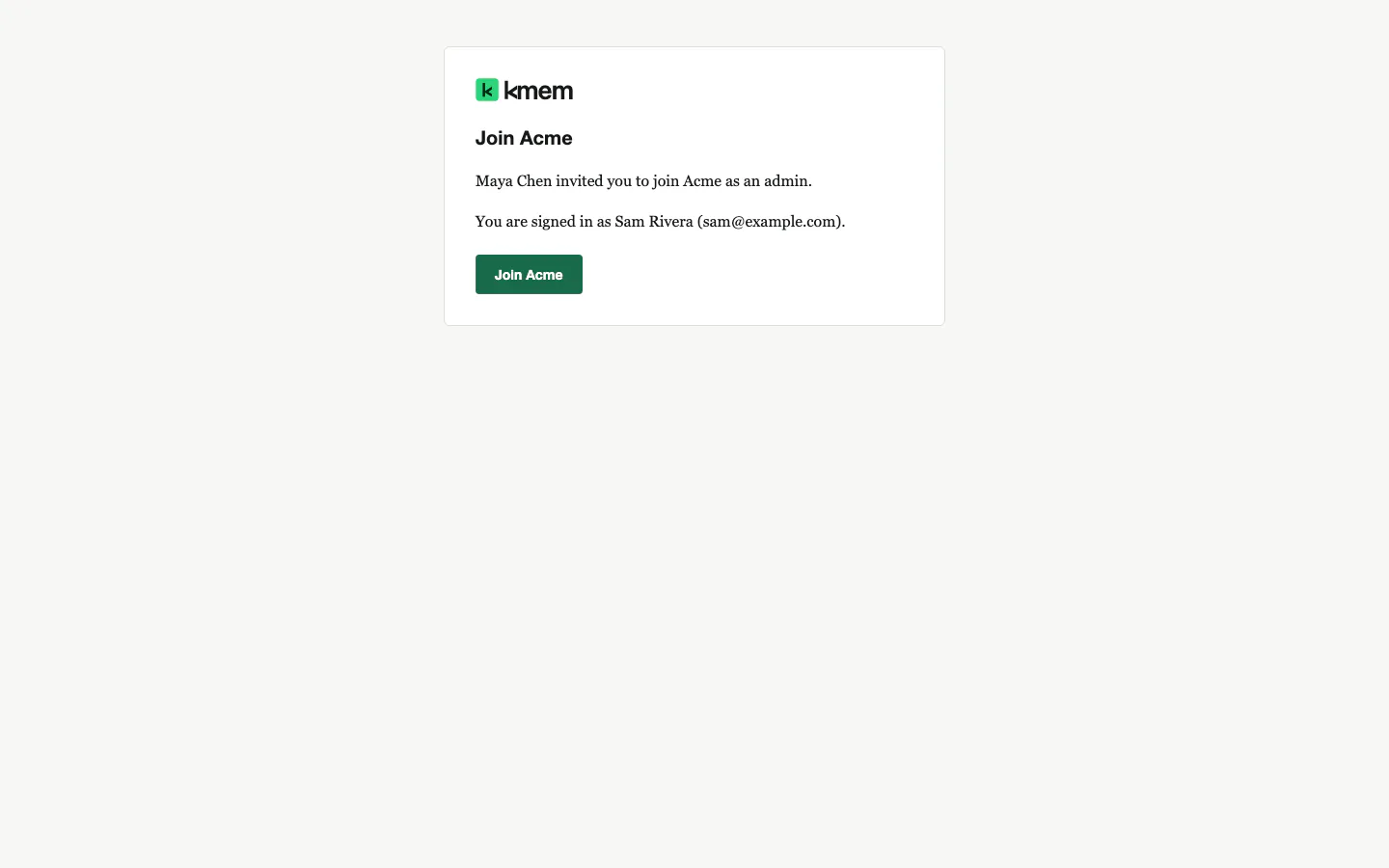
- kmem shows the page "You have been invited to" and the name of the org. The page shows who invited you and your role.
- Do one of these steps. The page shows the step that applies to you:
- If you have no kmem account, type your name, then select "Accept the invitation". kmem creates your account for the invited address and signs you in.
- If you have a kmem account and you are signed out, select "Email me a sign-in link". Open the link in the new email. kmem signs you in and brings you back to the invitation.
- If you are signed in with the invited address, select "Join" and the name of the org.
- kmem opens the docs of the org.
An invitation works one time. It expires after 7 days. Only the invited email address can accept it.
If the page says that the invitation is for a different address, your browser is signed in to another account. Sign out from the account menu, then open the invitation link again.
If the page says "This invitation has expired" or "This invitation is not valid", ask the person who invited you to send a new invitation.
Sign in later
- Open the address of your org, for example
https://acme.kmem.app. You can also openhttps://kmem.app. - On Sign in to kmem, enter your email address.
- Choose Password or Magic link.
- Select Sign in, or Send magic link.
A magic link works one time. It expires 10 minutes after kmem sends it.
If you sign in on kmem.app, kmem shows Choose an org. Select an org to open it. Each org has its own address, and you stay signed in when you move between your orgs.
Reset your password
- On the sign-in page, select Forgot password?.
- On Reset your password, enter your email address.
- Select Send reset link.
- Open the link in the email. The link works one time.
- On Set a new password, type the new password.
- Select Set new password.
kmem signs you out on every device, this one included. Sign in again with the new password.
If you signed up with a magic link, your account has no password. You can add one on the Account page. Read Set a password when you sign in with email links.
Create another org
One account can own more than one org.
- Open the org menu. Select the name of the current org, at the top left of the window.
- Select Create org.
- Complete the Create your org form, as in Create an org.
kmem limits the number of orgs that one account can own. At the limit, kmem says This account already owns the most orgs one account may own. Delete an org you no longer use in its Org settings, then create this one. Delete an org that you do not use, or ask another person to create the new org.