Connect Claude
Claude on the web and in the desktop app connects to kmem as a custom connector. Claude signs in to kmem, so you do not copy a token.
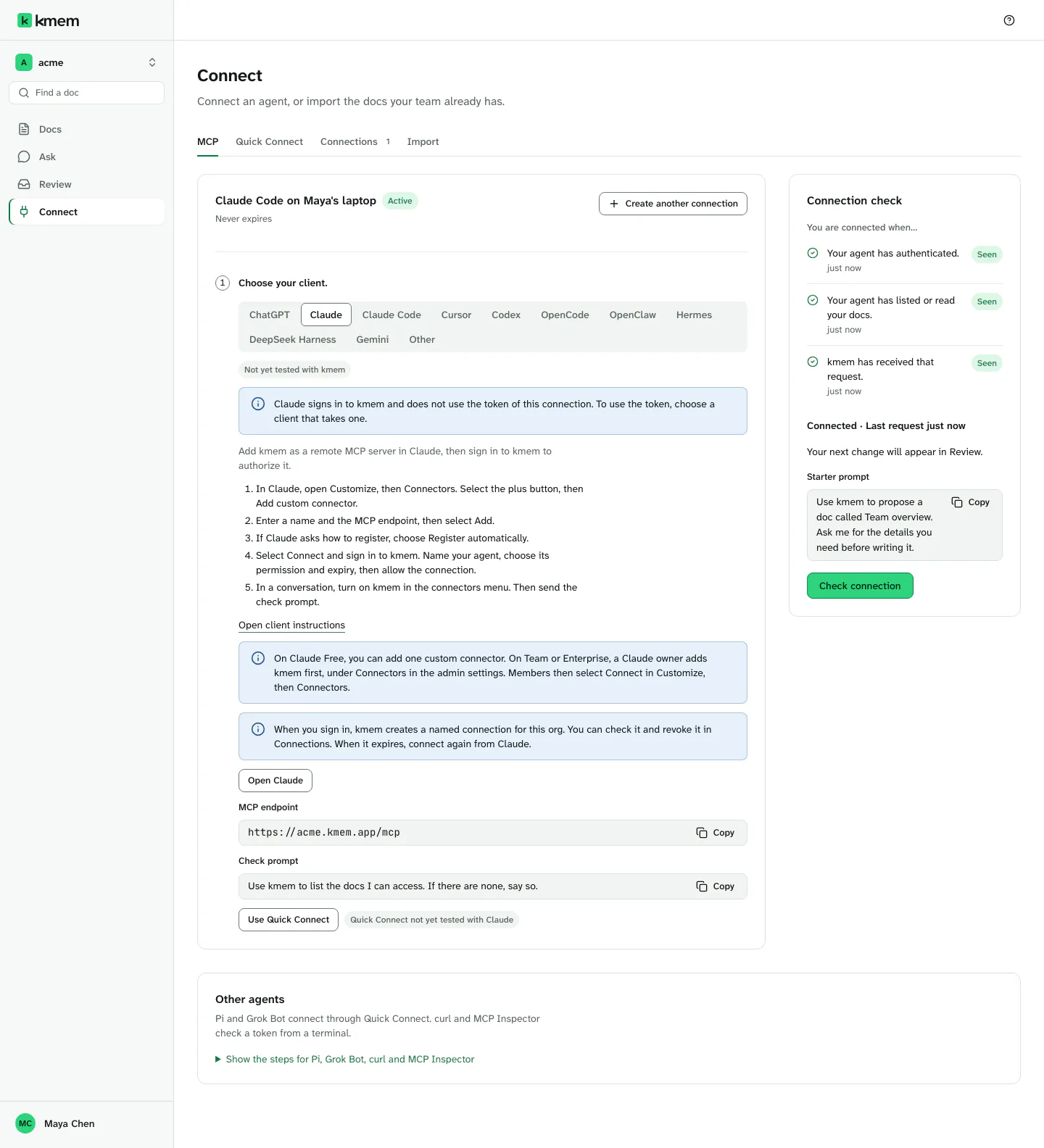
The Connect screen marks Claude Not yet tested with kmem. The steps on this page come from the Claude documentation. Claude can change its screens without notice. For Claude Code, read Connect Claude Code.
Before you start
Check these points first:
- On Claude Free, you can add one custom connector.
- On Claude Team or Claude Enterprise, a Claude owner must add kmem first. Read Claude Team and Enterprise.
- You need a kmem account that is a member of the org.
Get the MCP endpoint of your org:
- In kmem, select Connect. The MCP tab opens.
- Select Claude in the list of clients.
- Under MCP endpoint, select Copy endpoint. The endpoint looks like
https://acme.kmem.app/mcp.
Add kmem as a custom connector
- In Claude, open "Customize", then "Connectors". In kmem, Open Claude opens this page.
- Select the plus button, then "Add custom connector".
- Enter the name that the Claude tab in kmem shows, for example "acme-kmem". Each org has its own name, so Claude can hold the kmem of more than one org.
- Paste the MCP endpoint.
- Select "Add".
- Select "Connect". Claude opens a kmem page in your browser.
If you are not signed in to kmem, kmem asks you to sign in first. After you sign in, kmem shows the approval page.
If Claude asks how to sign in
Claude can ask how to register with kmem. Choose "Register automatically". kmem accepts the registration of Claude, and you do not need a client ID or a client secret.
If Claude shows a "Sign in now" choice, select it. Claude then opens the kmem approval page.
Approve kmem
The approval page has the title "Connect an agent to" and the name of your org.
- Check the return address. The page says "After you allow, your browser goes to" and a host name. For Claude on the web, the host is
claude.ai. - If the page says that kmem does not know the host, stop. Allow the connection only if you started it from that host.
- Check the name in "Connection name". kmem fills in a name, for example "Claude · Maya · 8 Oct". You can change it. The field must not be empty.
- Under "Permission", choose "Read only", "Read and propose" or "Read, propose and write". The write choice is not available while Agent writes is off.
- Under "Expires", choose 7 days, 30 days, 90 days or Never.
- Select "Allow connection".
Approve kmem on the ChatGPT page explains each part of the approval page. The page is the same for every client.
After you allow, kmem sends your browser back to Claude. In kmem, the connection appears in Connections with Via Claude (sign-in).
Use kmem in a chat
- Start a conversation in Claude.
- Open the connectors menu, and turn on kmem.
- Send the check prompt:
Use kmem to list the docs I can access. If there are none, say so.Claude lists the docs that it can read. In kmem, check the connection. Read Check a connection.
Claude Team and Enterprise
On a Claude Team or Claude Enterprise plan, a Claude owner adds kmem for the organization first.
- A Claude owner opens the admin settings of Claude, then "Connectors".
- The owner adds kmem with the MCP endpoint of your org.
- Each member opens "Customize", then "Connectors".
- Each member selects "Connect" beside kmem, and approves kmem with their own kmem account.
Each member gets a separate kmem connection. The connection follows the access of that member in kmem.
If your Claude owner has not added kmem yet, you can use Quick Connect. In the Claude tab in kmem, select Use Quick Connect. The tab marks this route Quick Connect not yet tested with Claude. Read Use Quick Connect and other clients.
Claude Desktop
The Claude desktop app supports custom connectors too. Use the same steps as on the web. The app opens the kmem approval page in your browser.
Nobody has tested kmem in the desktop app yet.
When the connection expires
kmem gives Claude no refresh token. When the connection expires, Claude loses access.
- In Claude, open "Customize", then "Connectors".
- Select "Connect" beside kmem again.
- Approve the connection again.
In kmem, the expired row in Connections offers Reconnect in Claude. It shows the steps again.