Verify facts
Verification is an org setting. It tracks who wrote each fact, a person or an agent, and whether a person has checked it. Answers trust verified facts most.
What verification does
kmem records who wrote each block of a doc: a person or an agent. Verification uses that record.
With verification on:
- Docs show who wrote each fact and its state. Agent text uses Unverified, Accepted or Verified. Person-written text shows Written by or Imported by, and never Unverified. Stale and Superseded can apply to either.
- Answers rank verified facts first. Accepted and unverified facts still appear in answers, with a lower rank. This applies to Ask, to search and to agents that read your docs.
With verification off:
- Docs show no fact states. The margin beside the text stays empty, also when you point at a block.
- Marks that a person set while verification was on, such as Stale, do not show. kmem keeps them, and they show again when you turn verification on.
- Docs do not open the status panel, so nobody sets a mark from a doc.
- Answers treat every fact the same.
In both modes, kmem keeps these rules:
- Every doc answers questions as soon as kmem saves it, whoever wrote it.
- A change that waits in Review never appears in answers.
- Stale facts rank at half weight.
- Superseded facts stay out of answers.
- A change from an agent to an existing doc still waits in Review when the rules in Review changes say so.
A new org starts with verification off. Turn it on if your team wants to see which facts agents wrote and which facts a person checked, and wants answers to trust checked facts most.
To make a person see the text of an agent before it reaches answers, turn Agent writes off. Then every change from an agent waits in Review. Read Manage org settings.
Turn verification on or off
Only an owner or an admin can change this setting.
- Open the org menu, and select Org settings.
- Find the Verification section. It shows the current value, On or Off, and what each value does.
- Select Turn verification on or Turn verification off.
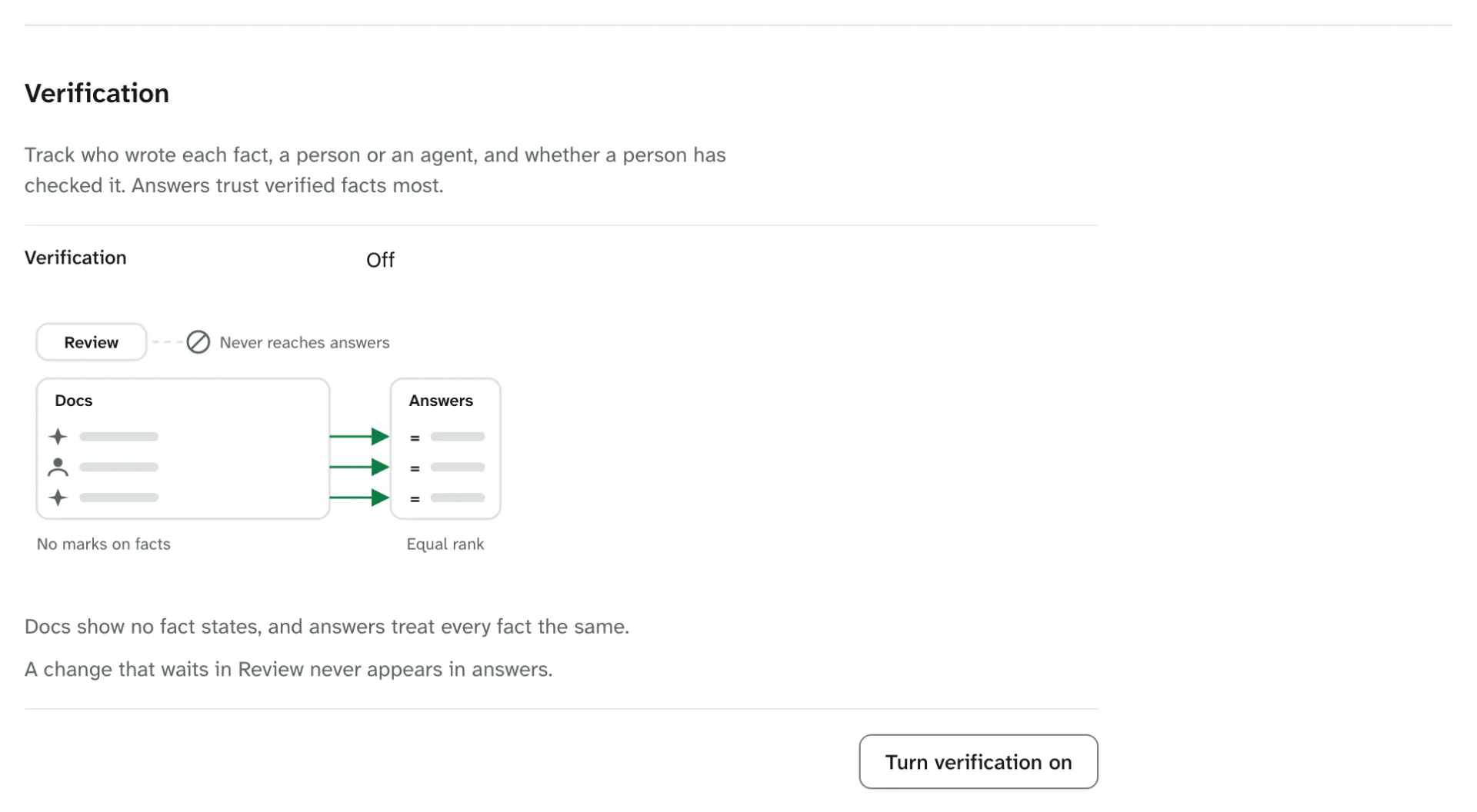
kmem applies the change at once. It accepts nothing, verifies nothing and deletes nothing. The setting only changes how answers rank each fact, and which marks the docs show. No doc leaves answers. You can change it again at any time.
The status marks
With verification on, each block of a doc can show one of these marks:
| Mark | What it means | Does the text reach answers? |
|---|---|---|
| Verified | A person checked the text, and it is still true. | Yes. It ranks first. |
| Accepted | A person accepted the change of an agent in Review. Verification is a separate check of the current text. | Yes. It ranks below verified text. |
| Unverified | An agent wrote the text, and nobody accepted or verified it. | Yes. It ranks below accepted text. |
| Stale | The text was true, and it may not be true now. | Yes, at half the weight of a verified fact. |
| Superseded | A later fact replaced this text. | No. |
With verification off, docs show none of these marks. The History of a doc shows who wrote each version. The Details panel counts the blocks that people wrote and the blocks that agents wrote.
The marks show in these places:
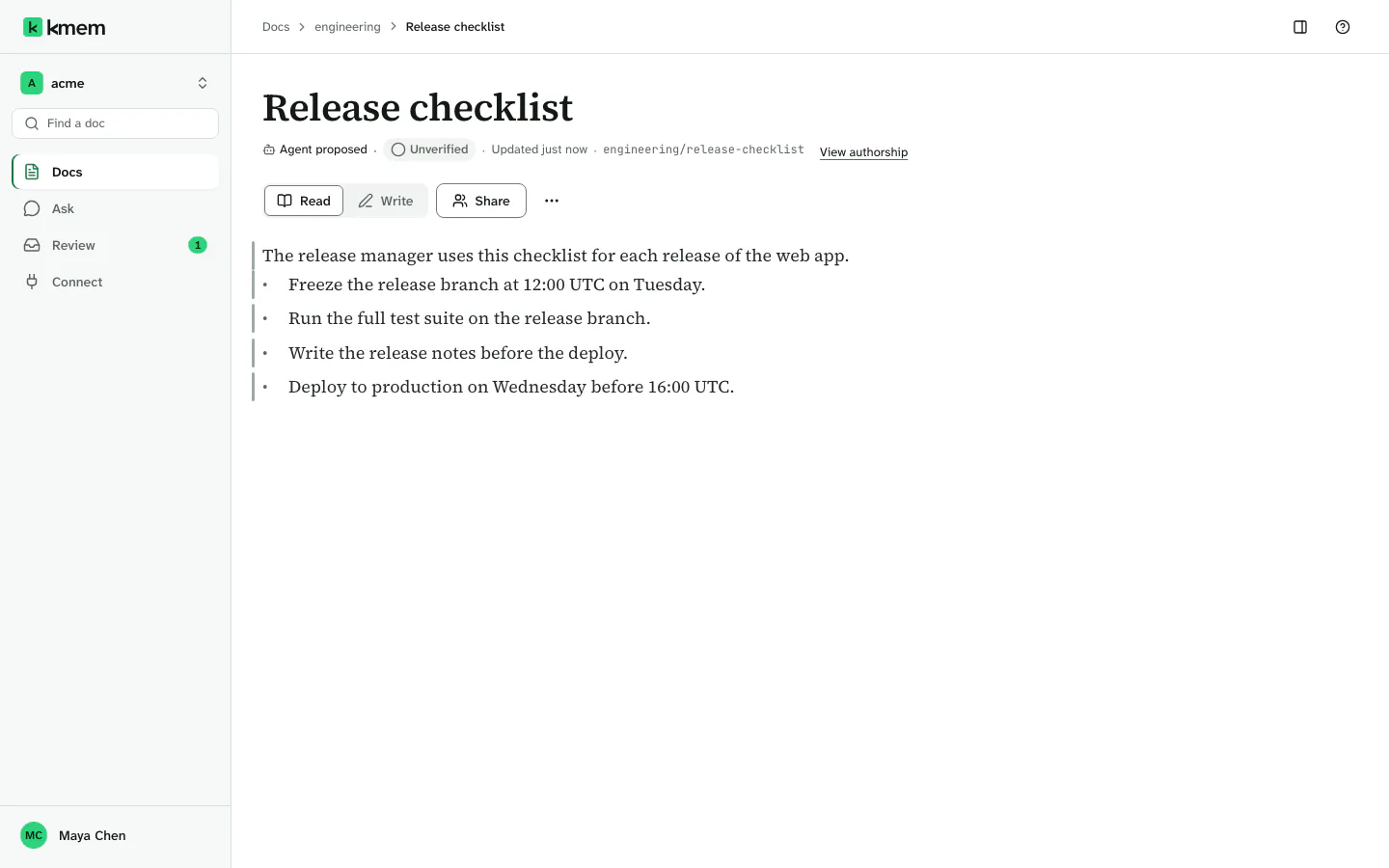
- In the margin of a doc in Read mode, beside each block.
- In the doc line at the top of a doc, for example Verified by Maya Chen.
- In the summary under the title, for example 1 accepted or 3 unverified.
- In Docs, beside a doc in a list. A doc that only people wrote shows Verified.
- In Properties, in the Details panel.
Accept or verify one fact
The status panel shows the facts about one block, and it lets you change its mark. Your org must have verification on. With verification off, a doc shows no bar beside its blocks, so you cannot open the panel.
- Open the doc in Read mode.
- Select the bar beside the block. Every block with a record has one, in the colour of its state. A block with no record shows its bar when you point at it. kmem opens the Provenance panel.
- Open History to read the facts: Written by, Written on, Through, and, when they apply, Accepted, Verified and Model.
- Under State, select a state. The current state has a Current tag:
- Verified: you checked the text, and it is still true.
- Unverified: you withdraw an earlier mark.
- Stale: the text was true, and it may not be true now.
- Superseded: a later fact replaced the text.
- Under Applies to, select This claim.
- Select the button, for example Mark verified.
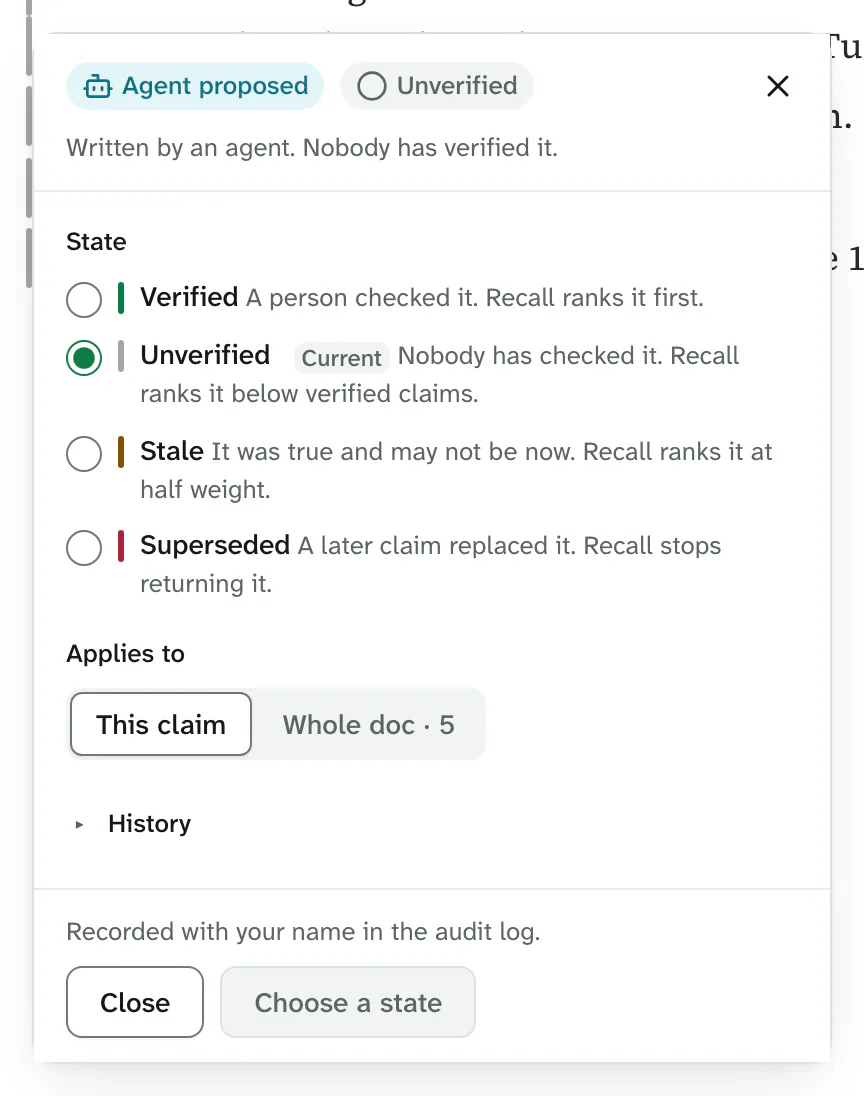
kmem puts your name on the mark. Every change is in the audit log, with your name and the earlier state. You can change the mark again later.
To accept the change of an agent, accept its batch in Review. Read Accept a batch. kmem then marks the text Accepted.
Select Close to close the panel. On a phone, the panel opens as a sheet, and the Back button of the phone closes it.
Verify a doc
To verify all text in a doc at one time:
- Open the status panel of any block in the doc.
- Under Applies to, select the whole doc. The choice shows the number of claims, for example The whole doc — 12 claims.
- Select Verified.
- Select the button, for example Mark 12 claims verified.
kmem records that you read all of these claims, and that each one is still true. It puts your name on each claim. Do this only when you checked the whole doc.
To verify one section, select the section under Applies to instead. The choice shows the heading and the number of claims.
If you can read a doc but not change it, the panel does not let you change the marks. Ask an owner for write access.
What Ask and agents leave out
Ask and agents leave out two kinds of text, in both modes:
- Superseded text.
- A change that waits in Review. The change is not in the doc until a person accepts it.
Ask and agents do not leave out text that an agent wrote directly. With verification on, that text ranks below text that a person accepted or verified.
Docs that people write
kmem trusts the work of a person. A doc a person wrote shows Written by {name}. An import shows Imported by {name}, and Author not recorded unless the Markdown names its author. A person's text never shows Unverified or Accepted.
When a person writes or imports a doc, kmem stores the text as verified by that person. This rule applies to these tools:
- The editor in kmem.
- The kmem API and the kmem command line tool, with the account of a person.
- An import by a person.
These actions do not store the text as verified:
- Git sync.
- A restore from the history.
- An undo of the changes of a session.
The doc line names a verifier only when people verified all of the text in the doc. A doc that only people wrote shows Verified in lists, when the org uses verification.
A block that a person wrote never shows an Unverified or Accepted mark.