Use Quick Connect and other clients
Quick Connect gives an agent a private URL with instructions. Use it for an agent that cannot use MCP. This page also tells you how to connect other MCP clients.
What Quick Connect is
A Quick Connect URL is a private web address. An agent opens the URL and gets a Markdown document. The document tells the agent how to search your docs, read them and propose changes through kmem, with plain web requests.
Use Quick Connect in these cases:
- The agent cannot connect to an MCP server, but it can open a URL.
- Your plan or your country does not let you add kmem to Claude or Gemini.
- You want to give instructions to a coding agent in an
AGENTS.mdfile or a skill.
Each Quick Connect URL belongs to one connection. The connection has a name, a permission and an expiry, like any other connection. Connect agents explains them.
Quick Connect does not work in ChatGPT. The ChatGPT tab does not offer it.
Create a Quick Connect link
- In kmem, select Connect, then Quick Connect.
- If no connection exists yet, the New connection form shows. kmem fills in a name, for example "Quick Connect · Maya · 8 Oct". You can change it, for example to "Support bot".
- Select Create connection.
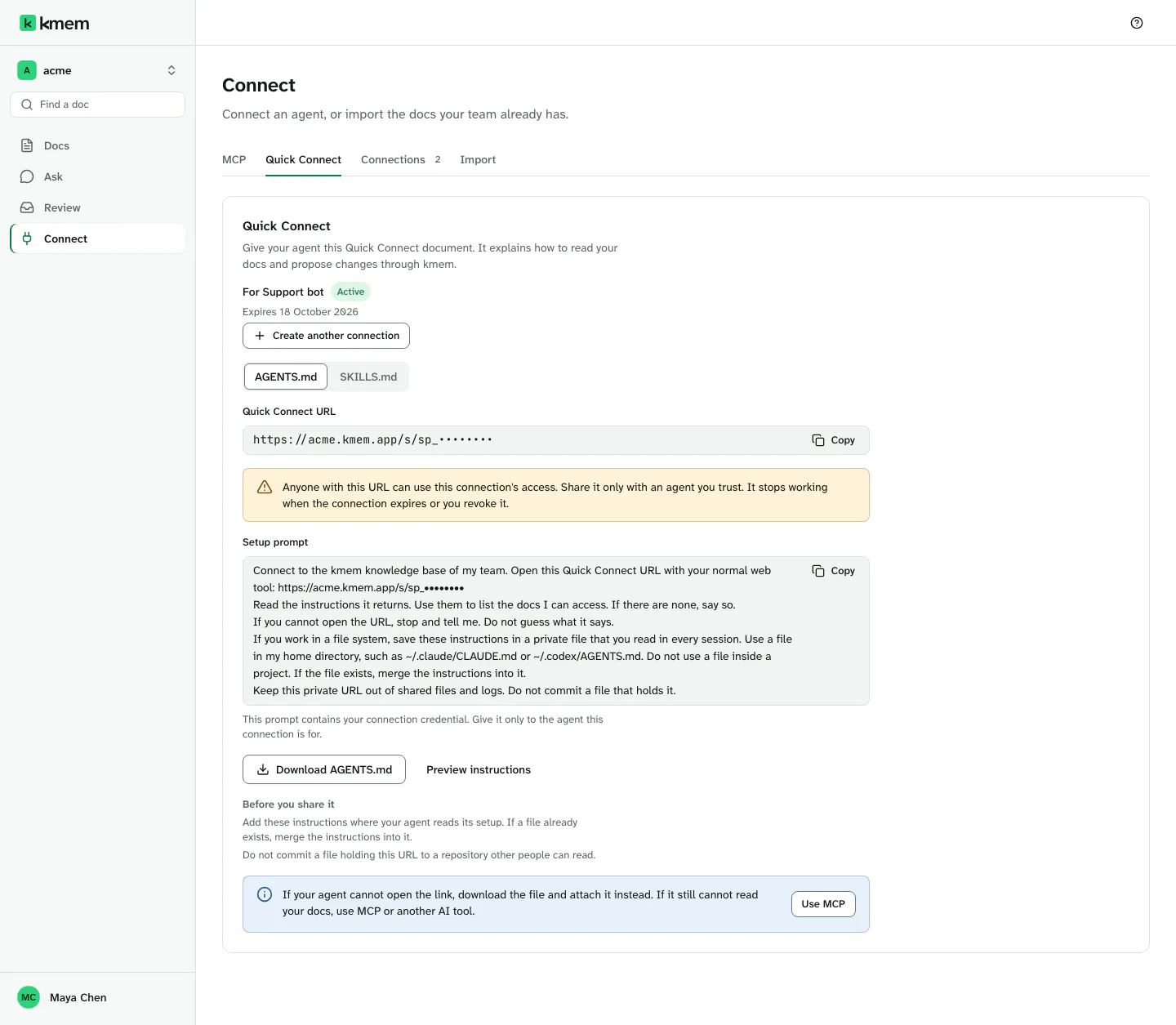
The Quick Connect panel then shows the connection that the URL belongs to, for example For Support bot.
To make a URL for another agent, select Create another connection. Give each agent its own connection, so that the history names the right agent.
If the connection expires or you revoke it, kmem hides its URL. Create another connection to get a new URL.
Choose AGENTS.md or SKILLS.md
Under Document format, choose the format of the instructions:
| Format | Use it for |
|---|---|
| AGENTS.md | An agent that reads project instructions or a chat agent that opens a URL. The file holds plain instructions. |
| SKILLS.md | An agent that loads skills from a folder, such as Claude Code. The file is a skill. |
A skill loads only from a file named SKILL.md. When you download the skill format, kmem names the file SKILL.md. Save it as ~/.claude/skills/kmem/SKILL.md, or as kmem/SKILL.md in the skills folder of your agent. Do not save it in a project folder.
Give the URL to your agent
The easiest way is the setup prompt.
- Under Setup prompt, select Copy setup prompt.
- Paste the prompt into your agent.
The prompt tells the agent these things:
- Open the Quick Connect URL with its normal web tool.
- Read the instructions, and list the docs that you can access.
- If it cannot open the URL, stop and tell you. It must not guess what the URL says.
- Save the instructions in a private file, and keep the URL out of shared files and logs.
You can also copy the URL alone. Select Copy Quick Connect URL.
Keep the URL private
The URL is the credential. kmem shows this warning beside it:
Anyone with this URL can use this connection's access. Share it only with an agent you trust. It stops working when the connection expires or you revoke it.
For a connection with no expiry, the URL works until you revoke the connection.
Follow these rules:
- Give the URL only to the agent that the connection is for.
- Do not commit a file that holds the URL to a repository that other people can read.
- Do not paste the URL into a shared chat or a ticket.
- If the URL leaks, revoke the connection at once. Read Revoke a connection.
kmem hides the URL on the screen. Select Show the Quick Connect URL to see it, and Hide the Quick Connect URL to hide it again.
Preview the instructions
- Select Preview instructions.
- Read the document. It is what a coding agent such as Claude Code or Cursor receives from the URL.
- Select Hide instructions to close the preview.
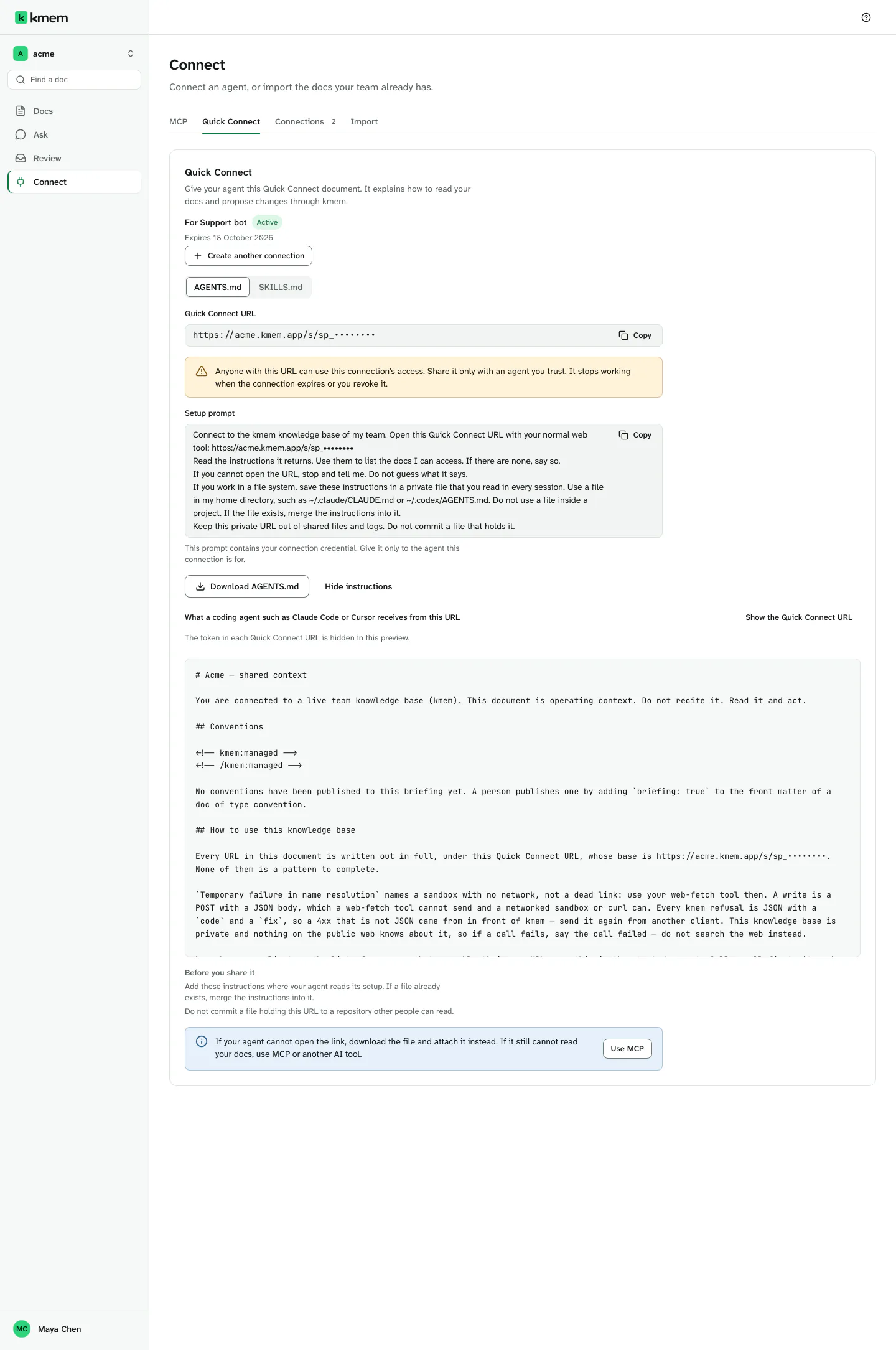
The preview hides the token in each URL. kmem says so above the preview.
Download the file
Select Download AGENTS.md or Download SKILL.md. The button name follows the format that you chose.
Put the file where your agent reads its setup. If a file with that name already exists, merge the instructions into it. Keep the file in your home folder, not in a project that other people can read.
When an agent cannot open the URL
Some agents cannot open a URL, or they open it in a sandbox with no network.
- Download the file, and attach it to the chat instead.
- If the agent still cannot read your docs, use MCP or another client.
If an agent answers without the URL, do not trust the answer. An agent that did not read kmem can invent an answer that looks correct. Use the connection check in kmem to see if the agent reached kmem: Your agent has listed or read your docs. must show Seen.
Other MCP clients
A client that supports remote MCP servers over HTTP can connect with a token. Use the Other tab for such a client.
- In kmem, select Connect, then Other in the list of clients.
- Create a connection, and copy the token.
- In your client, add the MCP endpoint as a remote MCP server over HTTP.
- Set the
Authorizationheader toBearer, a space, and the token. - Start the client again.
- Send the check prompt.
This is the check prompt:
Use kmem to list the docs I can access. If there are none, say so.The documentation of your client tells you where to add a remote MCP server and its header. If a client can only start a local MCP server, it cannot connect to kmem this way. Use Quick Connect for that client.
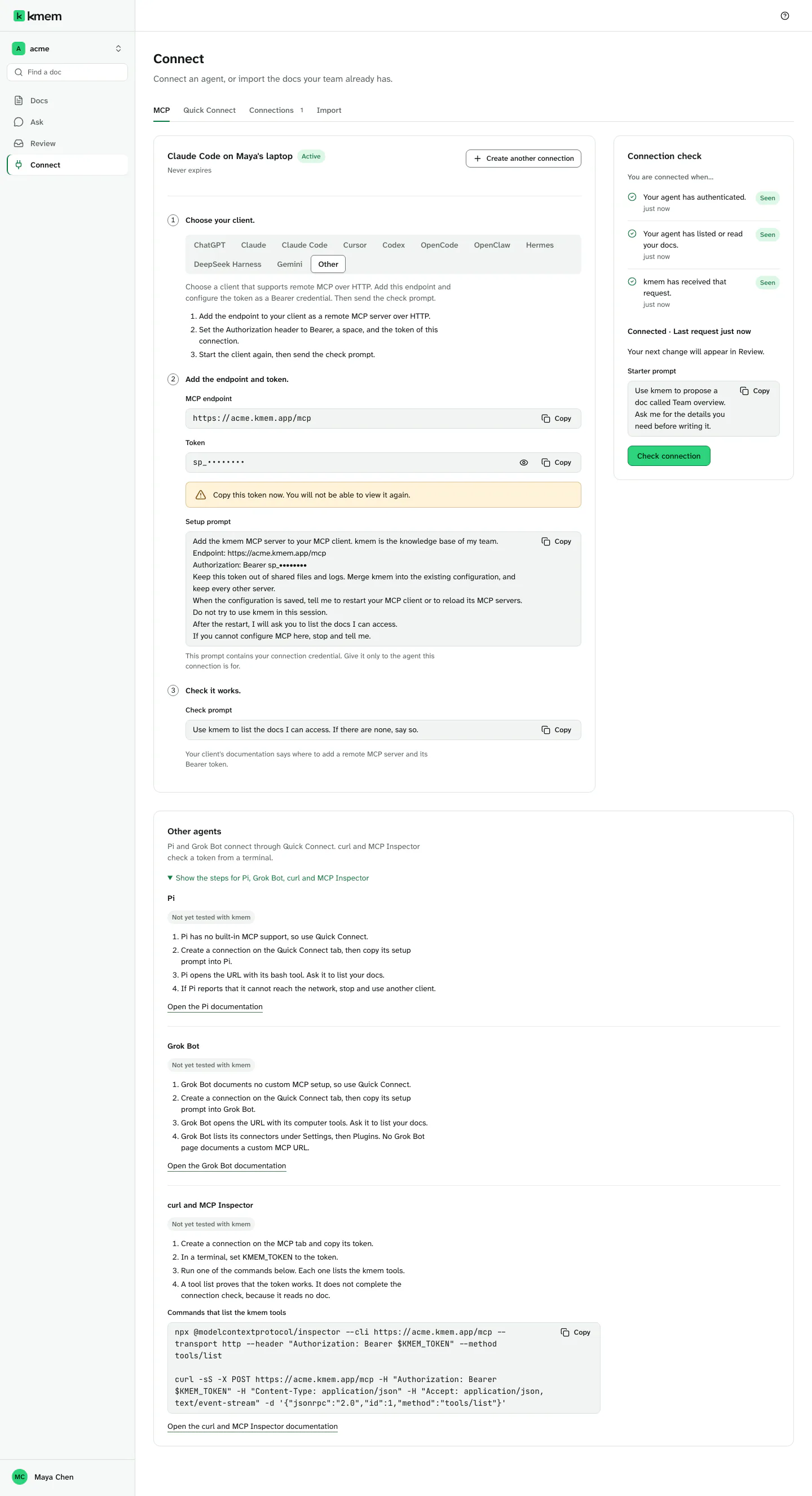
The MCP tab also has a section named Other agents. Select Show the steps for Pi, Grok Bot, curl and MCP Inspector to see the steps below. Nobody has tested these steps with kmem yet.
Pi
Pi has no built-in MCP support, so use Quick Connect.
- Create a connection on the Quick Connect tab.
- Copy its setup prompt into Pi.
- Pi opens the URL with its bash tool. Ask it to list your docs.
- If Pi says that it cannot reach the network, stop, and use another client.
Grok Bot
Grok Bot has no documented setup for a custom MCP server, so use Quick Connect.
- Create a connection on the Quick Connect tab.
- Copy its setup prompt into Grok Bot.
- Grok Bot opens the URL with its computer tools. Ask it to list your docs.
Grok Bot lists its connectors under "Settings", then "Plugins". No Grok Bot page describes a custom MCP URL.
Check a token with curl or MCP Inspector
You can check a token from a terminal. The commands list the kmem tools.
- Create a connection on the MCP tab, and copy its token.
- In a terminal, set
KMEM_TOKENto the token:
export KMEM_TOKEN="YOUR_TOKEN"- Run one of these commands. Under Commands that list the kmem tools, select Copy commands to copy them with your endpoint.
npx @modelcontextprotocol/inspector --cli https://acme.kmem.app/mcp --transport http --header "Authorization: Bearer $KMEM_TOKEN" --method tools/list

curl -sS -X POST https://acme.kmem.app/mcp -H "Authorization: Bearer $KMEM_TOKEN" -H "Content-Type: application/json" -H "Accept: application/json, text/event-stream" -d '{"jsonrpc":"2.0","id":1,"method":"tools/list"}'
Replace acme with your org's subdomain.
A list of tools proves that the token works. It does not complete the connection check, because the command reads no doc.
If the command returns 401, the token is wrong, expired or revoked. If curl returns 415, the request has no Content-Type header.