Connect agents
A connection gives one agent access to your docs. This page explains the three connection modes and the Agent writes setting. It also tells you how to check and revoke a connection.
What a connection is
An agent reads your docs through a connection. A connection has these parts:
- A name, for example "Claude Code on Maya's laptop". The name appears in Review and in the history of each doc that the agent changes.
- A mode, which decides what the agent can do.
- The docs that it can read.
- An expiry date, or no expiry.
- The person who made it. The connection follows the access of that person.
Make one connection for each agent. Then each agent has its own name, its own activity and its own revoke action.
kmem serves agents over MCP, the Model Context Protocol. The MCP endpoint of your org is its address followed by /mcp, for example https://acme.kmem.app/mcp. The MCP tab in Connect shows it.
The three connection modes
| Mode | Read docs | Propose changes | Write changes directly |
|---|---|---|---|
| Read only | Yes | No | No |
| Read and propose | Yes | Yes. Each change waits in Review for a person. | No |
| Read, propose and write | Yes | Yes | Yes, when Agent writes is on. New docs and edits to the current version go straight to Docs. Deletions and edits to an older version wait in Review. |
Read and propose is the default mode. It is the right choice for most agents.
Choose Read only for an agent that only answers questions.
Choose Read, propose and write for an agent that you trust to keep docs up to date without a person in between. kmem keeps every version of each doc. You can undo all changes of such a connection from its menu. Read Undo the changes of a connection.
The Agent writes setting
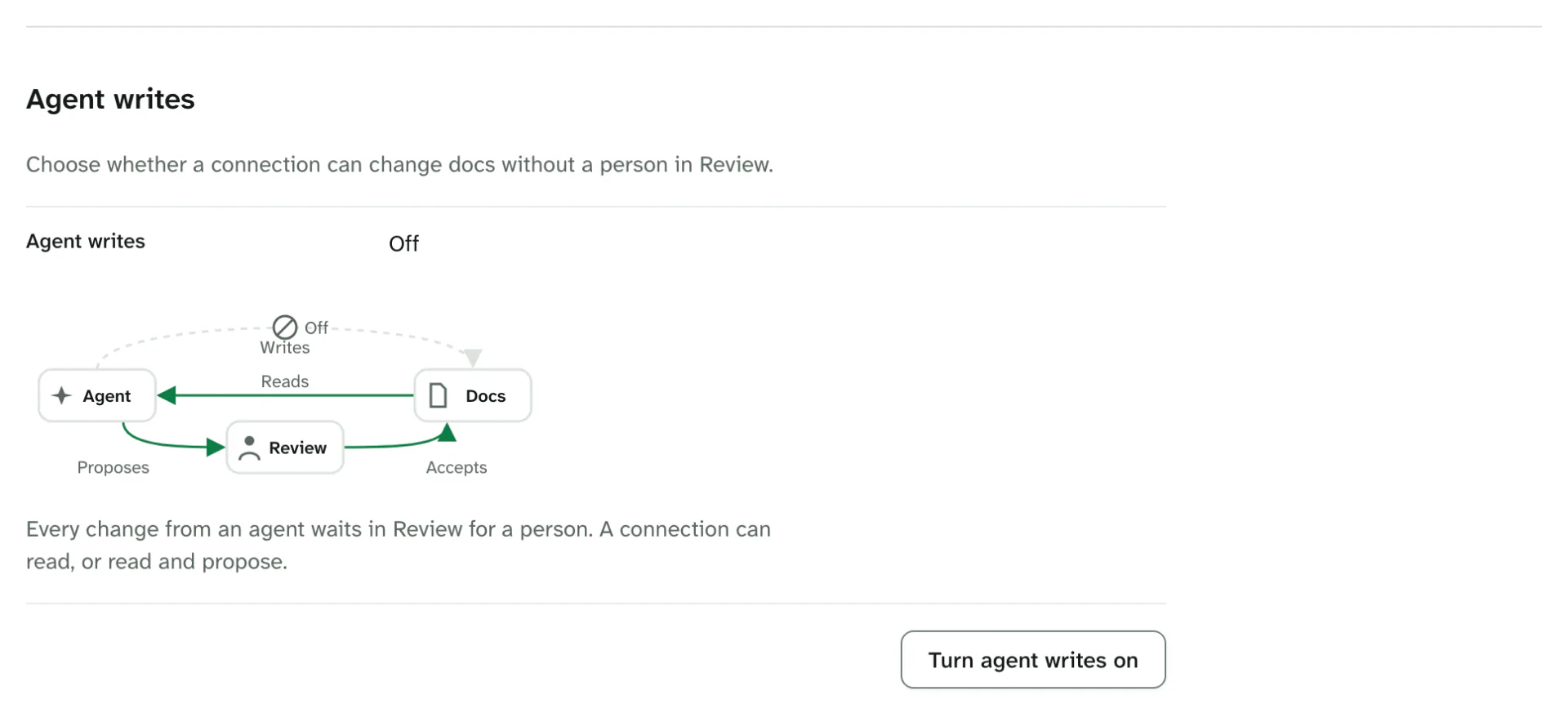
Agent writes is an org setting. It decides if any connection can write without a person in Review.
| Value | What happens |
|---|---|
| Off | Every change from an agent waits in Review. Agents can still read and propose. The mode Read, propose and write is not available. |
| On | A connection with Read, propose and write can add docs and edit docs directly. Deletions and edits to an older version still wait in Review. |
A new org starts with Agent writes off, unless its creator turned it on. Every org that existed before this setting starts with it off.
When the setting is off, the New connection form gives the reason. It says Agent writes are off for this org, so this choice is not available. An owner or an admin sees Turn on agent writes in Settings. Another member sees Ask an owner or an admin to turn on agent writes.
A connection that somebody made with Read, propose and write acts as Read and propose while the setting is off. Its row says so in Connections. When an owner turns the setting on again, the connection can write again.
Only an owner or an admin can change the setting. Read Agent writes.
Which docs a connection can read
A connection reads the docs that the person who made it can read: every Open doc, and each Private doc whose list includes that person. The New connection form shows this as a fact, not a choice: Docs it can read: The docs you can read.
- It never reads a doc in a folder that the person cannot open.
- It never reads a Private doc whose list does not include the person.
- It never reads docs of another org.
Control who can read a doc explains the levels.
How long a connection works
When you create a connection, choose Expires:
- 7 days. This is the default.
- 30 days.
- 90 days.
- Never. The connection works until somebody revokes it, or until its person leaves the org.
An expired connection stops at once. For an agent that uses a token, create a replacement. For ChatGPT, Claude and the Gemini web app, connect again from the client. kmem gives these clients no refresh token.
Three ways to connect
| Way | How it works | Clients |
|---|---|---|
| Sign in | The client adds kmem as a remote MCP server. You sign in to kmem and approve the connection. You do not copy a token. | ChatGPT, Claude, the Gemini web app |
| Token | You create a connection in kmem and put its token in the settings of the client. | Claude Code, Cursor, Codex, OpenCode, OpenClaw, Hermes, DeepSeek Harness, Gemini CLI, and other MCP clients |
| Quick Connect | The agent opens a private URL and reads written instructions. | Pi, Grok Bot, and other agents that can open a URL |
The MCP tab in Connect lists the clients in this order: ChatGPT, Claude, Claude Code, Cursor, Codex, OpenCode, OpenClaw, Hermes, DeepSeek Harness, Gemini and Other.
kmem has tested Claude Code and Codex. The MCP tab marks every other client Not yet tested with kmem. The steps for those clients come from the documentation of each client.
| Client | Guide page |
|---|---|
| ChatGPT | Connect ChatGPT |
| Claude | Connect Claude |
| Claude Code | Connect Claude Code |
| Cursor | Connect Cursor |
| Codex | Connect Codex |
| OpenCode | Connect OpenCode |
| OpenClaw, Hermes, DeepSeek Harness | Connect OpenClaw, Hermes or DeepSeek Harness |
| Gemini | Connect Gemini |
| Quick Connect, Pi, Grok Bot, other clients | Use Quick Connect and other clients |
Create a connection
This procedure is for a client that uses a token. For ChatGPT and Claude, the client creates the connection when you sign in.
- Select Connect. The MCP tab opens.
- Under Choose your client., select your client.
- Read the steps for the client. The steps are visible before you create the connection.
- In the New connection form, fill in these fields:
- Connection name: kmem fills in the client, your first name and the date, for example "Claude Code · Maya · 8 Oct". If the list has that name already, kmem adds a number. You can change the name.
- Docs it can read: The docs you can read. You do not choose this.
- Permission: Read only, Read and propose, or Read, propose and write.
- Expires: 7 days, 30 days, 90 days or Never.
- Read Before you create it. It says in one sentence what the connection can do, and when it stops.
- Select Create connection.
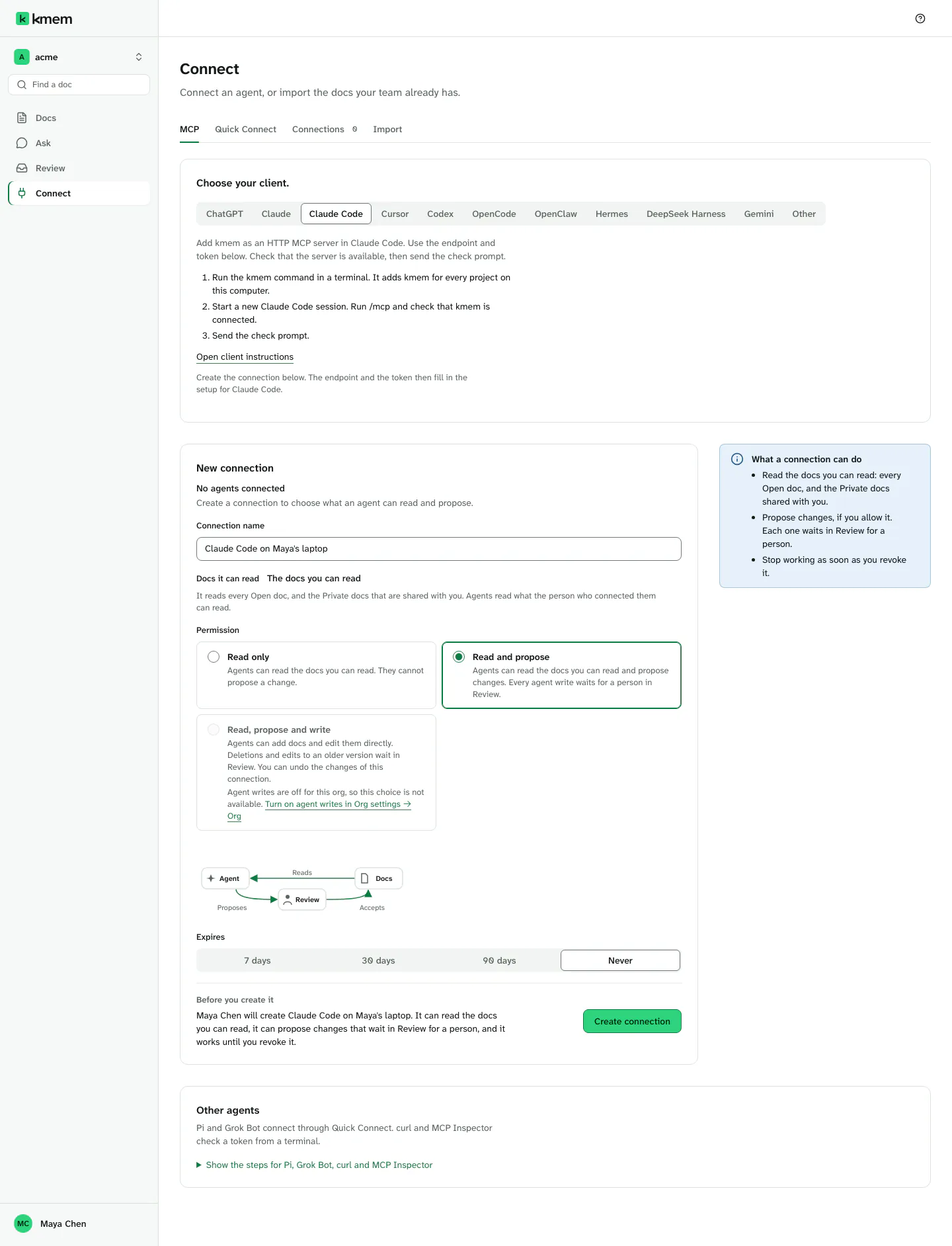
kmem creates the connection and shows its setup:
- MCP endpoint, with Copy endpoint.
- Token, with Show token and Copy token. kmem hides the token until you select Show token.
- The setup for your client, with the endpoint and the token filled in. For example, Command for Claude Code with Copy command, or Configuration for Cursor with Copy configuration.
- Setup prompt, with Copy setup prompt. Give this prompt to an agent, and it adds kmem for you.
- Check prompt, with Copy check prompt.
Copy the token now. kmem shows the token only one time. After you reload or close the page, kmem cannot show the token again. kmem stores only a fingerprint of the token, not the token.
To connect another agent, select Create another connection. If you did not copy the token of the current connection, kmem warns you first.
The setup prompt and the token are credentials. Give them only to the agent that the connection is for. Keep them out of shared files, chat rooms and logs.
Check a connection
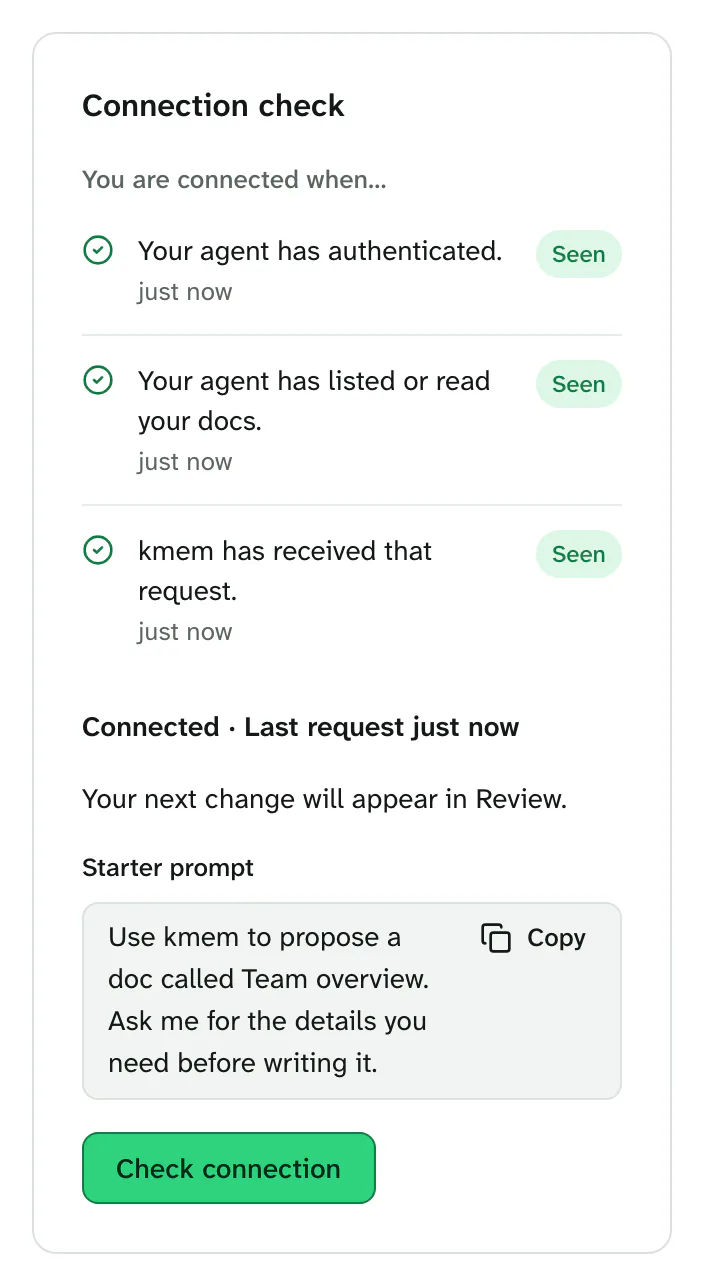
The Connection check panel shows if the agent reached kmem. It has three checks under You are connected when…:
- Your agent has authenticated.
- Your agent has listed or read your docs.
- kmem has received that request.
- Set up the client with the steps on its page.
- Send the check prompt to the agent. The check prompt is below this list.
- In Connect, select Check connection.
Use kmem to list the docs I can access. If there are none, say so.Each check changes from Waiting to Seen, with a time. When all three show Seen, the connection shows the time of the last request, for example Connected · Last request 10:42.
If kmem says No agent request has arrived. Check the endpoint and access method, then try again., the agent did not reach kmem. Check the endpoint, the token and the steps of the client. Then send the check prompt again.
To check a connection later, open Connections, open the menu of the connection, and select Check connection.
When the check is complete, kmem offers a Starter prompt. Select Copy starter prompt and send it to the agent. The agent then proposes a first doc.
See your connections
Select Connect, then Connections. The tab shows the number of active connections.
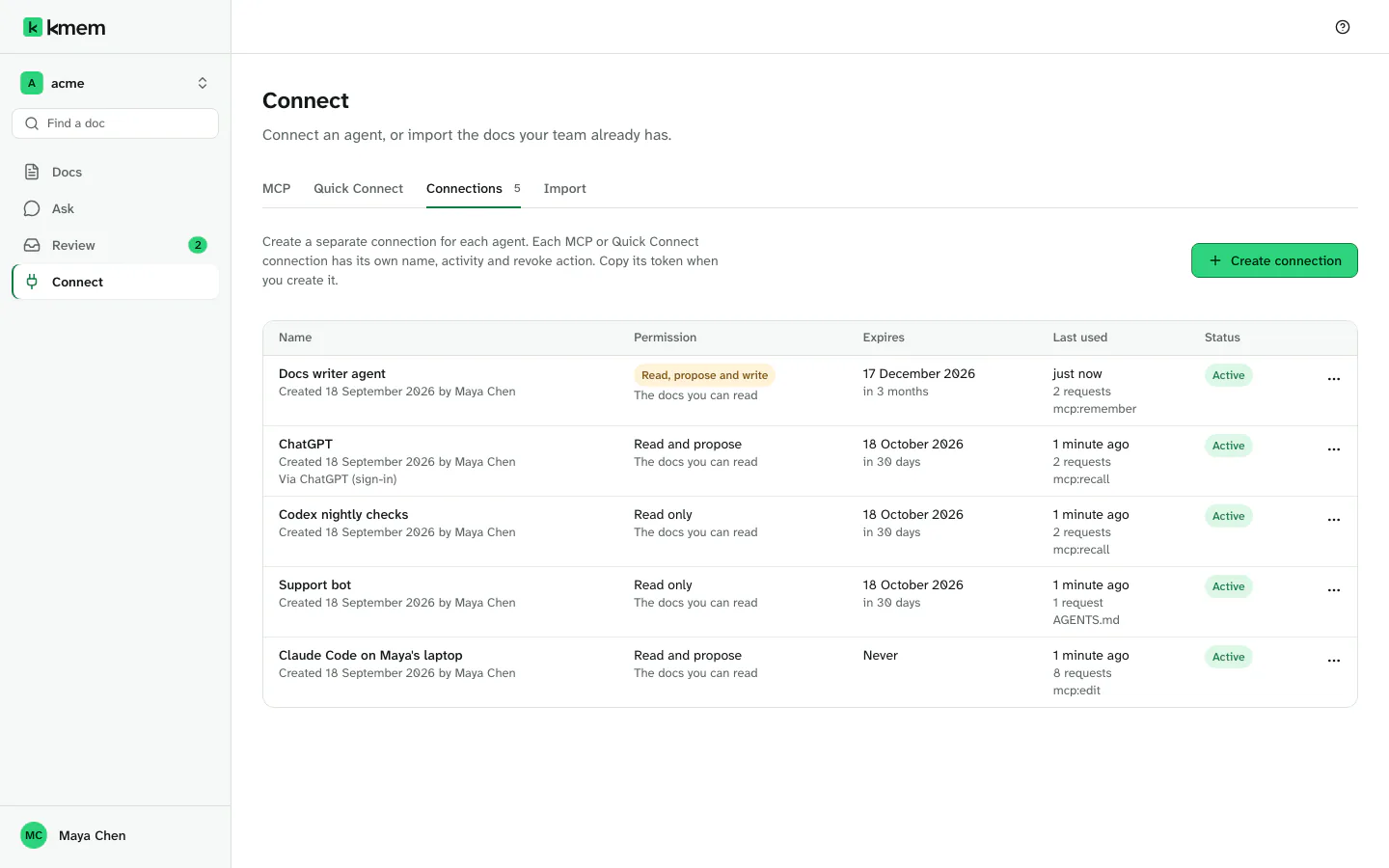
The list shows each connection with these columns:
- Name, with who created it and when, for example Created 16 Sep 2026 by Maya Chen. A connection that a client made by sign-in also shows Via ChatGPT (sign-in).
- Permission: Read only, Read and propose or Read, propose and write.
- Expires: the date, or Never.
- Last used: the time of the last request, or Never used.
- Status: Active, Expired or Revoked.
- Actions: the menu of the connection.
A member sees only the connections that they created, and can rename, undo and revoke only those. Owners and admins see every connection of the org, and can rename, undo and revoke any of them.
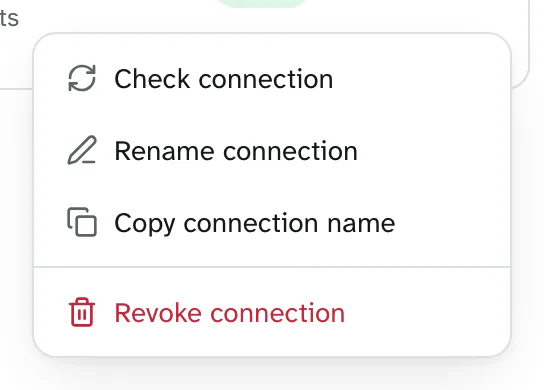
The menu of a connection can have these items:
- Check connection, for an active connection.
- Create replacement, for an expired connection that uses a token. kmem opens the form with the same name and permission.
- Reconnect in ChatGPT, for an expired connection that a client made by sign-in. The item names the client.
- Rename connection and Copy connection name.
- Undo changes, for a connection with Read, propose and write.
- Revoke connection, for an active connection.
Rename a connection
- In Connections, open the menu of the connection.
- Select Rename connection.
- Type the new name.
- Select Save name.
kmem says Connection renamed. Agents that use the connection continue to work. Every record from now on uses the new name.
Revoke a connection
Revoke a connection when an agent must stop its access, for example when somebody loses a laptop.
- In Connections, open the menu of the connection.
- Select Revoke connection.
- kmem asks Revoke Claude Code on Maya's laptop? with the name of the connection.
- Select Revoke connection. Select Keep connection to cancel.
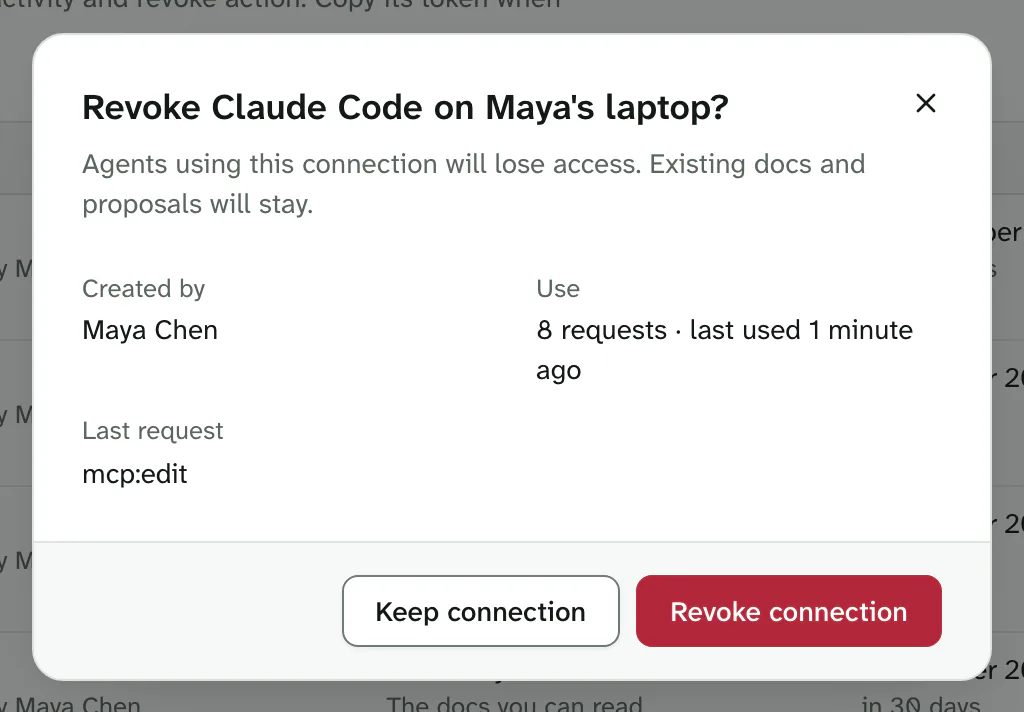
kmem says Connection revoked. The agent loses access on its next request. The docs and the proposals of the agent stay.
You cannot undo a revoke. To connect the agent again, create a new connection.
Undo the changes of a connection
A connection with Read, propose and write can change docs without a person. You can reverse all of its changes at one time.
- In Connections, open the menu of the connection.
- Select Undo changes.
- Read the dialog. It shows the number of changes to reverse and the number of proposals to withdraw.
- Select the button, for example Undo 3 changes.
kmem removes the docs that the connection added. It puts the docs that the connection edited back to their earlier version. The history of each doc keeps every version.
If a person changed a doc again after the connection edited it, kmem does not change that doc. The dialog lists such docs.
When a member leaves the org
When a person leaves the org, or an owner or an admin removes that person, every connection of the person in that org stops. kmem revokes those connections at once. This includes connections with no expiry.
If the person joins the org again later, the old connections stay revoked. The person must create new connections.
A password change does not stop agent connections.
Where each client keeps its settings
| Client | Setup | File or variable |
|---|---|---|
| Claude Code | A command | Claude Code stores the server for your user account |
| Cursor | A configuration | ~/.cursor/mcp.json |
| Codex | A configuration and a variable | ~/.codex/config.toml, and KMEM_TOKEN |
| OpenCode | A configuration | ~/.config/opencode/opencode.json |
| OpenClaw | A configuration and a variable | ~/.openclaw/openclaw.json, and KMEM_TOKEN |
| Hermes | A configuration | ~/.hermes/config.yaml |
| DeepSeek Harness | A configuration and a variable | $DSH_HOME/cordis.patch.yml, and KMEM_TOKEN |
| Gemini CLI | A configuration | ~/.gemini/settings.json |
Each file is in your home folder, not in a project. A project file can go into a shared repository, and the configuration holds your token or names the variable that holds it.
KMEM_TOKEN is the environment variable that holds the token of the connection. Set it in the environment that starts the client.