Connect Claude Code
Claude Code connects to kmem with one terminal command. The command adds kmem for every project on your computer.
kmem has tested this route with Claude Code.
Create a connection
- In kmem, select Connect. The MCP tab opens.
- Select Claude Code in the list of clients.
- Check the New connection form. For example:
- Connection name: kmem fills in a name, for example "Claude Code · Maya · 8 Oct". You can change it.
- Permission: Read and propose.
- Expires: 30 days.
- Select Create connection.
Create a connection explains each field.
kmem shows the command for Claude Code, with the endpoint and the token filled in. Copy the token now. kmem shows it only one time.
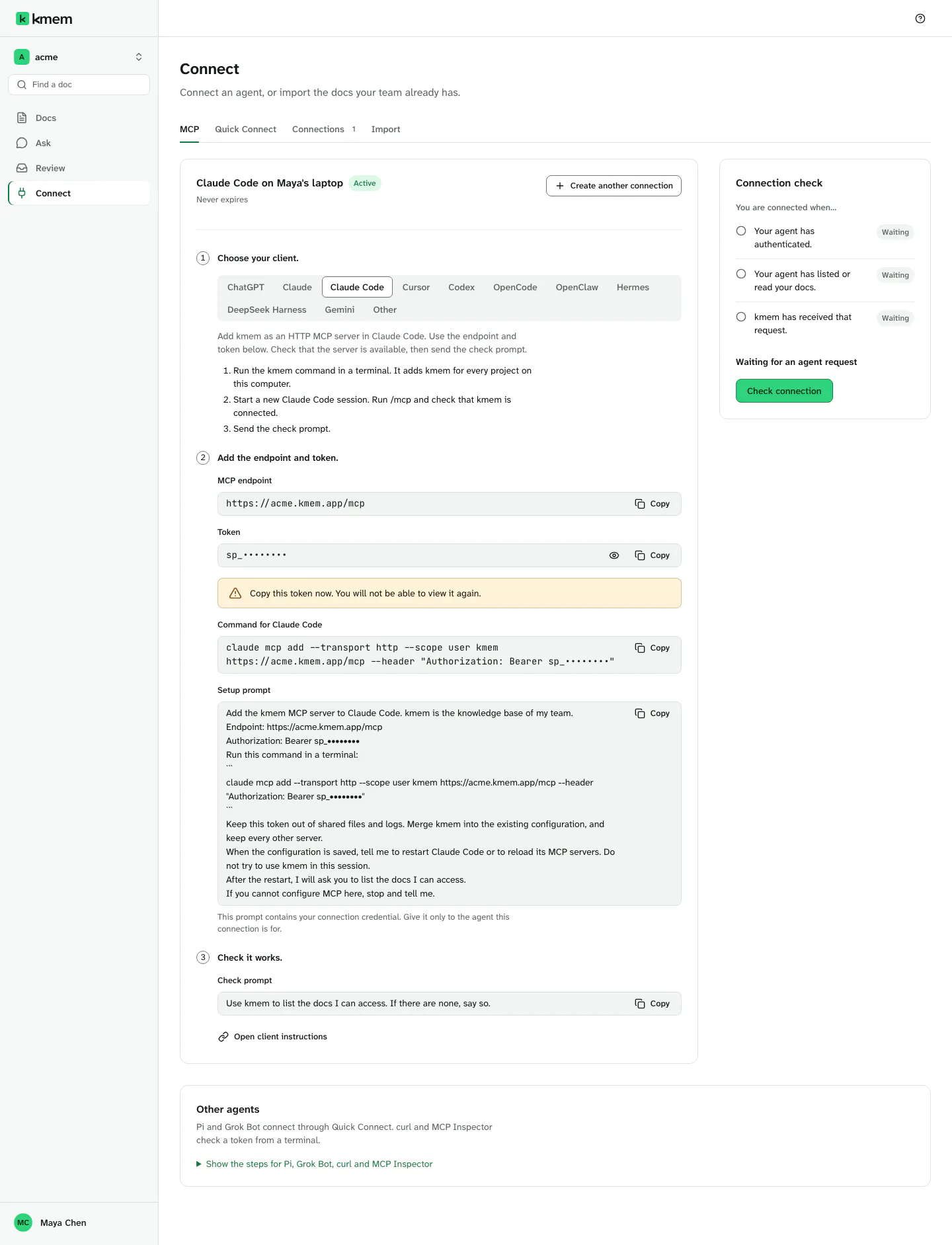
Run the command
- Under Command for Claude Code, select Copy command.
- Paste the command in a terminal, and run it.
The command looks like this:
claude mcp add --transport http --scope user acme-kmem https://acme.kmem.app/mcp --header "Authorization: Bearer YOUR_TOKEN"Replace acme with your org's subdomain, in the server name and in the endpoint. Replace YOUR_TOKEN with the token of your connection. The Connect screen fills in these values for you.
The command has these parts:
--transport httptells Claude Code that kmem is a remote MCP server.--scope useradds kmem for your user account, so every project on this computer can use it. Without this option, Claude Code adds the server only for the folder where you ran the command.acme-kmemis the name of the server in Claude Code. The server name is<your-org>-kmem, for exampleacme-kmem. Each org has its own server name, so one computer can hold the kmem of more than one org.- The
--headeroption sends the token with each request.
If Claude Code says that a server with that name already exists, remove the old server first. Read Remove kmem.
Check the connection
- Start a new Claude Code session.
- Run
/mcp. Check that acme-kmem is in the list and connected. - Send the check prompt:
Use kmem to list the docs I can access. If there are none, say so.- In kmem, select Check connection. The three checks must show Seen.
If acme-kmem is not connected in /mcp, check the command. The endpoint must end with /mcp, and the token must be the token of an active connection.
Let an agent do the setup
You can ask an agent to add kmem for you. The Setup prompt holds the endpoint, the token and the steps for Claude Code.
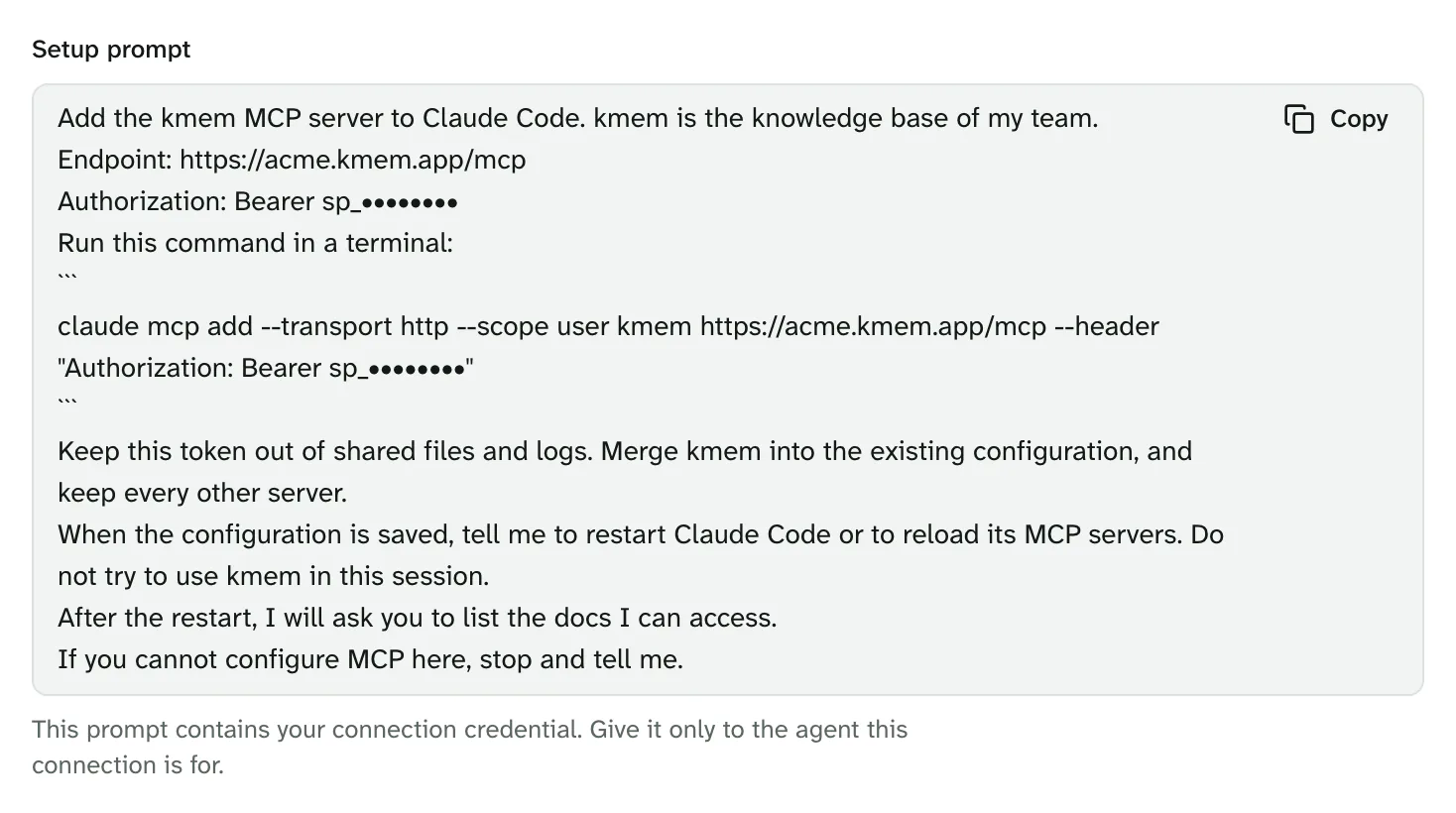
- Under Setup prompt, select Copy setup prompt.
- Paste the prompt into Claude Code, or into another agent on the same computer.
- The agent runs the command. It then tells you to start Claude Code again.
- Start a new session, and send the check prompt.
The setup prompt contains your token. Give it only to the agent that the connection is for.
Remove kmem
To remove kmem from Claude Code, run this command. Use the server name of your org:
claude mcp remove acme-kmem --scope userAn earlier command from kmem used the server name kmem for every org. If /mcp shows a server named kmem, remove it with claude mcp remove kmem --scope user. Then add the server of each org again.
Then revoke the connection in kmem. Read Revoke a connection.
To change the token, remove kmem, then run the new command from Connect.
The kmem plugin for Claude Code
kmem also has a Claude Code plugin. The plugin adds the kmem server, a skill that tells Claude Code when to search and write kmem, and three hooks. The hooks are off until you turn them on.
The plugin is in the kmem source repository. It is not in a public plugin marketplace yet. You do not need the plugin to use kmem. The command on this page is enough.