Manage members and groups
Members are the people in your org. A group is a set of members. You can share docs and folders with a group.
Roles
Each member has one role.
| Role | What the person can do |
|---|---|
| Owner | Everything that an admin can do. An owner can also delete the org and delete folders. Owners can always read every doc, Private docs included. |
| Admin | Everything that a member can do. An admin also manages members, groups, connections and the org settings. |
| Member | Read and write docs, review agent proposals, connect agents, use Ask, and export the docs that the member can read. |
An org always has at least one owner. Nobody can remove the only owner or change the role of the only owner. Make another member an owner first.
Only an owner can change the role of another owner, or remove another owner.
An admin is a member for private folders and docs. An admin who is not on the list of a private folder cannot read it. Only owners pass every list.
Open the member list
- Open the org menu. Select the name of the org.
- Under This org, select Members and groups.
The Members page opens. Only owners and admins can open it.
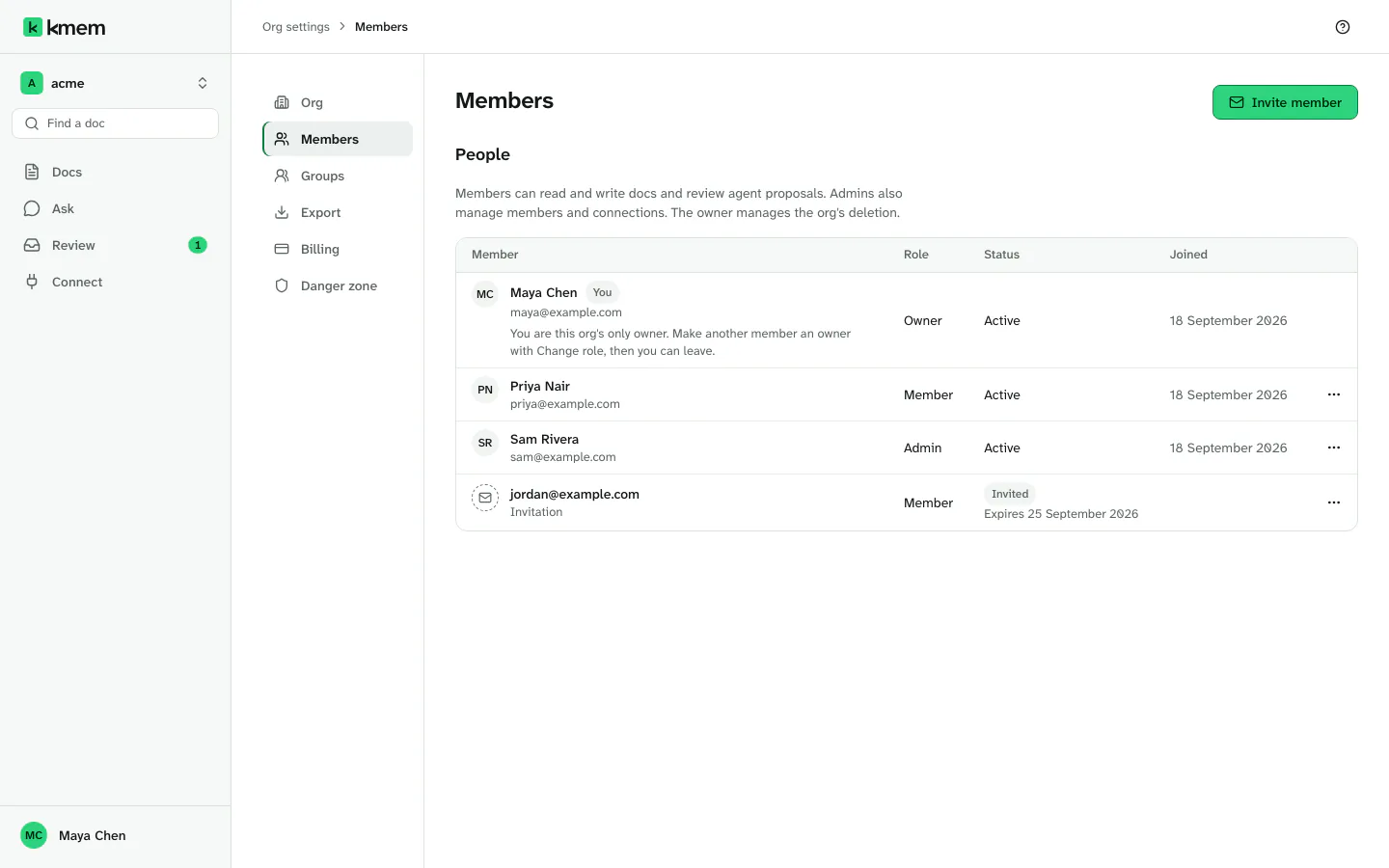
The People list shows each person with these columns:
- Member: the name and the email address. Your own row says You.
- Role: Owner, Admin or Member.
- Status: Active, or Invited for an open invitation. An invitation also shows its expiry date, or Expired.
- Joined: the date when the person joined.
- Actions: the menu of the row.
Invite a member
- On the Members page, select Invite member.
- In Email address, type the address of the person.
- In Role, choose Member or Admin.
- In Group, choose a group, or No group.
- Select Send invitation.
kmem sends an email with an invitation link, and names the address, for example Invitation sent to sam@example.com. The dialog then shows the Invitation link. If the email does not arrive, select Copy and send the link to the person yourself.
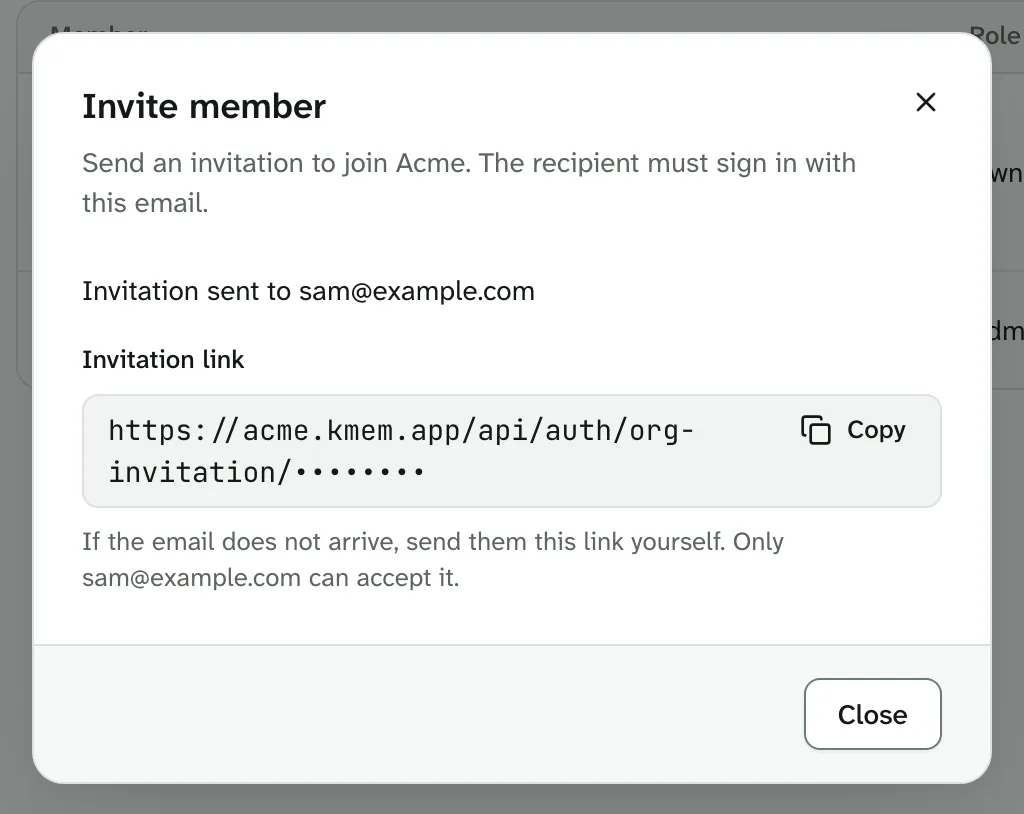
The person must sign in with the invited email address. Join an org from an invitation tells the person what to do.
An invitation expires after 7 days. It works one time.
If kmem says This person is already a member. Find them in the member list., the person is already in the org.
If kmem says An invitation is already pending for this email. Resend it from the member list., resend the open invitation. The next section explains how.
To make a person an owner, invite the person as a member or an admin. Then change the role after the person joins.
Send the invitation link yourself
An invitation email can fail to arrive. The Invite member dialog then helps you:
- After you send the invitation, find Invitation link in the dialog.
- Select Copy link.
- Send the link to the person in a message that you trust.
Only the invited email address can accept the link. If another person gets the link, that person cannot join with it.
Resend or revoke an invitation
- On the Members page, find the row with the status Invited.
- Open the menu of the row.
- Select one of these items:
- Resend invitation sends the email again. kmem says Invitation resent. The expiry starts again from 7 days.
- Revoke invitation stops the link. kmem asks for confirmation first, then says Invitation revoked. You can invite the person again later.
Change a role
- Open the menu of the member.
- Select Change role.
- In New role, choose Owner, Admin or Member. The dialog says what each role can do.
- Select Save role.
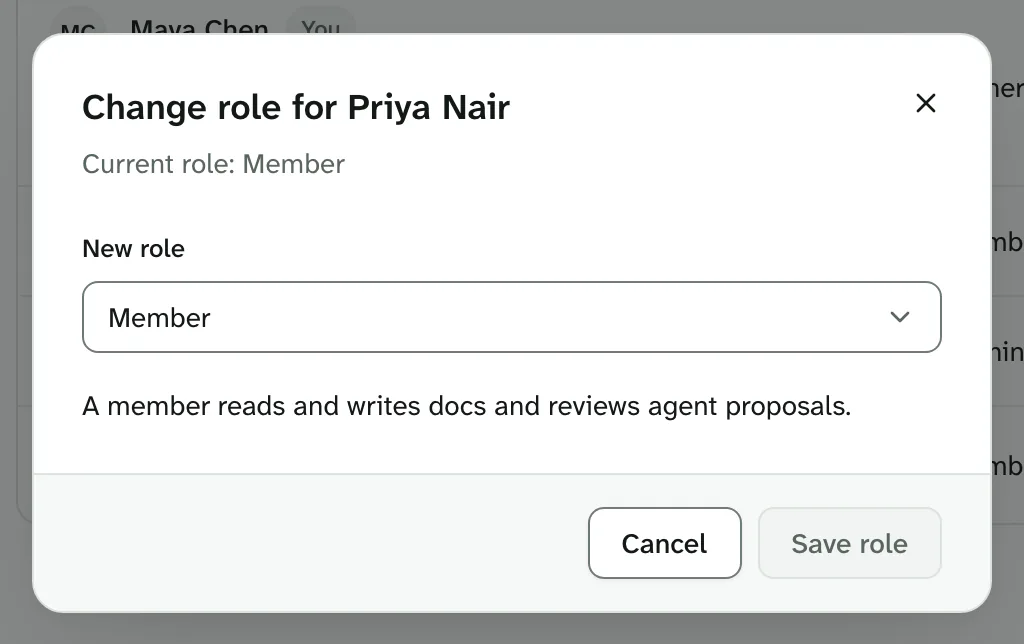
kmem says Role updated. The new role applies at once.
Remove a member
- Open the menu of the member.
- Select Remove member.
- Read the dialog. The person loses access to the org. Their docs and review decisions stay.
- Select Remove member. Select Cancel to stop.
kmem removes the person, and it revokes every connection that the person made in this org. Agents that used those connections lose access on their next request.
If the person joins again later, the old connections stay revoked.
Leave an org
An owner or an admin can leave from the Members page. A member who is not an admin cannot open that page. Such a member asks an owner or an admin to remove them.
- On the Members page, select Leave org.
- Read the dialog Leave this org?. You lose access to the docs and the review queue of the org. The docs that you wrote stay.
- Select Leave org.
kmem says You left this org. Choose another org to continue. Your connections in that org stop.
If you are the only owner, you cannot leave. Make another member an owner first, with Change role.
Create a group
A group is a named set of members, for example Engineering or Support. Share a doc or a folder with a group, and every member of the group can open it. Only owners and admins can create and change groups.
- Open the org menu, and select Org settings.
- Select Groups.
- Select Create group.
- In Group name, type the name, for example "Engineering". A name can have up to 80 characters.
- Select Create group.
kmem says Group Engineering created.
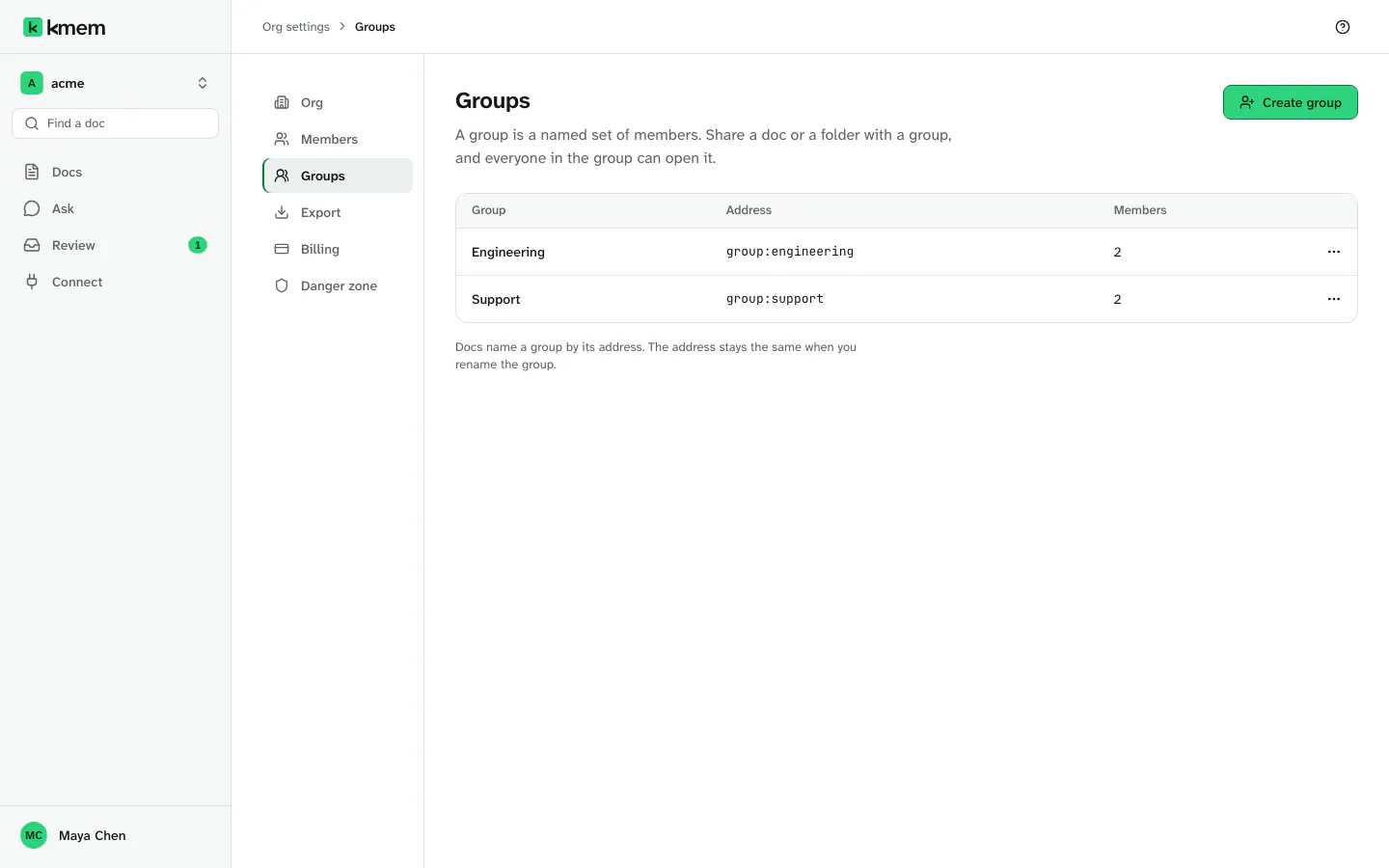
The groups table shows each group with these columns: Group, Address, Members and Actions.
kmem makes the address of the group from its name, for example engineering. Docs and folders name the group by this address. The address stays the same when you rename the group.
Add and remove people in a group
To add people:
- In the groups table, open the menu of the group, and select Show members.
- Select Add members.
- Select the members to add.
- Select Add members in the dialog.
kmem says how many members it added, for example 2 members added to Engineering.
To remove a person:
- Open Show members for the group.
- Select Remove beside the person.
- Read the dialog. The person loses the access that this group gives. Access that the person has in other ways stays.
- Select Remove from group.
You can also add a new member to a group when you invite the person. Choose the group in Group in the Invite member dialog.
Share docs and folders with a group
- Open the Share dialog of a doc or a folder.
- Select Private.
- Under People and groups, select the group. A group row shows the number of its members.
- Select Save access.
Share a doc with people and groups explains the dialog.
kmem writes the group into the Markdown of the doc as group: and the address of the group, for example group:engineering.
Rename a group
- Open the menu of the group, and select Rename group.
- In Group name, type the new name.
- Select Save name.
The address of the group does not change. Docs and folders that you shared with the group keep their access.
Delete a group
- Open the menu of the group, and select Delete group.
- Read the dialog.
- Select Delete group.
The members of the group lose the access that the group gave them. Docs and folders keep the group: entry in their Markdown, but the entry matches nobody.
If you create a new group with the same address later, the members of the new group get that access. Check which docs name the address before you reuse it.