Read and find docs
Docs is where the knowledge of your team lives. This page tells you how to browse folders, find a doc, and read a doc with its details and history.
The Docs overview
Select Docs to open the Docs overview. It is the first page that you see when you open your org.
The overview shows these parts, from top to bottom:
- Get started. The setup steps of a new org. The panel goes away when you complete the steps, or when you select Hide setup.
- The review panel. It shows how many batches wait for review, for example 2 batches waiting for review. Select Review batch to open the next batch, or View review queue to open Review.
- New docs and Recently updated. The docs that people and agents added or changed last.
- Recently opened. The docs that you opened in this browser. kmem keeps this list only in your browser, not on the server.
- Folders. The folders at the top level of the org, each with the number of docs in it.
Each doc row shows the title, the folder, the time of the last update and who wrote the doc. For example, a row can say Written by Maya Chen, Imported by Maya Chen or Agent proposed · Claude Code for Maya Chen. An agent always shows with the person who owns its connection. A doc a person wrote or imported never shows Unverified.
An agent has one name everywhere in kmem: the name of its connection. The doc row, each block, the history, Review and Sessions use the same name. When a write recorded no connection name, kmem uses the name of the client, for example Claude Code. In the status panel of a block and in Review, point to the name of an agent to see its client.
Browse folders
- Select Docs.
- Under Folders, select a folder. kmem opens the folder page, for example
/browse/engineering. - Select a folder in the folder page to go deeper, or select a doc to open it.
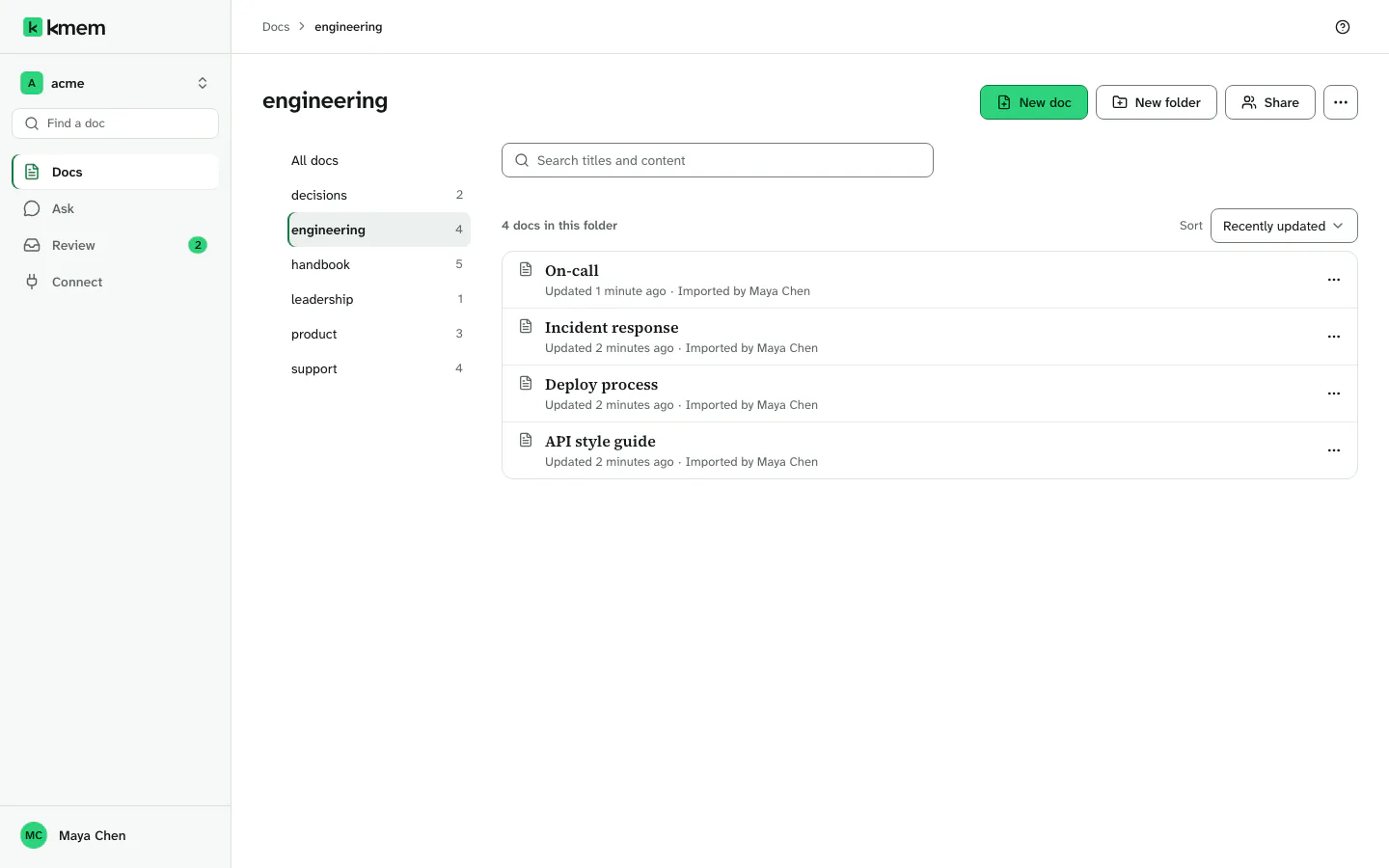
The folder page shows the subfolders first, then the docs in the folder.
- Use Sort to change the order. Recently updated shows the newest change first. Title sorts the docs by name.
- A long folder shows the first docs only. Select the button under the list, for example Show 25 more, to show more docs.
- A lock mark with the label Private folder means that only some members can read the folder. A Private chip on a doc means that only some people can read the doc. Read Control who can read a doc.
- A folder that you cannot open does not appear at all. Its docs and its name stay hidden from you.
Each row has a menu with more actions. Select the three dots at the end of a row to open it. The menu of a doc can have these items:
- Open
- Copy link
- Copy doc reference. This copies the
kmem://reference of the doc, which agents use. - Download Markdown
- Share, Rename or move and Delete doc, if you can edit the doc.
The menu of a folder can have these items:
- New doc in engineering and New folder in engineering. The items show the name of the folder.
- Rename or move folder and Copy folder path.
- Share and Delete folder.
Organize docs in folders explains each item.
Find a doc
- In Docs, select Find a doc.
- Type one or more words.
- Select a doc in the results.
The search looks in the titles and in the content of every doc that you can read, in all folders. Select Clear search to go back.
If a doc that you expect does not appear:
- Try other words. The search matches the words in the doc.
- Wait a few minutes if the doc is new. kmem shows a message while it indexes new docs.
- Check that you can read the doc. A Private doc does not appear for people who are not on its list.
Read a doc
Select a doc to open it. The doc opens in Read mode.
In Read mode the doc uses the full width of the page. The title, the doc line, the actions and the text start at the left edge of the page. Tables, code and images can also use the full width.
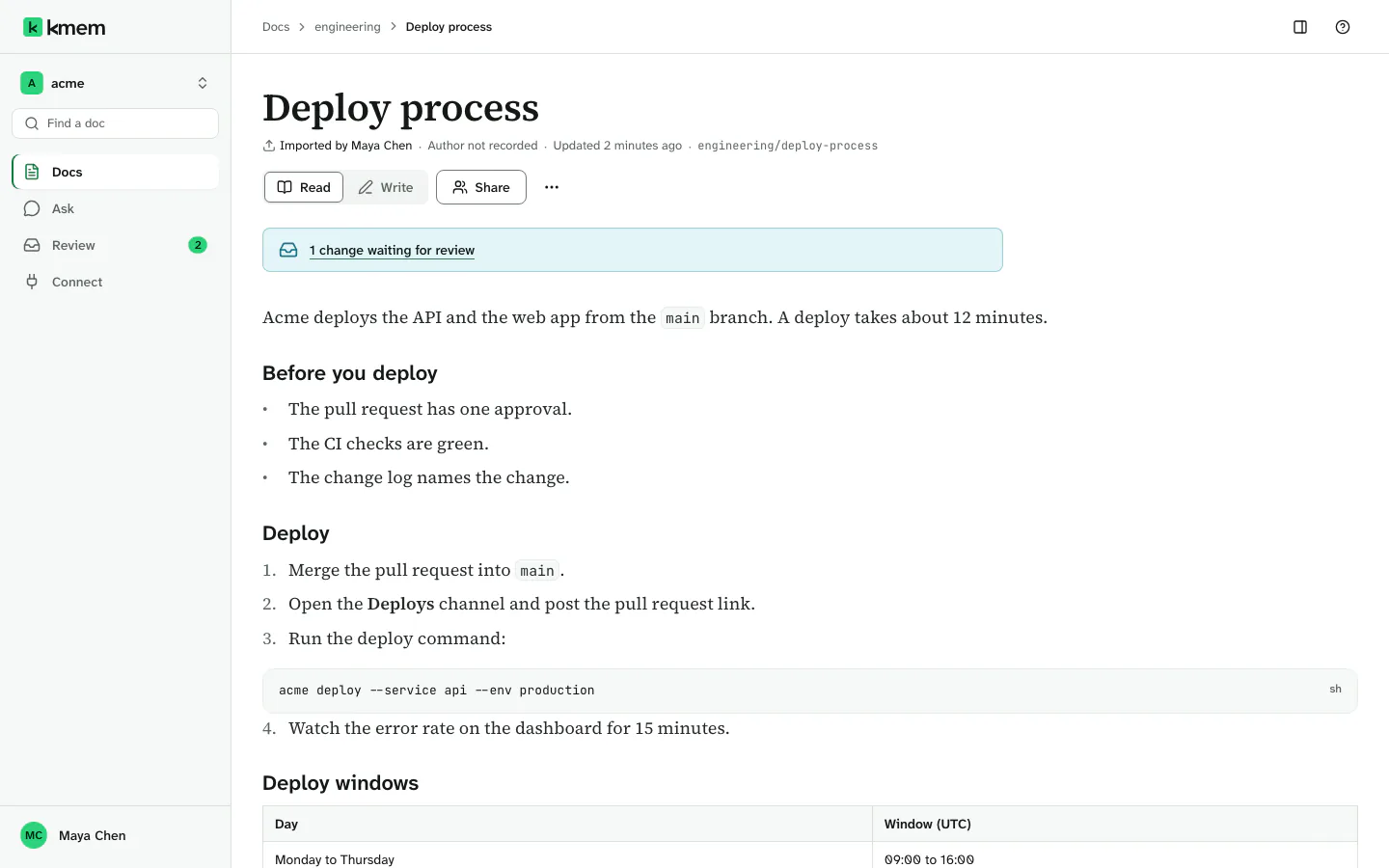
The top of the doc shows these parts:
- The breadcrumb, with the folder of the doc.
- The mode control, with Read and Write. Write opens the editor. Read Write and edit docs.
- The title of the doc.
- The doc line. It says who wrote the doc and when somebody updated it last, for example Updated 2 hours ago.
- Share, in a window that is 1024 pixels wide or wider, if you can edit the doc.
- Doc actions, a menu with more actions.
If changes to the doc wait in Review, the doc says so, for example 1 change waiting for review.
A wide table can be wider than the page. Scroll the table sideways to see all of its columns. On a narrow screen, select View cards to show each row as a card, and View table to go back.
Links between docs look like normal links. Select a link to open the other doc.
See the details of a doc
The Details panel shows the facts about the doc.
- Open the doc.
- Select the Details button at the top right of the page. The button shows a panel icon.
- Select the close button of the panel when you are done.
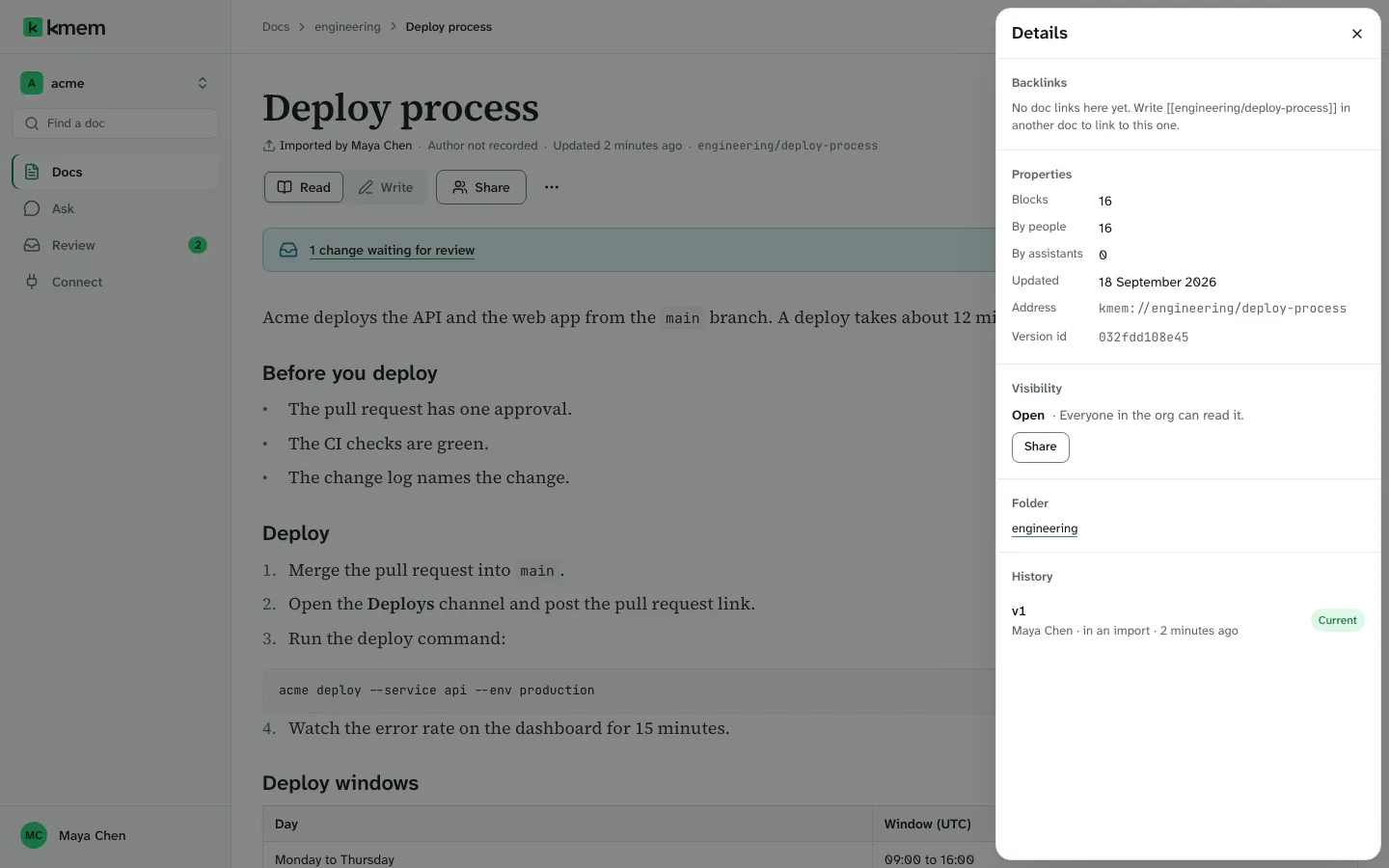
The Details panel has three parts:
- Backlinks. The docs that link to this doc. If no doc links here, kmem tells you how to add a link.
- Properties. The facts about the doc:
- Blocks: the number of paragraphs, list items and other blocks in the doc.
- By people and By assistants: how many blocks each kind of author wrote.
- Updated, Address, Folder and Version id.
- Visibility: the level of the doc, and the folder that set it. Read Control who can read a doc.
- History. The saved versions of the doc. The next section explains it.
If the org uses verification, Properties also shows how many blocks are Verified and Accepted. Read Verify facts.
See the history and restore a version
kmem keeps every saved version of a doc. You can compare an old version with the current version, and you can restore an old version.
- Open the doc.
- Select Doc actions, then View history. The History list opens in the Details panel.
- Select a version, for example Version 2. kmem shows who wrote it, when, and its size.
- Read what changed. kmem shows the lines that the newer versions added and removed.
- To restore the version, select Restore v2.
- Confirm the restore, or select Keep the current version to cancel.
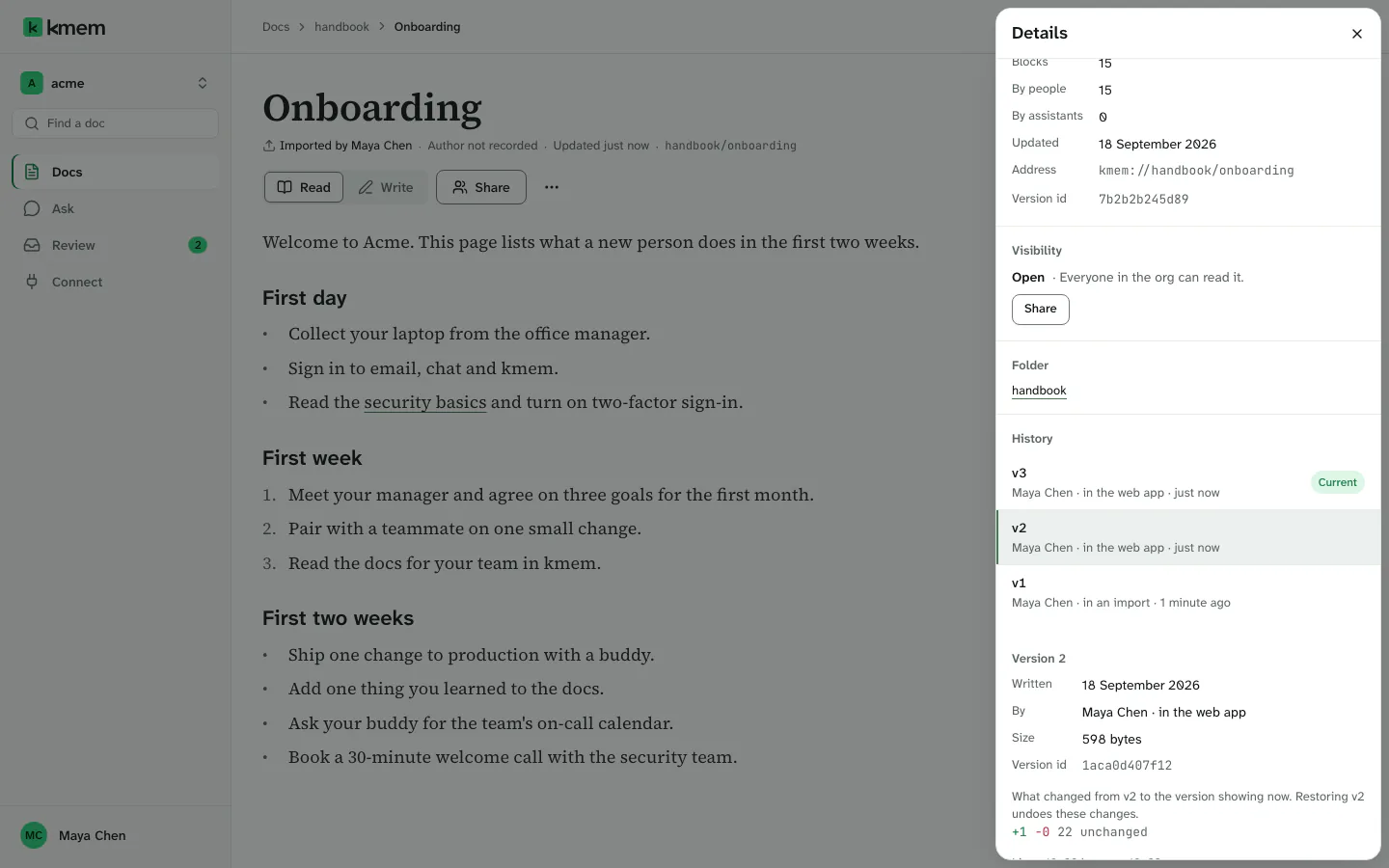
A restore does not delete anything. The restored text becomes the current version, and the text that it replaced stays in the history. kmem says Restored v2. The text it replaced is still in this list, so you lose nothing.
The history also says where each version came from, for example in the web app, through MCP or through Quick Connect.
Each version says who wrote it. A version that an agent wrote names the agent with the person who owns its connection, for example Claude Code for Maya Chen, an assistant. Some older versions do not record that person. For those versions, kmem looks for the one record of the write that names the person. If kmem cannot find exactly one, the version says so, for example Claude Code · owner not recorded.
Before you restore a version, save or discard the changes in the editor. A restore replaces the text on the screen.
Copy a link to a doc
- Open the doc.
- Select Doc actions, then Copy link.
- kmem says Link copied. Paste the link where you need it.
The link opens the doc at the address of your org. Only people who can open the doc can read it.
If your browser blocks the clipboard, kmem shows the link. Select it and copy it with your keyboard.
Download a doc as Markdown
- Open the doc.
- Select Doc actions, then Download Markdown.
kmem downloads the saved doc as a .md file. If you have unsaved changes, the item says Download saved Markdown. The file then does not include your unsaved changes.
To download many docs at a time, use Export. Read Export docs.
Focus mode
Focus mode hides the navigation, so that you can read without other items on the screen. The doc then uses the full width of the window.
- Open the doc.
- Select Doc actions, then Enter focus mode.
- To leave focus mode, select Exit focus mode, or press Esc.